Prerequisites
Verify History Data
To verify history data is being collected use the HDAprobe application provided with DeltaV.
To run, browse to C:\DeltaV\bin or C:\DeltaV\DVUtilities and double-click HDAprobe.exe.
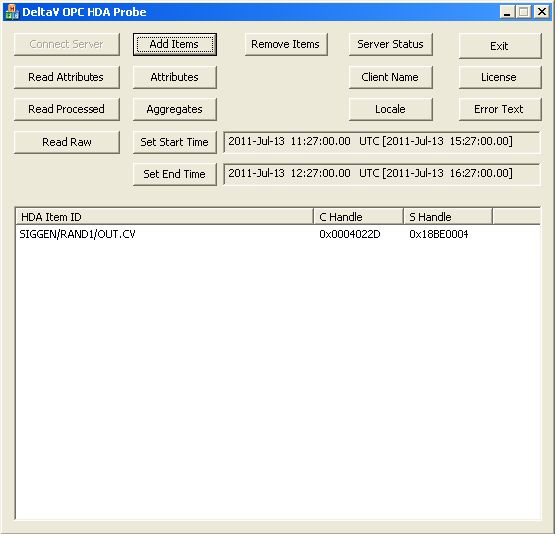 |
Click Connect Server and select DeltaV.OPCHDAsvr.1.
Click Add Items. This opens the Add HDA Items window.
Click Browse to open the OPC HDA Browse window.
Click New Browser to view a list of tags.
Select a tag and click OK. That tag is now listed in the Add HDA Items window.
Click Add to add the tag
Click Done to return to the main DeltaV OPC HDA Probe window.
Now that a tag is selected, data can be read. Select the tag and click Read Raw to read the raw values recorded for the selected tag. This opens the HDA Read Raw window.
Click Set Start Time and Set End Time to specify the time frame.
By default, time is in UTC (universal time). Check local to convert to local time.
Click Read Raw. If this is successful, HR displays Success.
To view the raw values, click View Values.
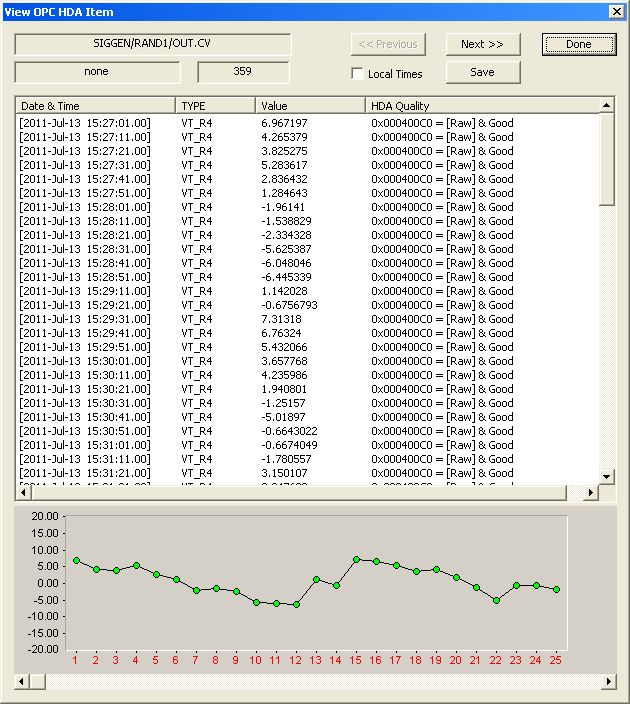
This opens the View OPC HDA Item window that displays the historical data for the tag selected as well as a graph. Click Done to close.
 |
To retrieve processed values (e.g., averages, maximums, minimums, etc.) follow the steps above but click Read Processed instead of Read Raw.
If the client does not respond as described contact Emerson Automation Solutions technical support to troubleshoot and correct these issues.