Set up FactoryTalk Alarms and Events
Define a Database
FactoryTalk Alarms and Events are logged to either Microsoft SQL Server or SQL Server Express. This database can be located on the local machine or across the network
To specify the database, open the FactoryTalk View Studio, expand System, Connections, Database.
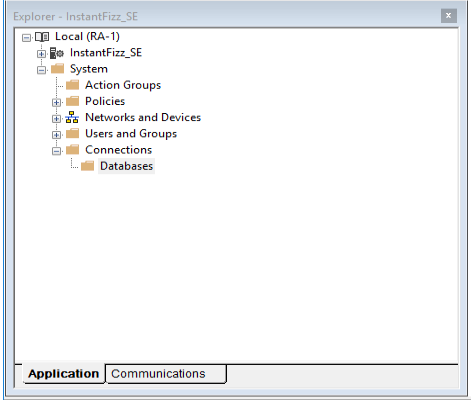
Right-click Database and select New Database.
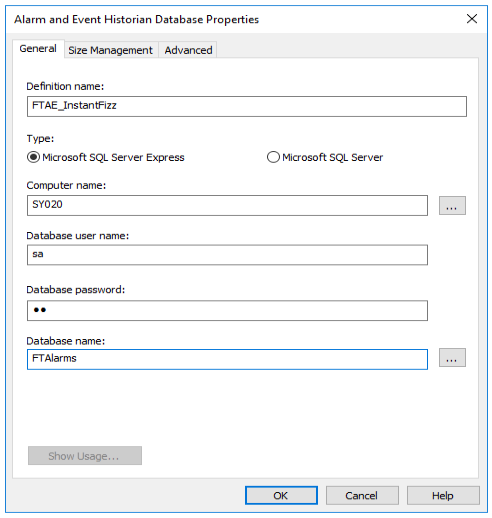
Under the General tab specify the settings for your available Microsoft SQL Server Express or Microsoft SQL Server installation. For Database name browse to select an existing database or enter a new database name.
Configure Alarm Monitoring
FactoryTalk Alarms and Events support device-based monitoring and tag-based monitoring.
Device-based monitoring is configured and downloaded to the controller with built-in alarm instructions.
Tag-based monitoring is configured in FactoryTalk View Studio by first adding a Tag Alarm and Event Server. On the left side of the Studio, right-click an application and select Add New Server, Tag Alarm and Event Server.
The following describes tag-based monitoring configuration:
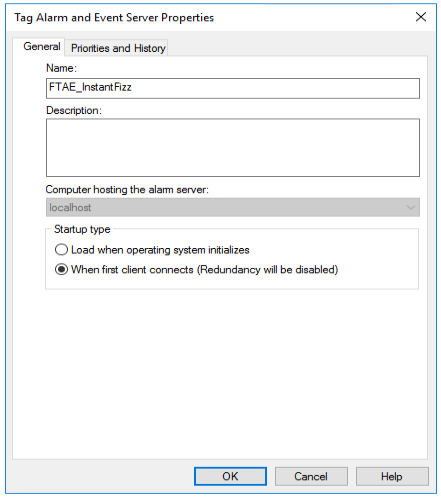
Under the General tab specify the Name for the server.
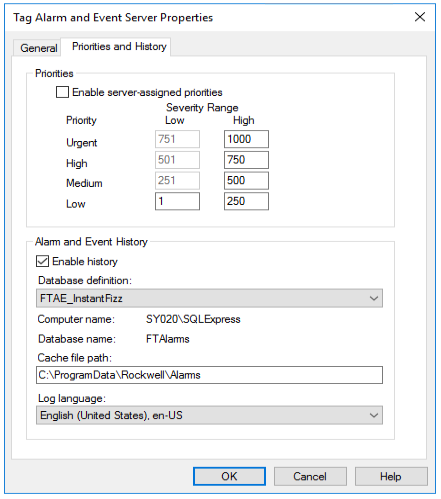
Under the Priorities and History tab, check Enable History
Set Database definition to the name defined in the previous step
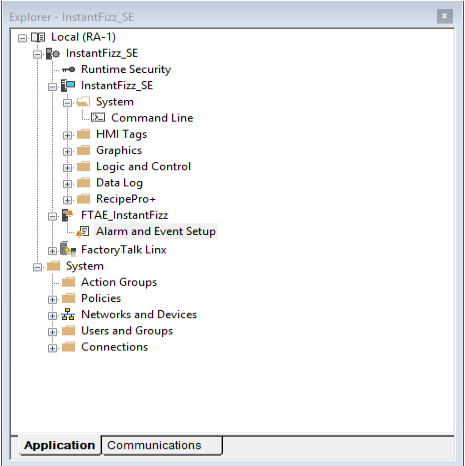
Tag-based alarms can now be configured in the Studio. Expand the Tag Alarm and Event Server defined in the previous step and double-click Alarm and Event Setup.
 |
Tag-based alarms can be added, modified, or removed within this application.
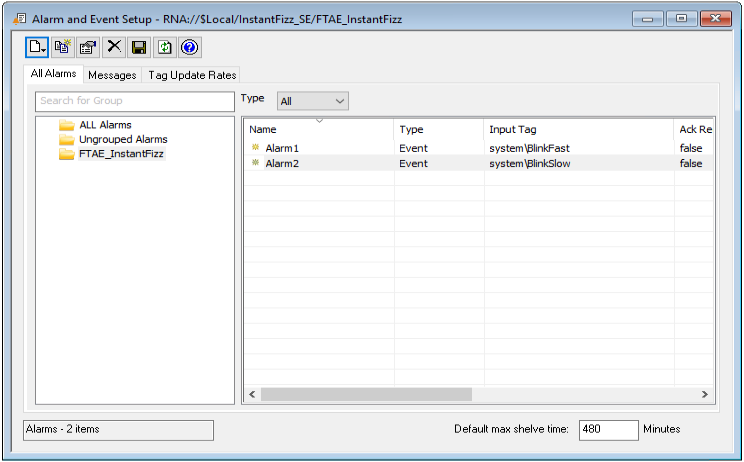 |
To add a new alarm to the Alarms and Events Server you defined, select it on the left-hand side, then select the New icon  and choose the type of alarm to configure: Digital, Deviation, Level or Event. Refer to the FactoryTalk Alarms and Events System Configuration Guide for details on how to configure each alarm type.
Every alarm configured for the selected server is listed on the right. An existing alarm can be modified by double clicking anywhere on the row. An existing alarm can be deleted by selecting the row and clicking the Delete icon .
.