Connector
To configure the connector, from the Project Explorer select Connect, Connectors.
Click Add
Select Database (time series), Historical values (narrow multi-column)
Click OK
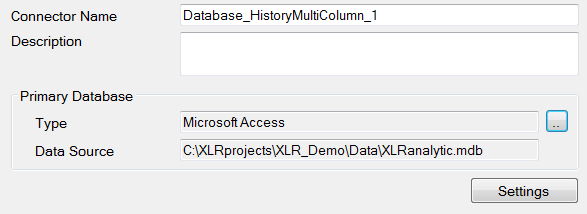
Primary Database
This defines a connection to the database where the report data is located. A browse button […] is provided to define. If there are issues connecting to the database, please refer to the section in the Database Connectors document on the specific database.
Settings
 |
Tables Tab
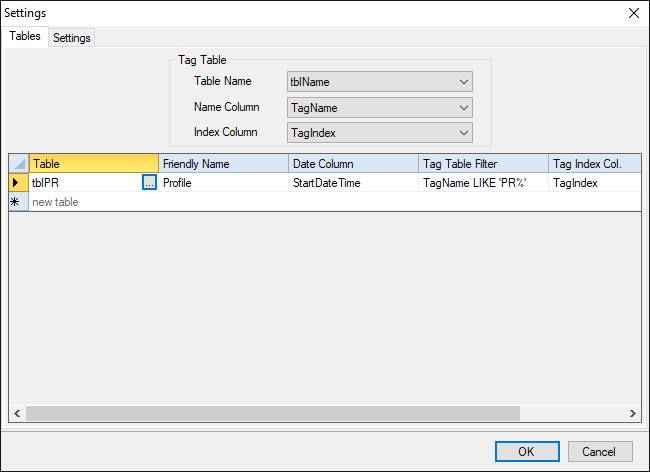
The Tables tab displays the settings to define the Tag Table and the list of data tables for the connector.
The Tag Table settings define the table where the tag names can be queried from for browsing purposes. The following settings are required:
Table Name
The name of the tag table in the database.
Name Column
The column in the tag table with the tag names to display for the user.
Index Column
The column in the tag table with the index used to link the tag table to the data table(s) in the database.
The list beneath the Tag Table section defines each table in the database that can be queried to retrieve data. To define a data table, click the browse pushbutton […] under the Table column.
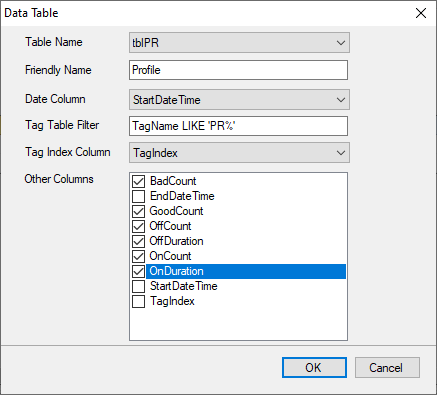 |
The following elements are required:
Table Name
The name of the data table in the database.
Friendly Name
A friendly name for the table. This will appear in the browser for the user to select from.
Date Column
The column in the data table that contains the timestamp to filter records on.
Tag Table Filter
A filter for the tag table to extract the tag names relevant for this data table. For example, if all the tags in the tag table for this data table start with “PR”, this should be defined as:
TagName LIKE ‘PR%’
If no filter is required, this can be left blank.
Tag Index Column
The column in the data table used to link to the tag table.
Other Columns
The columns in the data table that provide the data. Check all that apply. Every column in the selected Table Name is listed.
Settings Tab
The Settings tab provides the settings used to query data from the database. For more information see Settings in the Historical values (wide) section of this document.