Overview
The Project Explorer provides easy access to all the features of XLReporter. It is opened from the Start menu of Windows or from the shortcut added to the desktop during installation.
The interface consists of a menu ribbon and multiple panes for viewing project templates and status.
 |
Please note that only one project can be active at one time so your entire reporting solution should be contained in a single project.
Open a Project
From the menu select File, Open Project to open an existing project. If the desired project does not appear in the list, it can be browsed to using the button for Project.
 |
For the Distributed edition, after opening a project you are prompted to update the web portal. This requires administrator rights. If you cannot provide those rights, you may not be able to view reports in the web portal.
Backup a Project
To backup a project, select File, Backup Project. This creates a compressed copy of the project.
The backup is based on the File Management configuration xlrProjectBackup which can be modified in Tools tab, Distribute, File Manager. By default, this is set up to back up the project’s Input and Data directories as well as any logs or reports generated within the last week.
Restore a Project
To restore a project that has been backed up using the Backup Project option, select File, Restore Project. Browse to the .zip file of the backed-up project and click Open. This can be very useful when transporting a project from one machine to another.
A project is restored to the original location it was backed up from. If a project exists in this location, the project is not restored, and an error message is shown. In order to restore an existing project on the system you must remove or rename the existing project folder.
If the original location is not available on the system, the project is restored in the same folder structure on the drive where XLReporter is installed. Additionally, the drive specified for the Reports, PDF and Web folders are updated if they are also set for the drive that is not available.
This means that if the project was originally located in D:\XLRprojects\My Project and then brought to a new machine that does not have a D drive and where XLReporter is installed on the C drive, when restored, the project is restored to C:\XLRprojects\My Project.
Demo Project
By default, the XLReporter Demo project is loaded after installation. This project is provided to demonstrate many of the features of the product. It is recommended that you create your own project for your reporting solution rather than adding to this project.
If the demo project is the active project when the Project Explorer is opened, the following prompt is shown:
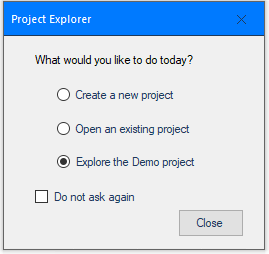 |
If this installation of XLReporter is to demonstrate the product, check the Do not ask again option so this dialog does not pop up every time you open the Project Explorer.