Transform Range
The Transform Range function takes a range consisting of two rows of headings and one row of data and transforms this to a summary table.
For example, suppose the values in the report are displayed as follows (typical format from a history group):
 |
Using this function, this data can be shown as a summary table in either of the two styles:
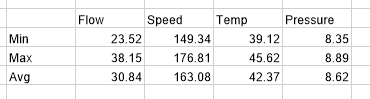
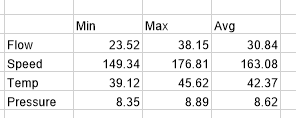
The transformation takes the top two rows and treats them as either the column or row captions. The third row is used as the data for the summary table.
If the Source does not contain 3 rows then this function does nothing, more than 3 rows then the first 3 rows are considered. If there are empty cells within the headings of the Source range, it assumes the text of the cell to the left. For example, if the Source range is:
 |
The headings in $C$3 and $D$3 are treated as Flow, $F$3 and $G$3 are Speed and so on.
 |
The Placement can be set to a cell within the Source range.
Settings | |
|---|---|
Orientation | This setting determines the orientation of the summary table.
|
Paste | The elements from the Source (e.g., formats) that are applied to the summary table. This applies both to the row and column headers as well as the data. |
Clear Source | If set to Yes, the Source range is cleared, otherwise it is left in the sheet. |
Example
A user can select up to ten tags from their historian to get the minimum, maximum and average over a specified time period. The report is to show each selected tag as a row with the minimum, maximum and average shown as three columns.
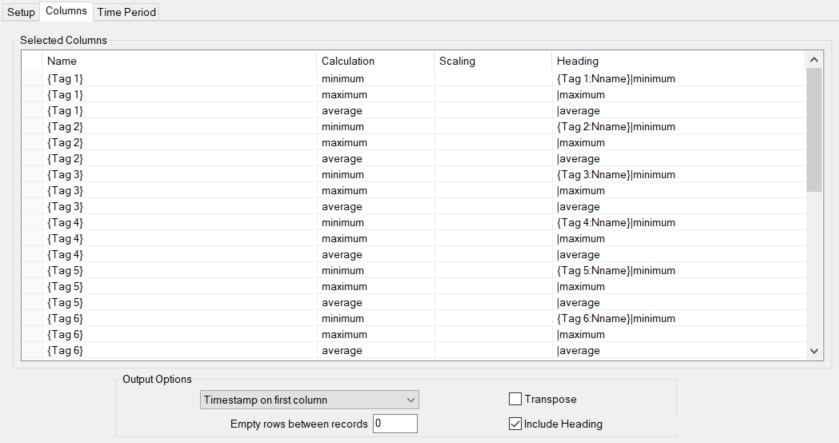
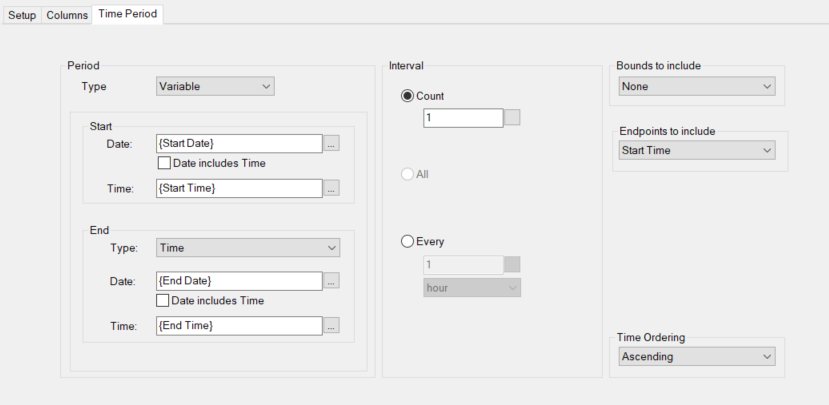
The history data group provides the data which has the Columns and Time Period tabs configured as follows:
 |
 |
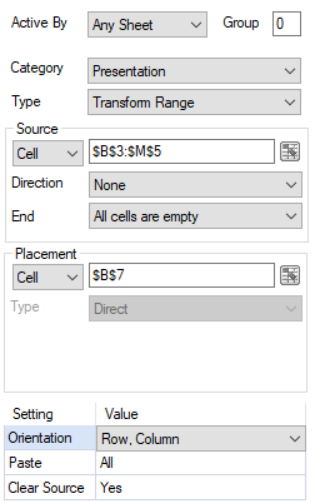
This group is connected to cell $B$4 in the template. The Transform Range management function is set up as:
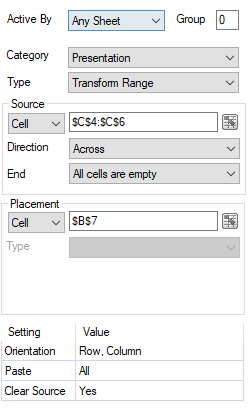 |
Note that the Source starts on column C since the timestamp is in column B. It also acounts for the user selecting a variable number of tags.
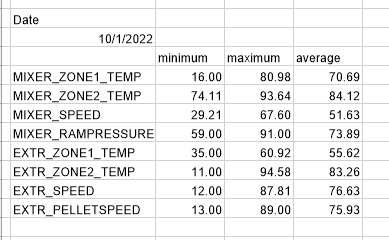
The summary table produced for the report will look like: