User Interface
The Status Logs are viewed in the viewer opened from the Project Explorer, on the right-side Tools tab, in the Diagnostics section by clicking Status Log. It is used to view the status logs that are generated when actions are processed.
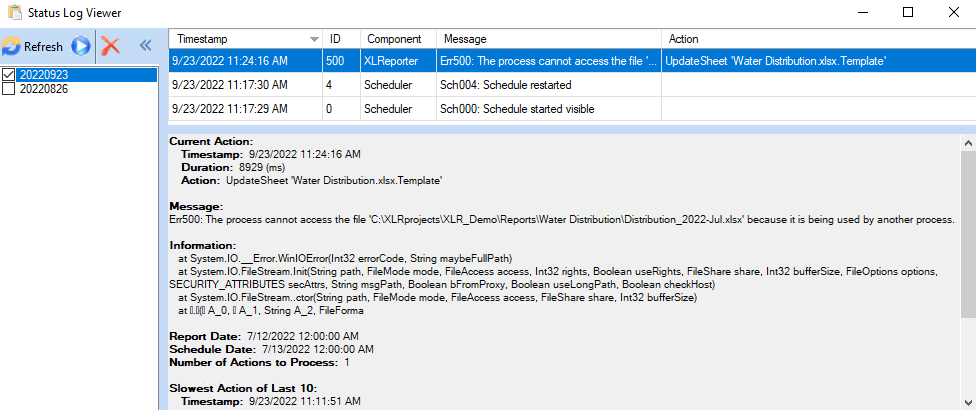 |
The log files are created daily and stored in the Log folder of the project and are named for the Year (4 digits) Month (2 digits) and Day (2 digits) they occurred. The contents displayed are the files with the checkbox next to the name. Multiple files can be selected and displayed at once.
To delete the checked files, click the delete button.
Logs
The right pane shows a grid with each log recorded. If additional log files are selected and Refresh is clicked the display refreshes with all the logs in those files. The display can be refreshed periodically by clicking the start refresh button  .
.
If content is not fully visible it can be displayed in a popup is shown by hovering the mouse cursor over the text. All log information is also available in the bottom pane.
The content of the grid can be filtered by right clicking on the headers of each column.
Troubleshooting
The Status Log is helpful for troubleshooting why something in the project may not be working as expected.
For example, the error seen in the above image, Err500: The process cannot access the file ‘C:\XLRprojects\XLR_Demo\Reports\Water Distribution\Distribution_2022-Jul.xlsx’ because it is being used by another process indicates that this report is either open or being used elsewhere. To allow this action to successfully execute, all instances of this file must be closed.