Data Group
The following describes the historical data group settings specific to the Proficy Historian connector.
Group Types
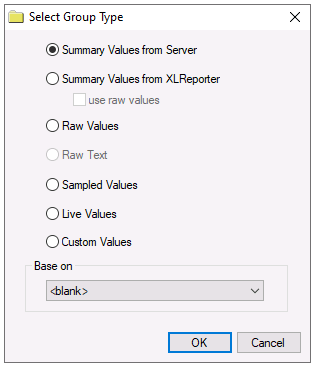 |
For Proficy Historian the following group types are available:
Summary Values from Server
This group type retrieves summary calculations directly from the historian. For Proficy Historian, the following calculations are available:
Average
Maximum
Time of Maximum
Minimum
Time of Minimum
Count
Total
Standard Deviation
Interpolated
Raw Average
Raw Standard Deviation
Raw Total
Time Good
First Raw Value
First Raw Time
Last Raw Value
Last Raw Time
State Count
State Time
Summary Values from XLReporter
This group type retrieves sampled values from the historian and performs calculations on those samples for reporting.
By default, summary values are calculated time weighted and values are propagated based on the last known value. However, to change this so that summary values are calculated strictly on the data returned check use raw values.
Raw Values
This group retrieves values logged to the historian between the start and end time specified.
Sampled Values
This group retrieves lab sample values from the historian between the start, end and interval specified.
Live Values
This group retrieves the last recorded values in the historian for every selected tag.
Custom Values
This option opens the Database Group builder where a query can be configured to retrieve data from any table available in the database connected to by the connector.
Group Settings
Setup Tab (Summary Values for XLReporter)
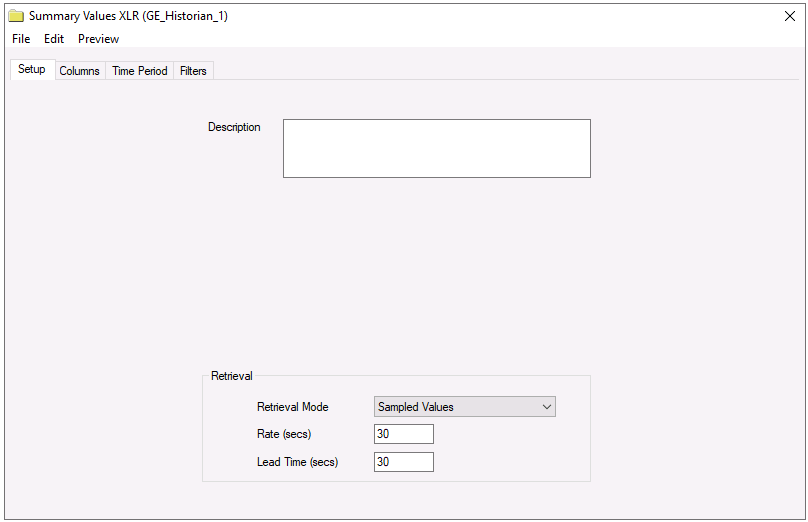 |
The Retrieval settings define how data is retrieved for the calculations selected for the group. The following settings are available:
Retrieval Mode
This setting defines how data is retrieved from the historian. For Proficy Historian Sampled Values and Raw Values are available.
Sampled Values use the Lab Sample retrieval mode.
Rate is the interval (in seconds) that sampled values are retrieved from the historian.
Lead Time is the amount of time (in seconds) to retrieve data before the start time.
Rate
Time Period Tab (Raw Values)
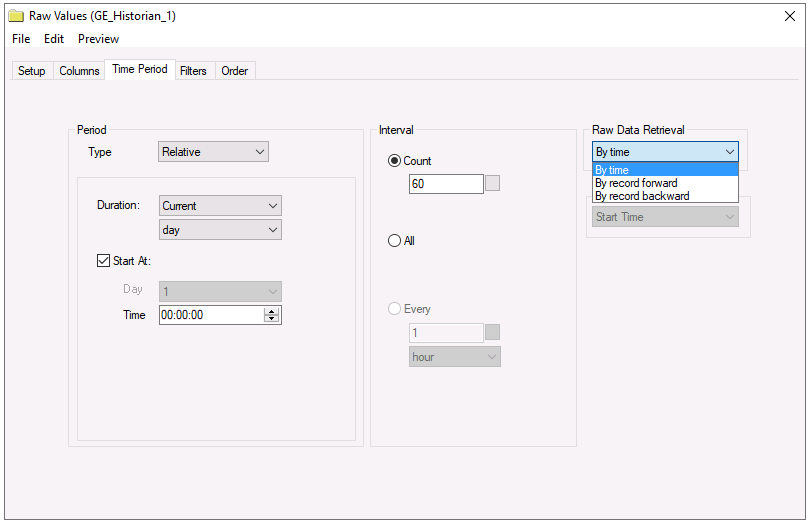 |
For Raw Values, the Raw Data Retrieval defines the time period for the group. The following options are available:
By time | Using this option, raw data is retrieved between the Start and End configured. |
By record forward | Using this option, raw data is retrieved from the Start going forward for the number of samples defined in the Interval Count setting. The End is ignored. |
By record backward | Using this option, raw data is retrieved from the Start going backwards for the number of samples defined in the Interval Count setting. The End is ignored. |
Filters Tab
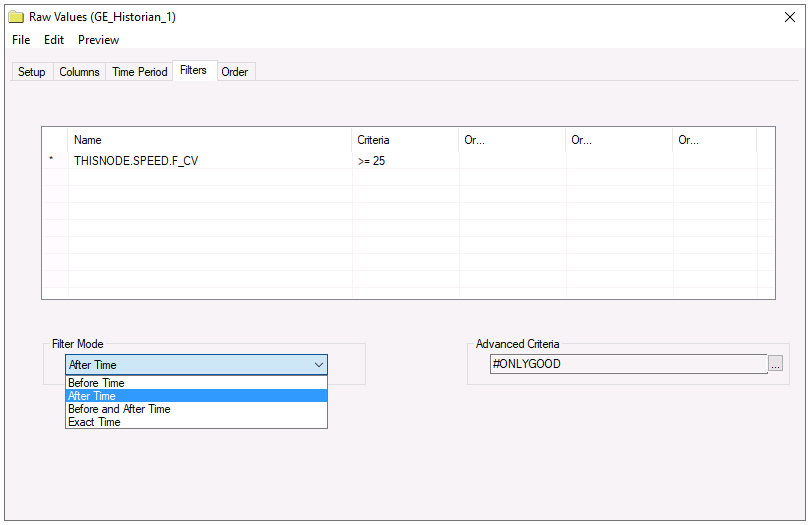 |
All filtering is performed on the Historian server.
Filter Mode
The Filter Mode determines how values are interpolated when the filtering is applied.
Exact Time means that data is retrieved for the exact times when the filter condition(s) are true.
Before Time means that data is retrieved from the time of the last false filter condition(s) up until the time of the true condition for each filter.
After Time means that data is retrieved from the time of the true filter condition(s) up until the time of the next false condition for each filter.
Before and After Time means that data is retrieved from the time of the last false filter condition(s) up until the time of the next false condition for each filter.
For more information, see the Proficy Historian documentation.
Advanced Criteria
Order By Tab (Raw Values)
For Raw Values, the Order By tab is provided to order by the Timestamp as well as any other selected column on the Columns tab.