Project Explorer Tools
The Tools tab on the right side of the Project Explorer consists of six sections:
Connect, Template Design, Report, Distribute, Security, and Diagnostics.
Connect
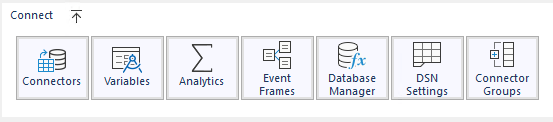 |
The Connect section provides access to all the applications to define connections to data sources for the project.
Connectors specify the data source definitions such as a PLC, Historian, or relational database.
To add flexibility to templates, Variables can be used instead of a hardcoded setting. The values of the variables are assigned “outside” of the template e.g., from an on-demand report.
Analytics compute aggregated data and optionally save the results to a database for reporting.
Event Frames are used to record specific time frames based on process events for use in reports.
The Database Manager is used to maintain databases by doing such things as adding or removing tables and columns or previewing data stored in a table.
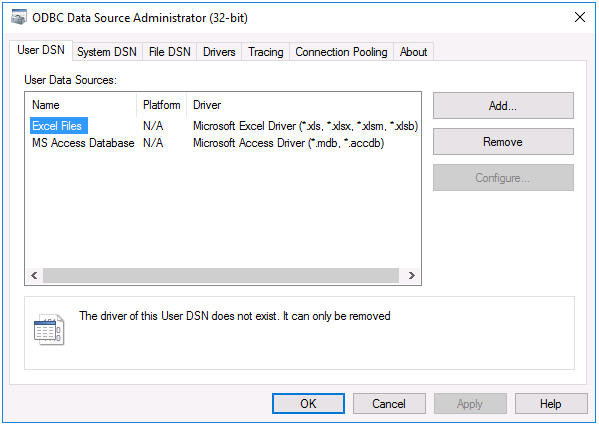
The DSN Settings is used to add and remove 32-bit ODBC database sources.
 |
To check the integrity of the installation and the communication to the data sources use System Check, found in the Diagnostics section. For quick access to adding and removing Data Groups, use Connector Groups.
Template Design
 |
Templates are created in two ways. One way is to select a pre-defined template from the Template Library and customize it for your application. The second is to create a new template in the Template Studio.
Report
 |
Reports can be produced automatically and in the background by the Scheduler. Schedules are defined in the Schedule Designer to run “actions” on time or events.
Template Categories can be added to the project to help organize the report templates in applications like On-Demand Reports and the Web Portal. See Template Categories below for details.
If the Distributed edition is installed, Web Portal opens the web browser and navigates to the web portal on local host.
Reports are produced from the template automatically by the Scheduler or on-demand with custom settings using On-Demand Reports.
Data Entry Forms are provided to allow operators to collect manual data and store the data to a backend database so the information can also be used for reporting e.g., operator rounds.
Secure viewers are provided to view reports in Excel, PDF, and HTML format. The viewers do not require pre-installed software (e.g., the Excel viewer does not require an installation of Excel) and allow managed edits to the report. These viewers are designed to be accessed from HMI displays.
Distribute
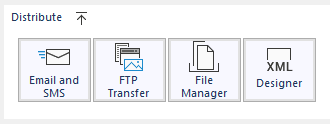 |
For reports that are emailed, either from the Scheduler or from On-Demand Reports, use Email and SMS to specify a mail server and user configurations.
For reports or files that are moved to/from an FTP server, use FTP Transfer to specify FTP Server configurations.
For reports or any other system files that need to be managed, such as moving and purging, use File Manager to configure file management actions.
To export the content of a report to a custom XML file use the XML Designer. This is applicable for the eDMR submission in W/WW Treatment.
Security
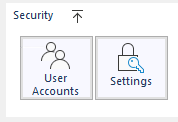 |
When security is enabled, the user’s capability is limited by their security privileges.
For details on Security, see Implement Project Security.
Diagnostics
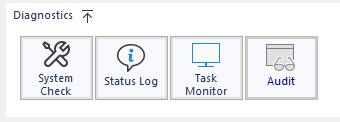 |
The Status Logs are used to view any notifications or errors that are generated when actions are processed.
The System Check is used verify reading/writing to real-time data connectors. It is also used to perform a scan of the installation, and to repair any defects.
The Task Monitor is used to view the current state of the system including the active reporting queue.
The Audit Logs keep track of changes made to the project when the Audit Trail connector has been created (see Implement Project Security.).