Set up FactoryTalk Linx
Open the FactoryTalk Administration Console from the Rockwell Software program group and select the directory type (Local or Network).
Create a New Application
If no application is currently set up, right click the top level of the left panel tree and select New Application…
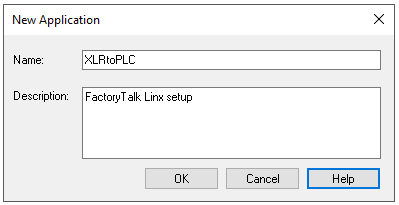 |
Enter a Name and Description
Click OK
In the left panel tree right click the new application.
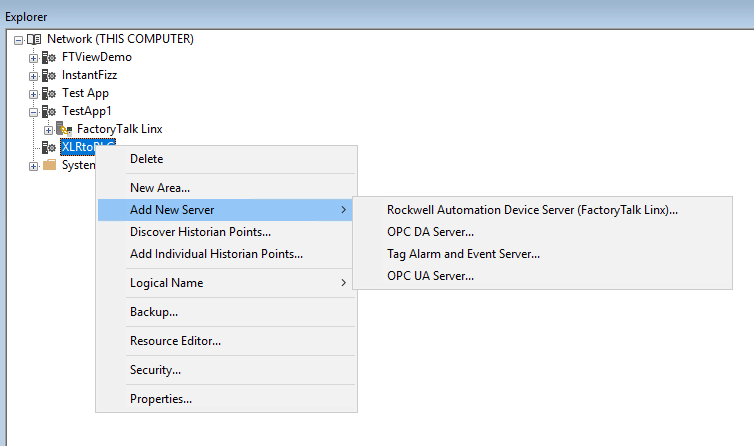 |
Select Add New Server, Rockwell Automaton Device Server (FactoryTalk Linx)…
Click OK.
Expand FactoryTalk Linx.
Double click onto Communication Setup.
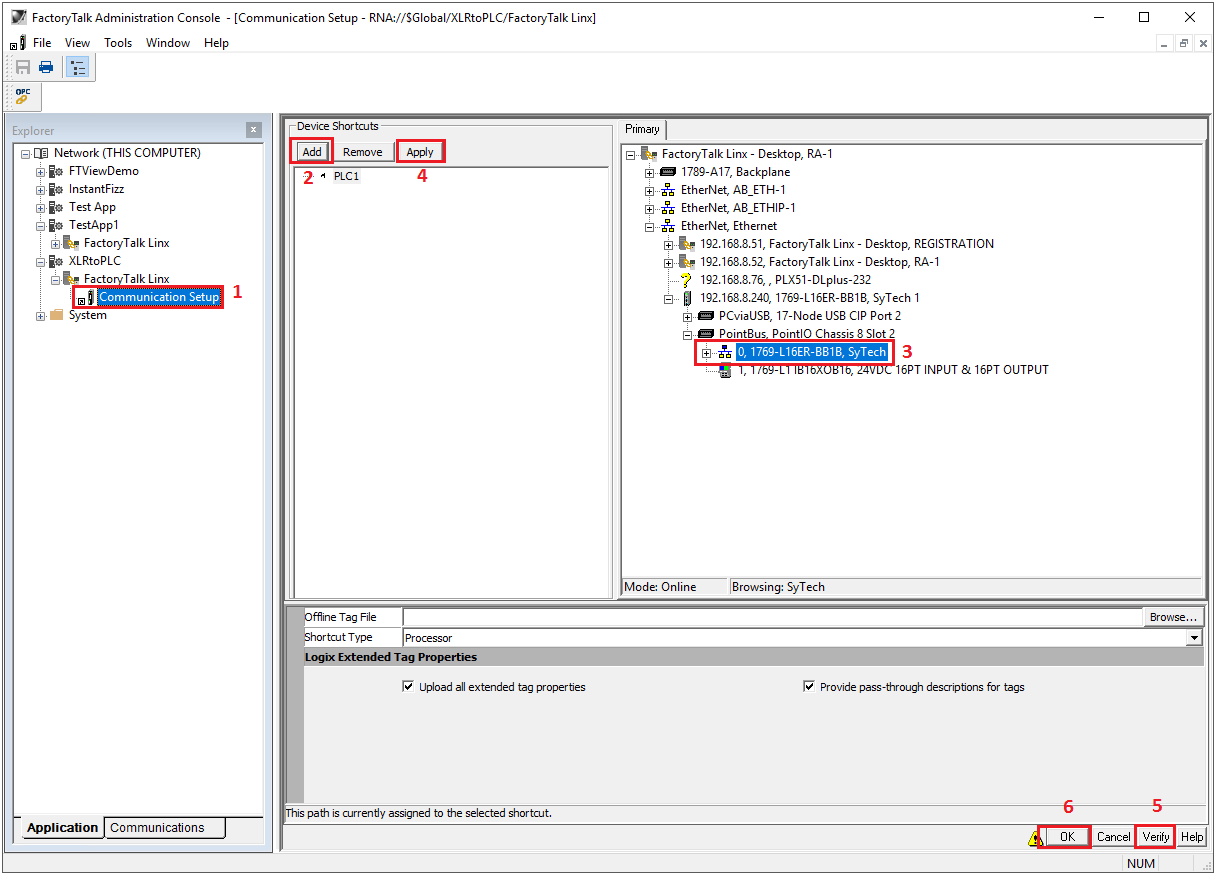 |
In the Device Shortcuts panel click Add.
Enter a name for the shortcut.
Browse to the device.
Click Apply.
Select Verify.
Click OK.
Set up FactoryTalk Linx Gateway Configuration
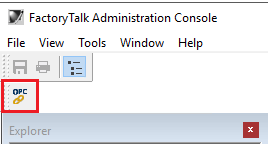
In the FactoryTalk Administration Console select OPC.
 |
Server Configuration
In the FactoryTalk Linx Gateway Configuration select Server Configuration.
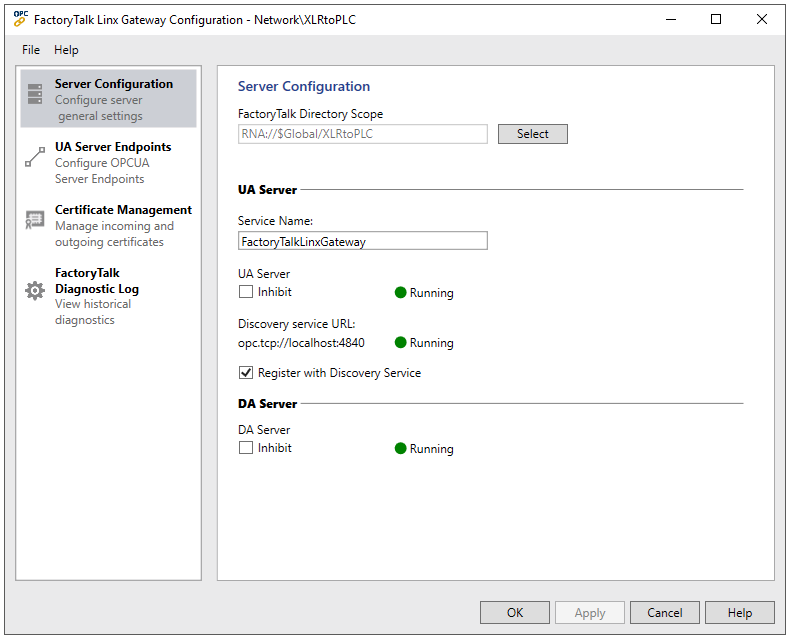 |
Under Server Configuration, for FactoryTalk Directory Scope,
Click Select.
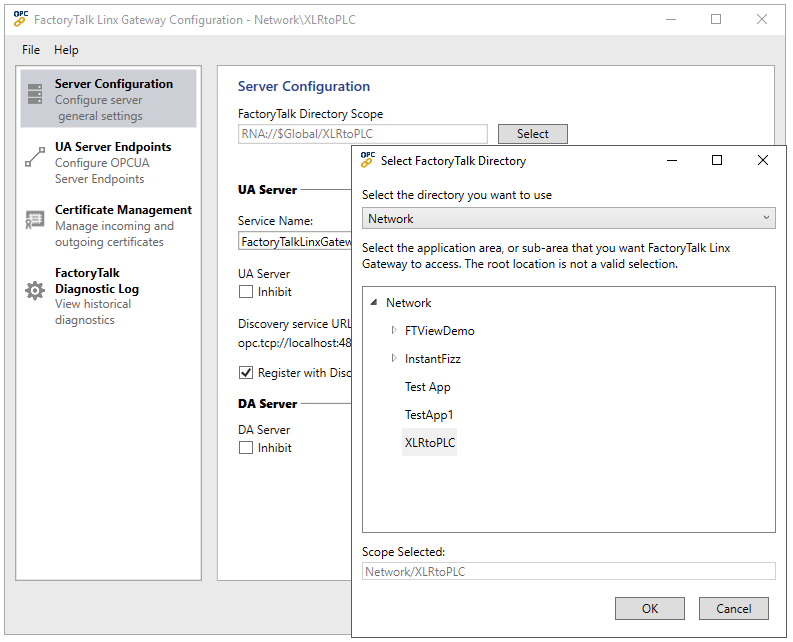 |
Select the Directory from the drop-down list at the top.
Expand the Directory and select the application or sub-area to access
Click OK.
Back in the FactoryTalk Linx Gateway Configuration click Apply.