Connector
To configure the connector to iFIX, from the Project Explorer select Connect, Connectors.
Click Add
Select GE Vernova, Proficy Historian Alarms.
Click OK
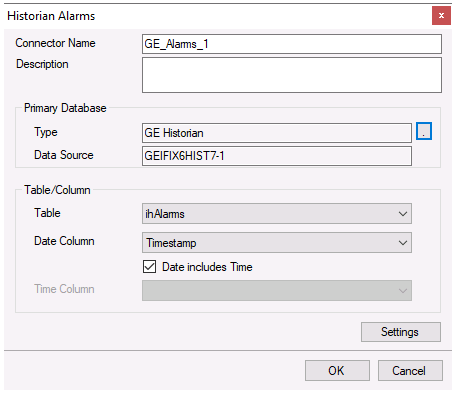
Primary Database
This defines the connection to the Proficy Historian. The browse button […] is provided to define.
The Server Name can be the name of the machine where the historian runs, the IP address of the machine or left blank to use the default historian defined in the Historian Interactive SQL application.
The User Name and Password settings are provided is required to connect to the Proficy Historian.
Table/Column
Once the Primary Database is configured, set Table to the table where the alarms are being logged. This should be ihAlarms.
Set the Date Column to Timestamp and check Date includes Time.
Settings
The Settings button opens the Settings dialog that defines characteristics of the database that are used to retrieve data.
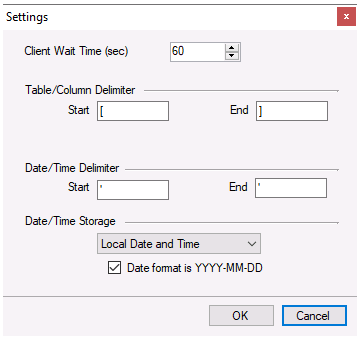 |
Typically, these settings are defaulted correctly for the Proficy Historian.
If queries timeout, increase the Client Wait Time.
The delimiter and timestamp settings are typically filled in automatically for the database and can be modified for other databases.
Many databases require the Date format to be YYYY-MM-DD so that no interpretation needs to occur based on the Region settings of the Windows Operating System. It is recommended to always have this option checked.