Configure Email Server and Contacts
Configure the Email Server
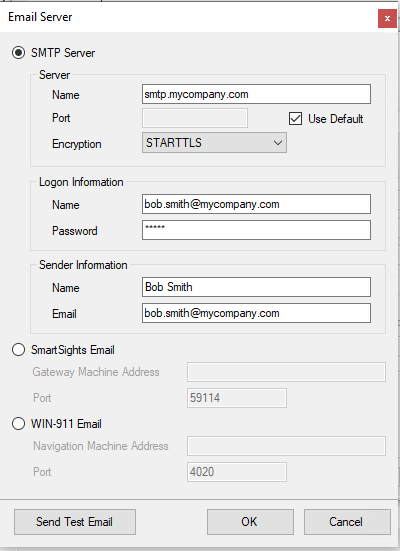
Select Edit, Server to configure or modify the email server for the project.
 |
Depending on the license, there are multiple options available here.
SMTP Server
Use this option if the machine where XLReporter is installed has internet access and you have an SMTP email server.
The Name is the name of the SMTP (outgoing) mail server that will be used along with the Port Number. If the mail server uses the default port (port 25), check Use Default. Otherwise, specify the port number.
If the mail server is a Microsoft Exchange Server, the Server (SMTP) setting is the IP address of the Exchange Server.
Set Encryption to None if the mail server has no encryption, otherwise select SSL or STARTTLS depending on the mail server requirement.
The Logon Information may or may not be required depending on the mail server. Enter a Name which, depending on the server, may be a name or a full e-mail address. Enter the Password associated with the Name specified.
The Sender Information is details about who is sending the configuration. Enter a friendly Name (this is shown to the recipient as the sender) and a valid E-mail address.
Please note that some mail servers (like Office 365) may ignore the Name specified under Sender Information when sending the email.
SmartSights Email
Note, this option is only available with a subscription license.
This option can be used if the machine where XLReporter is installed does not have an internet connection or if the mail server is Office 365. This does require the SmartSights Email Gateway to be installed on a machine with internet access and configured to connect to the outgoing mail server (either SMTP or Office 365). Please see the SmartSights Email Gateway section further down for details on how to install and set this up.
Set Gateway Machine Address to either the IP address or machine name where the SmartSights Email Gateway is installed. By default, the gateway listens on Port 59114. This setting should only be changed if the port has been customized for the SmartSights Email Gateway.
WIN-911 Email
Note, this option is only available with an XLReporter subscription license and requires a licensed version of WIN-911.
This option can be used if the machine where XLReporter is installed does not have an internet connection or if the mail server is Office 365 and WIN-911 is also available.
Set Navigation Machine Address to either the IP address or machine name where the WIN-911 Navigation Module is installed. By default, the module listens on Port 4020. This setting should only be changed if the port has been customized for the WIN-911 Email Module.
Test Server Settings
Test the email server settings by clicking Send Test E-mail. You are prompted for an email address to send this test message to.
Setup Providers
When sending a text message, the mobile provider of the recipient must be specified. The most common mobile providers are provided by default during installation. However, if the mobile provider required is not listed or needs to be updated, this can be done from the Designer.
Select Edit, Providers to access the list.
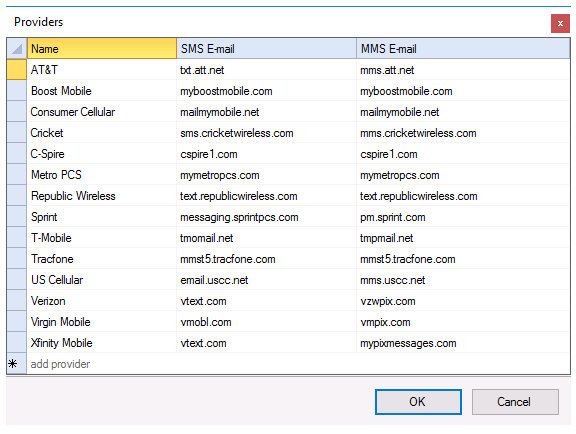 |
A new provider can be configured by selecting the bottom row (add provider). An existing provider can be modified by double clicking any column in the row. Each Provider must be specified with the following:
Name
The display name used to select the provider for each contact configured.
SMS E-mail
The e-mail extension to send text messages for the provider using the Simple Messaging Service protocol. This information should be supplied by the mobile provider.
MMS E-mail
The e-mail extension to send text messages for the provider using the Multimedia Messaging Service protocol. This information should be supplied by the mobile provider.
Setup Email Contacts
Select Edit, Contacts to show a grid of the contacts currently setup. These contacts are displayed during the setup of a configuration.
If a new contact is required, select an empty row and enter the Friendly Name, Email, Phone and phone Provider.
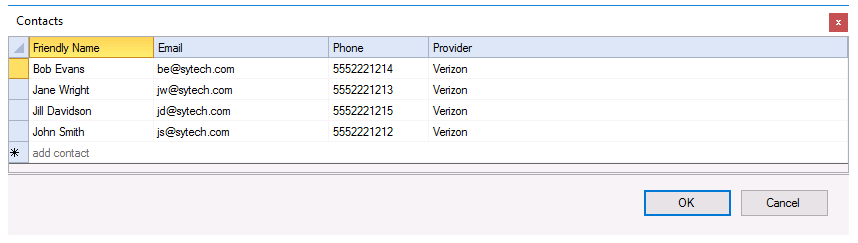 |
The Email can be expressed as a variable and assigned a value at runtime, the variable name is enclosed in {} e.g., {RG000} or {EmailRecipient}.
The Phone and Provider are only required for text messaging. Note that if the mobile Provider is not listed, it can be added (see the Setup Providers section above).
To remove a contact, highlight the contact’s row in the grid and press the delete key on the keyboard. Multiple rows can be selected and deleted at once.