Design a Configuration
Configurations are designed or modified by selecting the menu option Add or Modify. The Add option is always enabled whereas the Modify option is enabled when a configuration is selected.
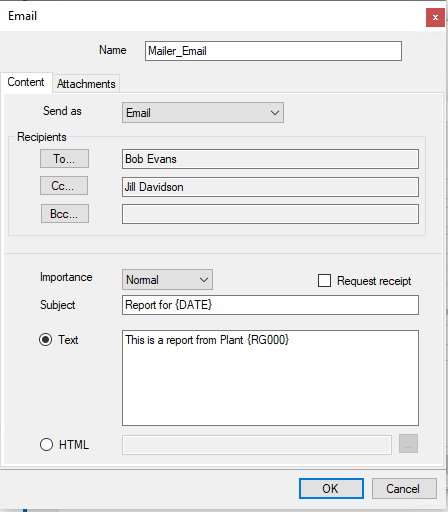 |
The dialog consists of two tabs: Content (message type, email recipients, and content) and Attachments (email/mms attachments).
Enter a Name for the configuration to reflect its settings e.g., Managers.
Content
The Content tab is used to define the message type, the names of recipients, the subject and email content.
|
Send as
This defines the type of message to send. The following options are available:
The configuration is sent as an email to any recipient specified.
Text Message (MMS)
The configuration is sent as a text message via the Multimedia Messaging Service protocol. This allows for files to be attached to the message which can then be viewed by the text recipient.
Text Message (SMS)
The configuration is sent as a text message via the Simple Messaging Service protocol. Only text content is sent with no attachments. These messages may be limited in size based on the mobile provider.
Recipients
Use To…, Cc…, and Bcc… to select the email addresses of the recipents of the email.
Message
The Importance can be set to Low, Normal or High. This setting is only enabled if Send as is E-mail and the Email Server is a direct SMTP Server.
If Request receipt is checked then when the recipient receives the email, they are prompted to send a return receipt indicating they have received the message. This setting is only enabled if Type is E-mail and the Email Server is a direct SMTP Server.
Enter a Subject which can be a combination of text and Variables. A list of variables is displayed by right-clicking on the textbox of the Subject.
The content of the email can either be Text or HTML. Note, the HTML option is only available if the Email Server is a direct SMTP server.
If the content is Text, then Variables and Tags can be included in the message (selected by right clicking the textbox).
If the content is HTML, then a HTML file from the Web directory of the project is selected by clicking browse […] (see Attachments tab).
Attachments
The Attachments tab is used to define the file attachments for an email. This tab is not visible when Type is set to Text Message (SMS) or when it is launched from the Scheduler.
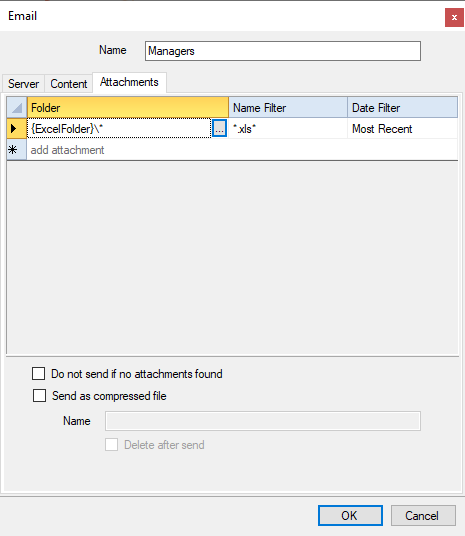 |
The dialog shows a grid that lists all the attachments for the email.
To add a new attachment, click […] under the Folder column on the bottom row in the grid. This launches the Attachment dialog. To remove an attachment, highlight the row and press the delete key on the keyboard.
If no attachments are available to send, the email will not be sent if Do not send if no attachments found is checked. If the email is not sent, an error message will be logged to the Status Log instead. If this option is not checked, the email will be sent regardless of if attachments are found or not.
Please note, this option has no effect if the Most Recent date filter is set or the Exclude Most Recent option is checked for any configured attachment. In those cases, if no files are found, an error is always logged, and the message is not sent.
Multiple attachments can be compressed into a single file by checking Send as compressed file and entering a Name. If this is not specified as a full path, it is pre-pended with {ExcelFolder} indicating that the compressed file is created in the Excel directory of the project.
The Name can be a combination of text as Variables by right clicking the textbox. If no extension is specified, then zip is used. Note that if the compressed file name already exists, it is overwritten when the message is sent.
The compressed file (specified in the Name setting) is deleted from the file system if Delete after send is checked.
Assigning Attachments
This dialog is used to specify either the configuration of attachments or an HTML file to use as the message body content.
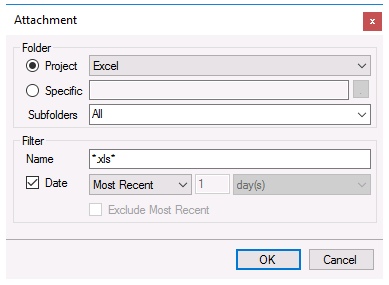 |
The Folder can either be a Project folder (Excel, Web or PDF) or a Specific folder. When Folder is set to Project, Subfolders can be manually entered or selected from the drop-down list. Select the Subfolder based on the Report Template to be emailed. Note that every template in the project is listed in Subfolders regardless of whether a report has been generated from that template or not.
The Filter determines which files from the Folder will be considered. The filter Name can be a combination of hard coded text, wildcards (“*” for multiple characters), or (“?” for a single character). Files that begin with an underscore (“_”) are never considered.
Example: To attach all the Excel reports that start with Flow, set the Filter Name to Flow*.xls*.
Check Date to filter the files on the file modified date. This setting can be:
Most Recent
The most recent file is considered.
Within
All files newer than what is specified is considered.
Outside
All files older than what is specified is considered.
Example: To attach all reports generated within the last week, set the date filter to Within 1 week(s). To attach all reports generated more than 3 days ago, set the date filter to Outside 3 day(s).
The most recent file satisfying the Name and Date settings can be excluded by checking Exclude Most Recent.
Validate
Any configuration can be validated by highlighting it from the main window and selecting Send. This will run the configuration and display the results.
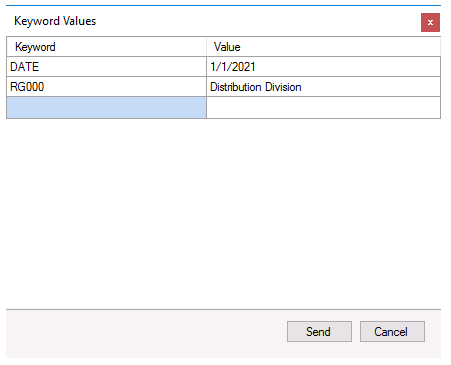
If a configuration contains custom variables, then an intermediate window will appear showing the variables used and where temporary values can be assigned.
 |