Overview
Analytics are calculated from live values of the process and can optionally be recorded to a database so that a history of their values is available for reporting purposes.
Except for Snapshot analytics that only require the Store action, analytics are produced in two steps using an Update and Store action. The first step is to update the value of the analytic periodically and the second step is to store the analytic so that its values are available for use.
Example: To calculate the hourly maximum and minimum of the mixer speed from one minute process values the following steps are required.
Set the Update (see later) of a Statistic analytic to one minute to read the process value and update the summary values. Note that the process values themselves are not stored (except for the Snapshot analytic).
Set the Store (see later) of the Statistic analytic to one hour to stop the calculation of the analytic, store it for reporting purposes and start a new calculation.
After a Store, the current values of the analytic are available for use using Variables.
If a history of the analytics is required, an Analytic Connector must first be created. From the right-side Tools tab of the Project Explorer, in the Connect section, select Connectors.
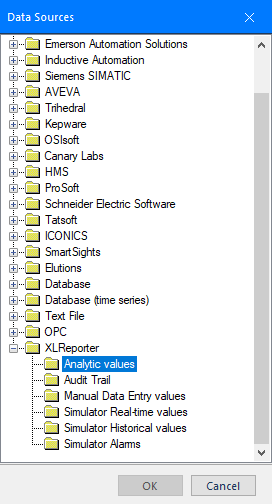 |
Choose XLReporter, Analytic values
Click OK to open the connector configuration.
Select the [.] button next to the Primary Database Type, this will open the Database Connect window.
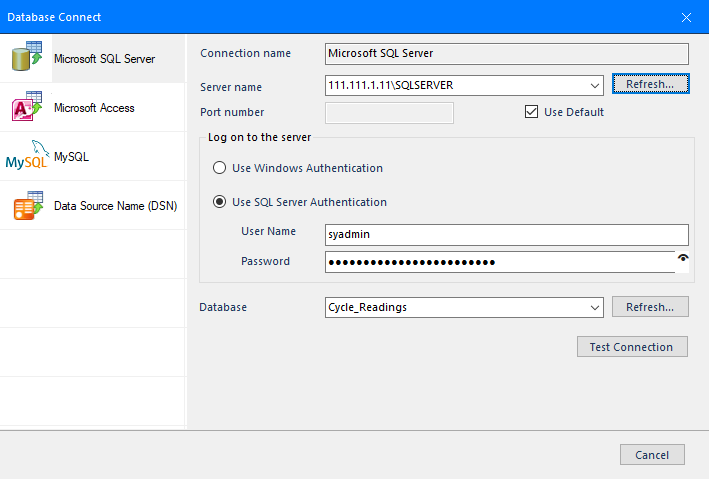 |
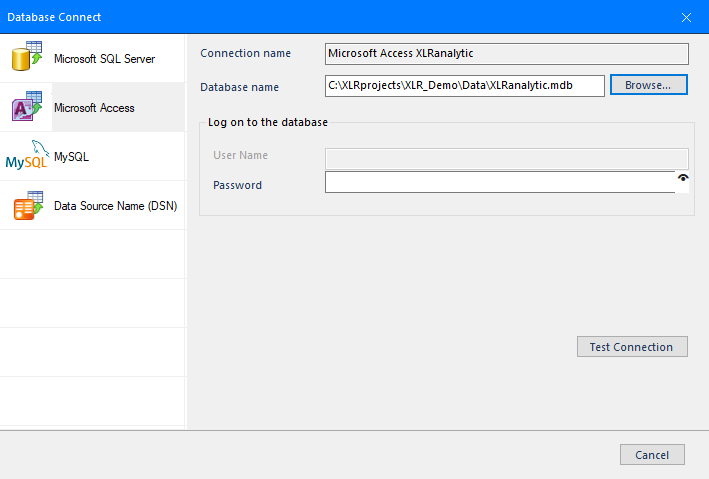
If possible, use a Microsoft SQL Server (including Express) database. Alternatively, a Microsoft Access database is included in the Data folder of your project which can be used to store analytic values. Click Test Connection to verify database connectivity.
 |
On the OK of the data connector configuration, the analytic tables will be created in the database.