Designer
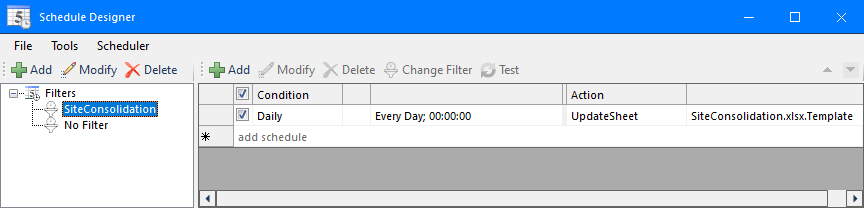
The Schedule Designer is opened from the Project Explorer in the right-side Tools tab, in the Report section by choosing Schedule Designer.
 |
To save any changes click File, Save. If the scheduler is running, it will automatically reload the changes.
The Schedule Designer is comprised of 2 sections: The Filter section on the left and the Schedule grid on the right.
The Filter section is used to organize the schedule. Typically the filter is the name of a template in the project but it can be anything you wish. Use the Add, Modify and Delete buttons above the section accordingly.
There is an additional filter displayed as No Filter. Any schedule lines that have not been assigned to a filter are displayed under this filter.
The Schedule section is used to display the schedule lines based on the selected Filter. Note that all schedule lines can be viewed by selecting the root Filters node. However, this is for viewing purposes only. Every schedule line must be configured within a filter.
A schedule line can be moved from one filter to another by using the Change Filter button.
To create a new schedule, select a Filter and click Add above the Schedule grid to open the Schedule dialog as follows:
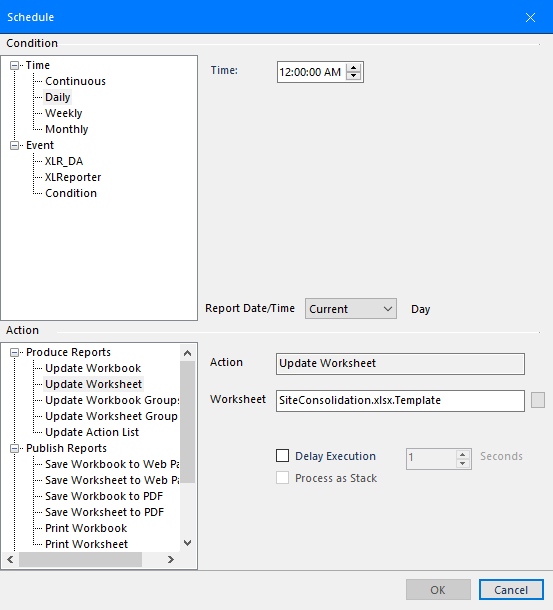 |
In the upper part of the display select a Condition (based on Time or Event) together with a Report Date/Time setting.