To Database
The To Database function exports the contents of a cell range to a relational database. The function is flexible enough to handle the export of either single or multiple rows/columns of data on the worksheet to single/multiple records in the database.
When data is exported, the values are formatted as they appear in the cells on the worksheet. This means that the cell(s) should be formatted to adhere to the format required for the column in the database table being exported to. For example, if a metric requires specific significant figures, the cells being exported from should be formatted to reflect this.
Settings | |
|---|---|
Configuration | This is set to the name of a database export file. A browse button is provided to create and configure these files. |
Continue on Fail | Set to Yes to indicate that an export of multiple rows/columns, the export should continue despite any errors that may occur. |
Database Export Builder
The Database Export Builder is used to configure the rules for the export. The settings are stored in a file with extension asql.
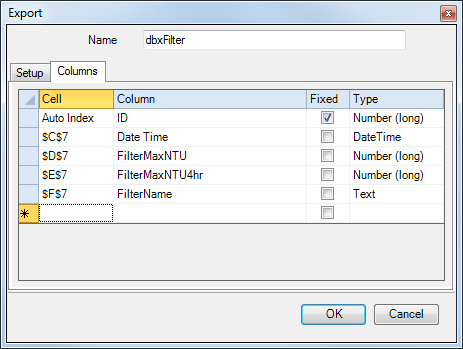 |
The display contains a Setup tab and either a Columns tab or the Commands tab depending on the choice made on the Setup tab.
Popup Menus
Popup menus appear when right-clicking rows in the Columns Grid. The following options are available:
Auto Index
When selected, this indicates that the data exported to the column is determined by the Auto Index. See the Auto Index section below for more information.
Insert
This inserts a new row in the Columns Grid. A new row can also be inserted by pressing the Insert button on the keyboard.
Delete
This deletes the row from the Columns Grid. The row can also be deleted by pressing the Delete button on the keyboard.
Content
Name
This is the name of the configuration.
Tabs
Setup
Connector
A dropdown list of available connectors which define a connection to a database.
Table
This field indicates the table to use for the export. The dropdown displays a list of all available tables in the selected Connector. Note that data cannot be exported to a View. If it is necessary to export to multiple tables, multiple exports must be configured.
Method
Columns
The Columns method is used to link columns from the selected table to cells on the worksheet. No knowledge of SQL syntax is needed.
Commands
The Commands method is used to execute specific SQL commands on the database defined in the connector. The SQL syntax must be specified exactly how it is required by the database.
Bulk Copy
The Bulk Copy method is only available for Connectors to a Microsoft SQL Server database.
This method exports the entire range of data as defined in the Range settings of the function to the Table selected, where each column in the range is written to the corresponding column in the Table.
Columns are exported in the order that the columns are configured in the Table. For example, if the Table contains the columns: Value1, Value2, Value3 and Value4 and the Range is $B$4:$E$28, each row of data starting on row 4 are written with values in B column written to Value1, the C column to Value2 and so on.
If there are less columns in the Range than columns in the Table, the columns that are not in the Range are set to NULL. If there are more columns in Range than columns in the Table, the Range is truncated to match the number of columns in the Table.
Columns
Columns Grid
Cell
This field indicates the cell containing the data to export to the configured column.
Column
This field indicates which column in the database the data will be exported to.
Fixed
This indicates that the cell reference will remain fixed in place even if the management connection has been configured to export a dynamic range.
For example, a database table has 5 columns including a Timestamp column and 4 data columns, and a daily report has a timestamp in cell $A$1 and 4 columns containing the day’s data within the cell range of $B$4:$E$27. We can configure our data export to use the timestamp in $A$1 for each record in the cell range by assigning the cell to the Timestamp column and checking Fixed.
Type
This field displays the data type of the selected column in the database. See the Database Management section of this document for more information on data types.
Note that when the data type of a column is modified in the database, the export group needs to be re-configured. From the Setup tab, change the Export Table section and then re-select the Table.
Commands
In the grid, specify SQL commands (some level of SQL is required). A command can contain a cell reference enclosed in curly brackets e.g., {$A$1}. When a cell reference uses the $ symbol, it remains fixed while the range is exported. If the $ is not used, the value changes for every row/column in the Source range.
Auto Index
When exporting to more than one table, an Auto Index can be used to maintain a relationship between the tables. The Auto Index is a number that is incremented after the completion of an UpdateSheet or UpdateBook action so while the action is in progress, each export will use the same index value.
For example, suppose a database contains two tables. One table contains the columns Batch ID, BatchStartTime and BatchEndTime, and the other table contains the process data for each batch. If an Auto Index is used a unique relationship can be made between the tables during the export operation.
Creating the Auto Index Table
The Auto Index table can be created using the Database Manager application. Connect to the database where the data will be exported.
Select Add to create a new table. Set Name to AutoIndex. Under Columns in the first row, set Name to ID and Type to Number (long). Click OK to create the table.
Usage
To use the Auto Index feature, each database table that will be used must contain a column for the Index, and the data type must be Number (Long). When configuring the Cell for the Column, right click and select Auto Index. Note that when exporting to tables in two separate databases, the AutoIndex is determined by the table in the first export.
Example
A daily report is required showing hourly maximums over the day for tanks and extruders. In addition, the daily maximum for each tank and extruder is displayed using MAX functions within the worksheet. A second, monthly report is required to display the daily maximums for the month.
While it is possible to get the daily maximums for the month from the historian, this requires a lot of number crunching on the historian. Since the daily report already has these values, it would be less taxing to log the daily maximums to a database and then retrieve these values from the database for the monthly report.
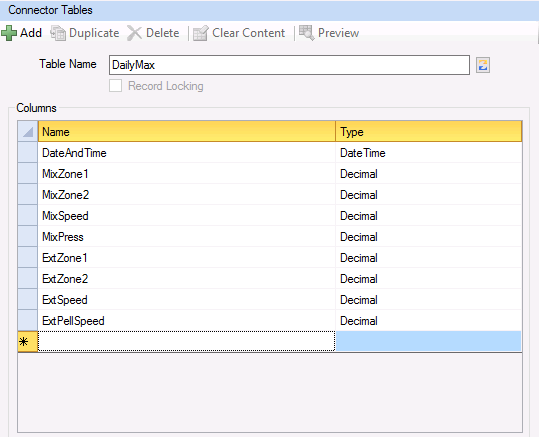
The first thing to configure is a database table to hold the daily maximums. XLReporter provides the Database Manager application to perform this function.
 |
The daily report template is set up with the daily maximum calculations beneath where the hourly maximums for the day are placed.
 |
To export the daily maximums to the database a Data Export To Database function is configured:
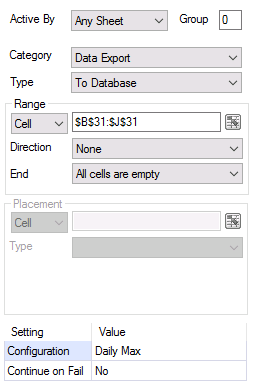 |
Notice the Range is set to $B$31:$J$31 with Direction set to None so that only row 31 is exported.
In the Configuration itself:
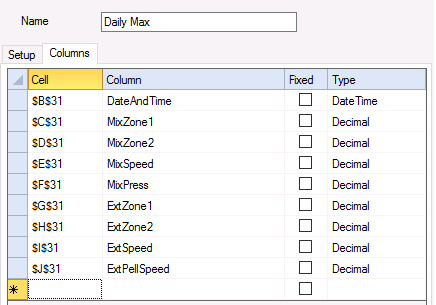 |
Each Column is configured with the corresponding cell in row 31.
Now in the monthly report template a data group can be configured to retrieve the data from this database table.