Connector
To configure the connector, from the Project Explorer select Data, Connectors.
Click Add
Select Text File, Text Historian (time series)
Click OK
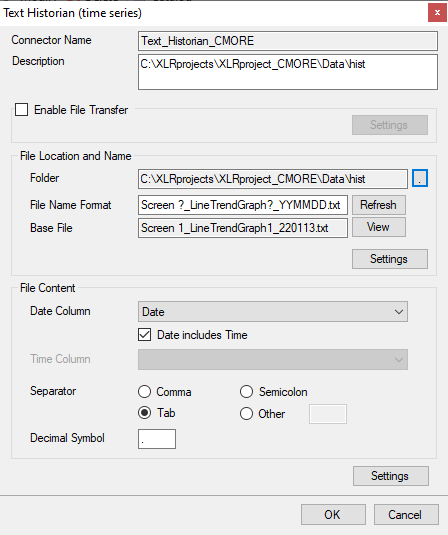
For details on all the settings available for this connector, see the Text File connector document in the Document Library. The following describes the settings specific to C-more log files.
File Transfer
Text files from the C-more panel are in a remote location and can be transferred to the local machine using the FTP server.
 |
Check Enable File Transfer
Click Settings to open File Transfer Settings.
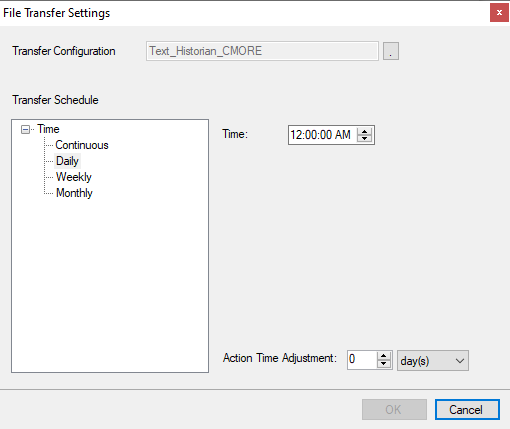
The Transfer Configuration is set to the name of the connector
Click the browse button […].
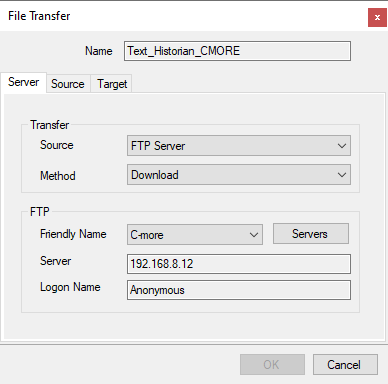
This configuration must be set up to Download the text files from the FTP server on the C-more panel to a Folder on the local system. For details on File Transfer, see the Transfer Reports to an FTP Server document in the Document Library.
File Location and Name
Once the File Transfer Configuration is complete, the Folder defaults to the Target Folder on the local machine.
For File Name Format:
Change this to .txt.
Click Refresh.
The File Name Format is set to the fixed part of the file name along with ?_YYMMDD to denote a number for the file (?) the year (2 digit), month (2 digit) and day (2 digit) that changes for every file generated.
To view the latest file, click View.
Settings
The format of the Date column in C-more log files is custom and therefore needs to be defined so that the column can be recognized as a date and time column.
Under [consolidated.csv]
Add a new row
Enter DateTimeFormat=hh:nn:ss yyyy-MM-dd
Notice minutes is denoted as nn.
File Content
For C-more log files, the Date Column should be Date with Date includes Time checked.
The Separator should be Tab.