Lookup Range
The Lookup Range function converts values based on a lookup table. Standard Tables such as On/Off are provided for converting 0/1 values. The lookup table consists of an X and Y column(s) where the X column is used to for the lookup and the Y column(s) are used for conversion.
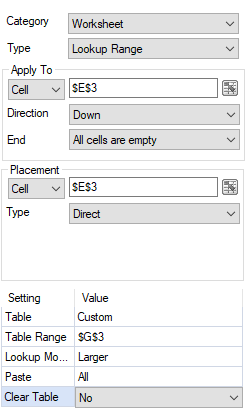
The Placement setting determines where the looked-up value is placed in the worksheet. If this parameter is set the same as the Apply To Cell, then the looked-up values overwrite the original values.
Settings | ||||
|---|---|---|---|---|
Table | The type of lookup table to use, either a standard table like Yes/No, True/False or On/Off or a Custom table as defined within a worksheet in the workbook. | |||
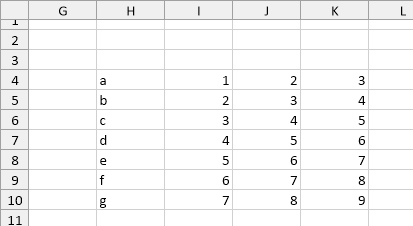
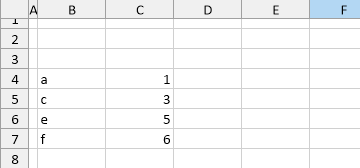
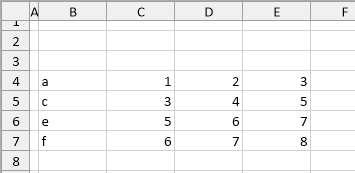
Table Range | This is only applicable when Table is set to Custom. If the range is a single cell or column, that cell/column is treated as the X value of the lookup table and the column immediately to the right is treated as the Y value. If the range is a single row with multiple columns, the leftmost column of the range is treated as the X value of the lookup table and every other column is treated as a Y value. As a simple example, consider the following lookup table:
If the Table Range is set to $H$4 or $H$4:$I$4, and is set up so that the Y value appears to the right of the value in the report the results are:
However, if the Table Range is set to $H$4:$K$4, the results are:
The number of rows in the table is determined by finding the first empty row in the leftmost (X) column. Please note that if the X column is numeric than it must be listed in order either ascending or descending otherwise the results of the function may not be accurate. | |||
Lookup Mode |
| |||
Paste | This is only applicable when Table is set to Custom. This determines what is pasted from the Y value(s) of the lookup table when a match is found. Value pastes just the value from the lookup table, Format just copies the formatting from the lookup table (no value) and All copies both the formatting and value from the lookup table. | |||
Clear Table | This setting only applies when the Table is set to Custom. If set to Yes, the lookup table is cleared from the worksheet after the function is complete. | |||
Example
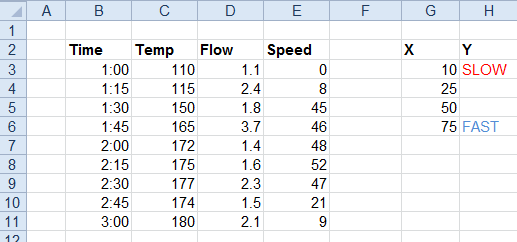
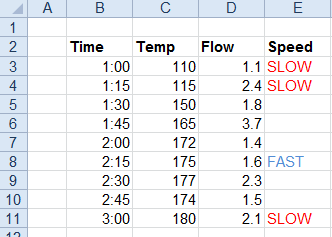
Convert speed values so that values less than 10 show “SLOW” and values greater than 50 show “FAST”.