Actions
An Action is performed when the Condition is met. These actions can also be initiated as commands from third party applications and programming languages.
An Action consists of two parameters and options. For example, the action Email by Workbook requires a Workbook, Configuration name and the optional Wait to Complete flag.
Options
For the option Delay Execution, the scheduler waits for anywhere from 1 to 3600 seconds before placing the action into the queue. Note that the Report Date and Time of the action will still be the initial time before the delay. This can be used as a buffer if the data source needs some time before making all the data available to query from a client.
For the option Wait to Complete, the scheduler waits for a maximum of 30 seconds for the Action to complete.
Produce Reports
These actions produce reports. The workbook and worksheet specified is the template name. The name of the report is specified in the Report Names setting of the template (see the Report Names section of the DESIGN, Template Studio document).
Update Workbook
This action updates all of the worksheets in a workbook. If the target workbook does not exist, it is first created and then updated. Note that only data connections that have a defined Scope will be considered in the update.
Settings
Workbook Workbook name
Syntax
To use in a Scheduler Script, command line or third-party applications, use the syntax:
UpdateBook ‘Workbook’
Update Worksheet
This action updates a single worksheet.
Settings
Worksheet Worksheet name
Process as Stack
When checked, the updated worksheet will be treated as a Stack Report Template. This should be checked automatically when a template is created using the Stack Report Wizard and should not be used for standard report template updates.
Syntax
To use in a Scheduler Script, command line or third-party applications, use the syntax:
UpdateSheet ‘Workbook.Worksheet’
Update Workbook Groups
This action updates all of the worksheets in a workbook that are associated with the group number or list of group numbers specified. Note that irrespective of the connection group number(s) in the action, connections belonging to group zero are included for this action.
Only connections that have a defined Scope are updated with this action.
Settings
Workbook Workbook name
Group Comma separated connection group number(s)
Syntax
To use in a Scheduler Script, command line or third-party applications, use the syntax:
UpdateGroupBook ‘Workbook’ ‘Group’
Update Worksheet Groups
This action updates a single worksheet that are associated with the group number or list of group numbers specified. Note that irrespective of the connection, group number(s) in the action, connections belonging to group zero are included for this action.
Settings
Workbook.Worksheet Worksheet name
Group Comma separated group number(s).
Syntax
To use in a Scheduler Script, command line or third-party applications, use the syntax:
UpdateGroupSheet ‘Workbook.Worksheet’ ‘Group’
Update Action List
This action is provided to configure multiple actions to run on the same Condition. The browse pushbutton opens the Action List Editor where the list of actions can be configured.
 |
At the top is a list of existing Action Lists. To create a new Action List, select add new action list from the drop down and then specify the Name.
Settings
Action List Name Action list configuration name
Syntax
To use in a Scheduler Script, command line or third-party applications, use the syntax:
UpdateActionList ‘Action List Name’
Usage
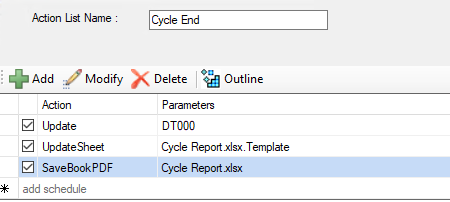
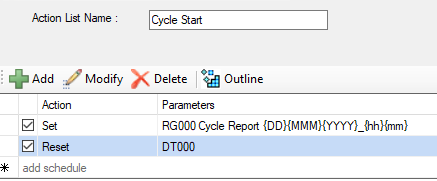
A practical usage for this action is when generating a cycle report where at the beginning of the cycle some information needs to be captured for the naming convention and the start of the time period for historical data and at the end of the cycle setting the end of the time period, generating the report and publishing to PDF.
This can reduce the schedule down to 2 lines: an Update Action List when the cycle starts and when it ends. The Cycle Start Action List is configured as:
 |
The Cycle End Action List is configured as:
|
The resulting schedule is:
 |
Publish Reports
These actions publish reports to different file formats and printers. The workbook and worksheet specified is the template name.
The Target setting is an optional setting for each of these actions.
Target setting is blank
In this case, the Report Names settings of the template are used.
For the Save Workbook actions, the WORKBOOK Report Name is used including any subfolders specified.
For the Save Worksheet actions, the WORKBOOK Report Name is used including any subfolders specified and combined with the Name set for the worksheet specified in the format Workbook_Worksheet. If there is no Name set for the worksheet, the worksheet itself is used.
Target setting is a folder
To specify a folder, the trailing character for Target must be the folder separator (\), e.g., C:\My PDF Reports\. This can contain hard coded text as well as variables and Name Types as long as they are valid characters for a Windows folder name.
The name of the of the published report then follows the Report Names settings just like if the Target is blank.
Target setting is a full file name
In this case, the entire folder structure and file name is specified. This can contain hard coded text as well as variables and Name Types as long as they are valid characters for a Windows folder and file name. The file extension should not be specified.
Save Workbook to Web Page(s)
This action saves all visible worksheets of a workbook to web pages.
Settings
Workbook Workbook name
Target The web page name
Syntax
To use in a Scheduler Script, command line or third-party applications, use the syntax:
SaveBookHTML ‘Workbook’ [‘Target’]
Save Worksheet to Web Page
This action saves a worksheet to a web page.
Settings
Workbook.Worksheet Worksheet name
Target The web page name
Syntax
To use in a Scheduler Script, command line or third-party applications, use the syntax:
SaveSheetHTML ‘Workbook.Worksheet’ [‘Target’]
Save Workbook to PDF
This action saves all visible worksheets of a workbook to a PDF file according to the PDF encryption settings (see the PDF Reports section of the SETUP, Customize a Project document).
Settings
Workbook Workbook name
Target The PDF name
Syntax
To use in a Scheduler Script, command line or third-party applications, use the syntax:
SaveBookPDF ‘Workbook’ [‘Target’]
Save Worksheet to PDF
This action saves a worksheet to a PDF file according to the PDF encryption settings (see the PDF Reports section of the Customize a Project document).
Settings
Workbook.Worksheet Worksheet name
Target The PDF name
Syntax
To use in a Scheduler Script, command line or third-party applications, use the syntax:
SaveSheetPDF ‘Workbook.Worksheet’ [‘Target’]
Print Workbook
This action prints of its visible worksheets of the workbook to a specific printer. To print to the default printer of the system, set the Printer name to Default.
Settings
Workbook Workbook name
Printer Printer name
Syntax
To use in a Scheduler Script, command line or third-party applications, use the syntax:
PrintBook ‘Workbook’ ’Printer’
Print Worksheet
This action prints a worksheet to a specific printer.
Settings
Workbook.Worksheet Worksheet name
Printer Printer name
Syntax
To use in a Scheduler Script, command line or third-party applications, use the syntax:
PrintSheet ‘Workbook.Worksheet’ ‘Printer’
Save Workbook to VantagePoint
This action saves the workbook to a web page then adds a link to the VantagePoint portal to view the workbook. The web page is saved under the Web folder of the project in a folder matching the Report Node setting of the VantagePoint connector.
Note this action is only shown if a VantagePoint connector is defined in the project.
Settings
Workbook Workbook name
Target The web page name
Update before Publishing
If checked, an Update Workbook action is executed before the workbook is saved as a web page.
Save Worksheet to VantagePoint
This action saves the worksheet to a web page then adds a link to the VantagePoint portal to view the worksheet. The Web Page is saved under the Web folder of the project in a folder matching the Report Node setting of the VantagePoint connector.
Note this action is only shown if a VantagePoint connector is defined in the project.
Settings
Workbook.Worksheet Worksheet name
Target The web page name
Update before Publishing
If checked, an Update Worksheet action is executed before the worksheet is saved as a web page.
Transfer Reports
These actions transfer files over the network through E-mail and FTP transfer. The actions apply to a single workbook or to content of a configuration.
FTP a Workbook
This action transfers a workbook using FTP using the FTP server settings specified in a configuration file (see FTP Cofiguration below).
Settings
Workbook Workbook name
Configuration Configuration file name
Only FTP configurations that are set up to Upload are available to select. In addition, if an existing configuration is selected that has Source settings configured, those settings are replaced with the Workbook specified.
Wait to Complete
If checked, the scheduler will wait for the action to complete before processing any other action.
Syntax
To use in a Scheduler Script, command line or third-party applications, use the syntax:
FTPBook ‘Workbook’ ‘Configuration’[-w]
FTP by a Configuration
This action using FTP according to the settings in a configuration file (see FTP Configuration below).
Settings
Configuration Configuration file name (s)
Wait to Complete
If checked, the scheduler will wait for the action to complete before processing any other action.
Syntax
To use in a Scheduler Script, command line or third-party applications, use the syntax:
FTPTransfer ‘Configuration’[-w]
FTP Configuration
When the browse pushbutton […] is selected for Configuration, the FTP Configuration dialog is opened.
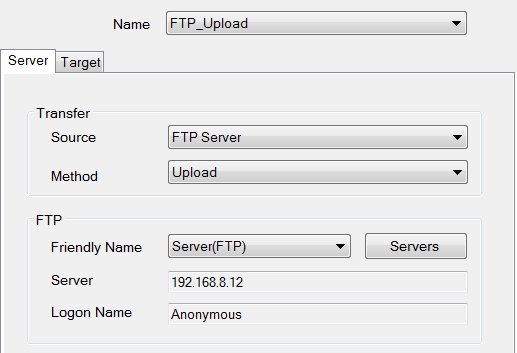 |
If there are any existing configurations, they are listed at the top in a drop-down list. To choose an existing configuration, select it from the list. To create a new configuration, select the new option. The drop-down list is then replaced by a text box where the Name of the configuration can be specified.
If there are no FTP configurations in the project, the Name text box is shown immediately so that a new configuration can be created.
For details on setting up an FTP configuration, see the DISTRIBUTE, Transfer Reports to an FTP Server document.
Please note that for the FTP a Workbook action the Transfer Method can only be Upload and the Source tab is not available since the source is the Workbook specified for the action.
Email a Workbook
This action emails a workbook as an attachment using the SMTP settings specified in a configuration (see Email Configuration below).
Settings
Workbook Workbook name
Configuration Configuration file name
Only Email configurations that are set up for Email or Text Message (MMS) are available to select. In addition, if an existing configuration is selected that has Attachment settings configured, those settings are replaced with the Workbook specified.
Wait to Complete
If checked, the scheduler will wait for the action to complete before processing any other action.
Syntax
To use in a Scheduler Script, command line or third-party applications, use the syntax:
EmailBook ‘Workbook’ ‘Configuration’[-w]
Email by a Configuration
This action emails according to the setting in a configuration (see Email Configuration below.
Settings
Configuration Configuration file name (s)
Value Custom Variable value(s)
If the configurations contain custom variables, then their values can be specified in the Value setting in the form Variable1=Value1, Variable2=Value2.
Wait to Complete
If checked, the scheduler will wait for the action to complete before processing any other action.
Syntax
To use in a Scheduler Script, command line or third-party applications, use the syntax:
EmailTransfer ‘Configuration’ [‘Value’][-w]
Email Configuration
When the browse pushbutton […] is selected for Configuration, the Email Configuration dialog is opened.
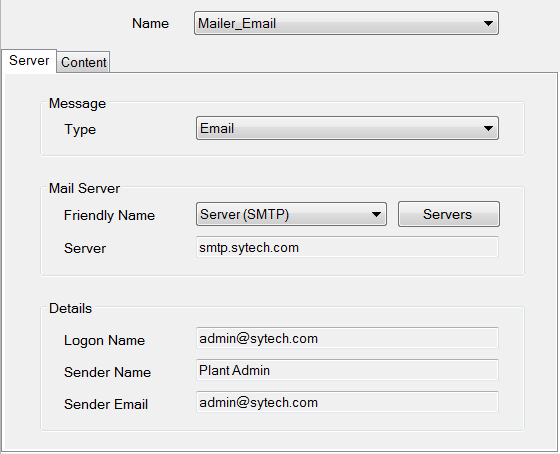 |
If there are any existing configurations, they are listed at the top in a drop-down list. To choose an existing configuration, select it from the list. To create a new configuration, select the new option. The drop-down list is then replaced by a text box where the Name of the configuration can be specified.
If there are no Email configurations in the project, the Name text box is shown immediately so that a new configuration can be created.
For details on setting up an Email configuration, see the DISTRIBUTE. Send Reports by Email and Text Messaging document.
Please note that for the Email a Workbook action the Message Type can only be Email or Text Message (MMS) and the Attachments tab is not available since the attachment is the Workbook specified for the action.
Manage Files and Folders
These actions are used to assist in maintaining files. The actions apply to a single workbook or to content of a configuration.
Move a Workbook
This action moves a copy of an existing workbook. If the Target contains a folder that does not exist, it is created.
Settings
Workbook Source Workbook name
Target Target Workbook name
Overwrite Target
If checked, the target workbook will be overwritten (if it exists).
Delete Source
If checked, the source workbook will be deleted after it has been moved.
Note, this action is designed to move or copy a workbook file based on the source Workbook specified as the name of a template in the project.
To use this action for files other than those produced from a template, the source Workbook setting must be the full path to the file including file extension. The Target setting must also be a full path complete with a file name, but no file extension should be specified.
To move or copy multiple files with a single action, see Manage by a Configuration.
Syntax
To use in a Scheduler Script, command line or third-party applications, use the syntax:
MoveBook ‘Workbook’ ‘Target’[-od]
Delete Workbook
This action deletes an existing workbook.
Settings
Workbook Workbook name
Note this action is designed to delete a workbook file based on the source Workbook specified as the name of a template in the project
To use this action for files other than those produced from a template, the source Workbook setting must be the full path to the file including file extension.
To delete multiple files with a single action, see Manage by a Configuration.
Syntax
To use in a Scheduler Script, command line or third-party applications, use the syntax:
DeleteBook ‘Workbook’
Manage by a Configuration
This action performs file management according to the setting in a configuration (see the DISTRIBUTE, Manage the File System document).
Settings
Configuration Configuration file name
Wait to Complete
If checked, the scheduler will wait for the action to complete before processing any other action.
Syntax
To use in a Scheduler Script, command line or third-party applications, use the syntax:
ManageFiles ‘Configuration’[-w]
Manage Variables
These actions are used to modify values of Variables.
Set a Value to a Variable
This action assigns value(s) to variables This can be used for Function, Memory and Custom variables. For more information, see the DESIGN, Variables document.
Up to 4 variables can be assigned at once by separating the Variable and Value by tilde (~).
Settings
Variable Variable name
Value Value (numeric, text or variable)
Example: To assign RG000, RG011 and RG022 to the values 1, 2 and 3 set Variable to RG000~RG011~RG022 and Value to 1~2~3.
Alternatively, an array of variables can be set at once to a single value by specifying the first variable-the last two digits of the last variable in the array
Example: To assign RG000, RG001, RG002, RG003, RG004, and RG005 to the value of 0, set Variable to RG000-05 and set Value to 0.
Example: To assign RG000 with the BatchID tag of a connector called Process, set Variable to RG000 and Value to {<Process>BatchID}. Note the syntax {<connector name>item name}
Syntax
To use in a Scheduler Script, command line or third-party applications, use the syntax:
Set ‘Variable’ ‘Value’
Update a Variable
This action updates the function variables Counter and DateTime.
Settings
Variable Variable name
Syntax
To use in a Scheduler Script, command line or third-party applications, use the syntax:
Update ‘Variable’
Reset a Variable
This action updates the function variables Counter, DateTime and Lookup.
Settings
Variable Variable name
Syntax
To use in a Scheduler Script, command line or third-party applications, use the syntax:
Reset ‘Variable’
Run Applications
These actions run various scripts and third-party applications.
Run a Schedule Script
This action runs a schedule script and is used when additional logic is required in the schedule (see Scheduler Script below).
Settings
Configuration Script configuration name
Syntax
To use in a Scheduler Script, command line or third-party applications, use the syntax:
RunScript ‘Configuration’
Run an Application
This action runs an external executable.
Settings
Application Name of the application to run (may require a full path).
Parameter Command line parameters
Wait to Complete
If checked, the scheduler will wait for the action to complete before processing any other action.
Syntax
To use in a Scheduler Script, command line or third-party applications, use the syntax:
RunApplication ‘Application’ [‘Parameter’][-w]
Write Value to Process
This action writes a specified value to real time connector. This action can be used as a “heart beat” or a handshake.
Settings
Tag Tag used for the write
Value Value to write
Wait to Complete
If checked, the scheduler will wait for the action to complete before processing any other action.
Write as Text
If checked, the value will be written as text.
Syntax
To use in a Scheduler Script, command line or third-party applications, use the syntax:
WriteValue ‘Tag’ ‘Value’[-s]
Run a Workbook Macro
This action runs a macro defined in a workbook.
Note: This action requires Microsoft Excel to be installed and the macro name must be 31 characters or less.
Settings
Macro Macro name in the form Workbook.Macro
Parameter Up to 3 comma separated parameters
Syntax
To use in a Scheduler Script, command line or third-party applications, use the syntax:
RunBookMacro ‘Workbook.Macro’ [‘Parameter’]