What are Connectors?
Overview
Connectors provide the definition of the data sources. An advantage of this approach is that a change in the Connector definition does not have any cascading effect on other configuration performed in the project.
Example: Suppose a group of report templates contain a reference to a Connector called MyDatabase (a Microsoft SQL Server database connector). If the SQL Server is moved to a new location, then the definition of MyDatabase is the only change required. No change is required for the templates.
From the Project Explorer on the right-side Tools tab in the Connect section select Connectors to display the connectors defined for the project.
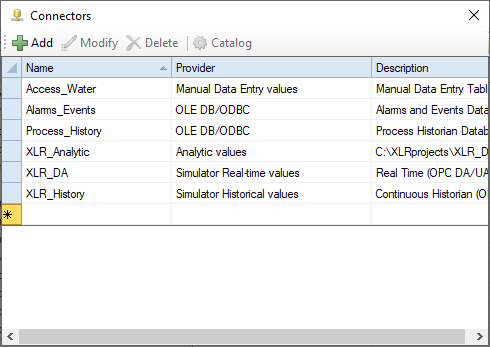 |
The display provides options to Add, Modify or Delete a Connector. There is also the option to define an item Catalog (see Item Catalog).
Defining a Connector
Note, the list of data sources here are filtered based on the Data Source Vendor specified for the project. Check Show All to view every available data source.
Click Add to open a list of the supported data source. Expand a vendor name to view the different data sources supported for that vendor.
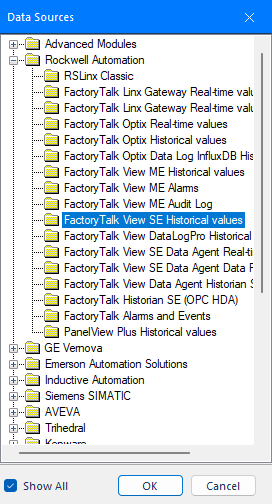
Select a data source and click OK to display the specifics for the selected data source.
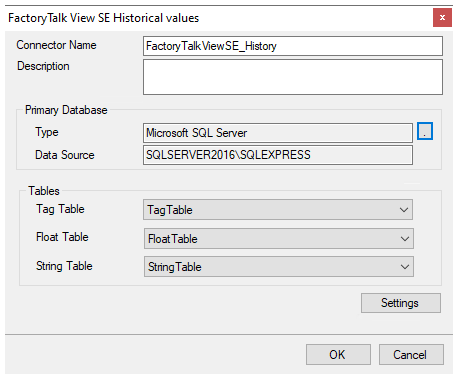 |
See the DATA CONNECTIVITY section in the Document Library for documents on the specifics of each connector.
Item Catalog
An item Catalog is a collection of item names such as columns of a database or tags of a historian. Once a catalog is configured, it is available from every place where tags are browsed. When the project is offline, catalogs are the only tags available in the browser. When browsing tags from team clients, catalogs are the only tags presented.
Not all Connectors support an item Catalog. For those that do, the Catalog called General may be automatically created when the Connector is defined which contains all available items. This is created automatically when the connector is defined.
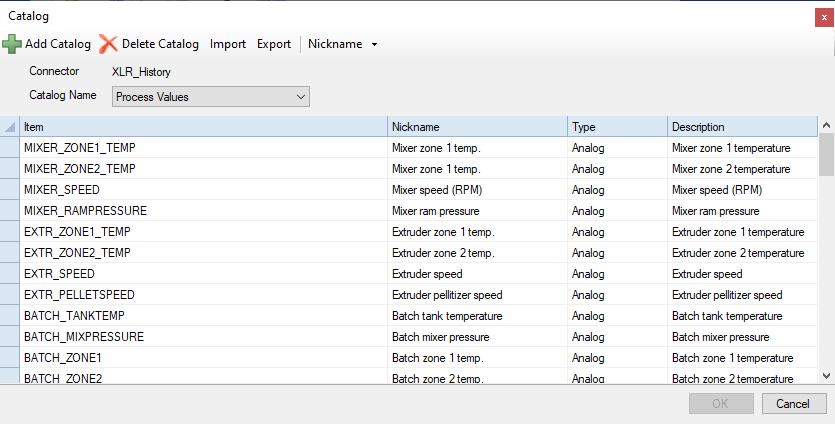 |
The display shows the Connector name, the Catalog Name and a list of items defined in the catalog. Each catalog can have a custom name that can be used to describe the items of the catalog (e.g., Mixers for all the mixer tags from the historian).
When Catalog is first opened, all existing catalogs defined for the connector are listed in Catalog Name the drop-down. If no catalogs exist for the connector, Catalog Name is a text box where a name can be entered for the catalog defined. This same text box appears when Add Catalog is clicked. This is how to create a new catalog.
To delete a catalog, select it from the Catalog Name drop-down and click Delete Catalog. Be careful when doing this because if any template has on demand defined to use this catalog, it will not function correctly.
To add items to the catalog, click the browse (…) button on the grid under the Item column and select the items (such as tag names). When items are added to the grid, their description is also displayed, if it is provided.
The Name, Nickname and Description can be manually edited by selecting a cell. The Type can be left blank if it is unknown or set to Analog, Digital or Text to provide filters for the catalog when it is used.
The Nickname parameter can also be edited from Nickname, Rule. This allows the nickname to exclude all text before and/or after the appearance of specific Content in the text, or before and/or after a certain Position in the name.
For example, if a tag path consists of [Device Name]:program.tagname, the nickname rule can be applied as After End on the character . (period) to set the nickname as only the tagname portion of the path.
Import Items
The Import option is provided to import a list of items from a CSV file. The items are imported into the current catalog so if you want to import items into a new catalog, click Add Catalog before importing.
The CSV file can contain multiple rows where each row is an item to bring into the catalog. The row can consist of Name, Nickname and Description and the Type but not all the elements of a row need to be specified:
One element per row. The element is assigned to the Name, Nickname and Description and the Type is considered unknown.
Two elements per row. The first element is assigned to the Name and Description and the second is assigned to the Nickname.
Three elements per row. The first element is assigned the Name and Description, the second is assigned to the Nickname and the third is assigned to the Type. The Type can be either 1 (analog), 2 (digital) or 3 (string), any other value is considered unknown.
Four elements per row. The first element is assigned to the Name, the second is assigned to the Nickname, the third is assigned to the Type and the fourth is assigned to the Description.
When clicked, the Import Catalog dialog opens.
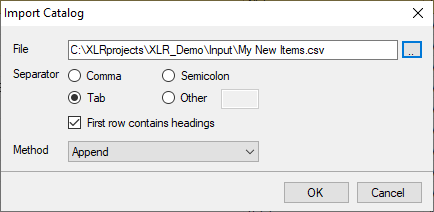 |
Specify the CSV File to import. After selecting the file, specify the Separator for the elements in each row of items in the file.
If the file contains a header row, check First row contains headings.
The Append Method appends each item from the file to the existing catalog. The Overwrite Method clears all existing items in the catalog, replacing them with the imported items.
Export an Item Catalog
An item catalog can be exported by clicking the Export option. This can be useful for documentation purposes or for making mass edits by opening the exported file into Excel, using tools like Find and Replace and then importing the items back into the catalog.
Exporting creates a CSV file in the Input folder of the project named after the item catalog, e.g., Process Values.csv.
The exported CSV file consists of 4 columns: Name, Nickname, Type and Description and each row is Tab separated.
Usage – Tag Browsing
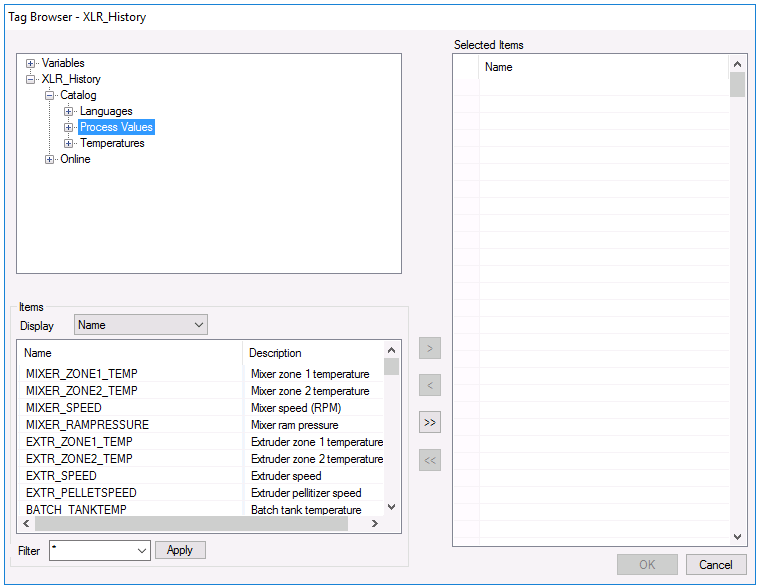 |
When browsing for tags anywhere in the project, any catalog set up for a connector is available to select tags from.
This can be quite useful if the connection to the server is slow, there are many thousands of tags available on the system, or if the tag names themselves are cryptic and hard for others to decipher.
In the last case, the Nickname setting can be helpful because it can be set up for a more descriptive name for the tag in the system.
Usage - Offline Project
When the data sources of a project are not accessible, the project can be switched offline so that template development can continue.
When a project is offline, two changes become apparent:
When browsing for items, such as tag names, instead of a “live” list from the connector, the items from the connector Catalogs are shown.
When previewing templates, instead of reading the “actual” value, a simulated value will be provided.
Usage – On-Demand Report
In an On-Demand Report, variables that represent tag names can be assigned using the “live” list from the connector. However, a smaller list of names is sometimes preferable e.g., for a report on temperatures, show only the tag names that represent temperatures. In these cases, create a Catalog and use that instead of the “live” list.
When browsing tags in the web portal, only catalogs are displayed.