SmartSights Edge Gateway
Please note that is section only applies to standalone XLReporter users who do not have the SmartSights Edge Gateway installed on their network.
 |
The SmartSights Edge Gateway must be installed on a system that is network accessible from where the XLReporter system and must have access to the internet. If the system where XLReporter is installed has direct internet access, the SmartSights Edge Gateway can be installed on the same system. To do so, when installing the Distributed Edition of XLReporter, check Install SmartSights Edge Gateway for Mobile App.
To install the SmartSights Edge Gateway by itself, start up the XLReporter installation media. If XLReporter is already installed, select the Modify option. For Edition, under SmartSights Edge Gateway, select For Mobile App.
Note, the SmartSights Edge Gateway requires .NET 6.0 to be installed. If not detected, this installation will install it for you but this may require a reboot of the system.
Security Configuration
If the gateway is not installed on the same machine as XLReporter, a trust must be established between both machines to make the connection possible. Launch the SmartSights SCU on both machines (this can be launched from the gateway installation on finish) and follow the prompts to establish trust. If the gateway is installed on the same machine as XLReporter, this step can be skipped.
SmartSights SCU
On each machine, open the SmartSights Security Configuration from the SmartSights group in the Start menu.
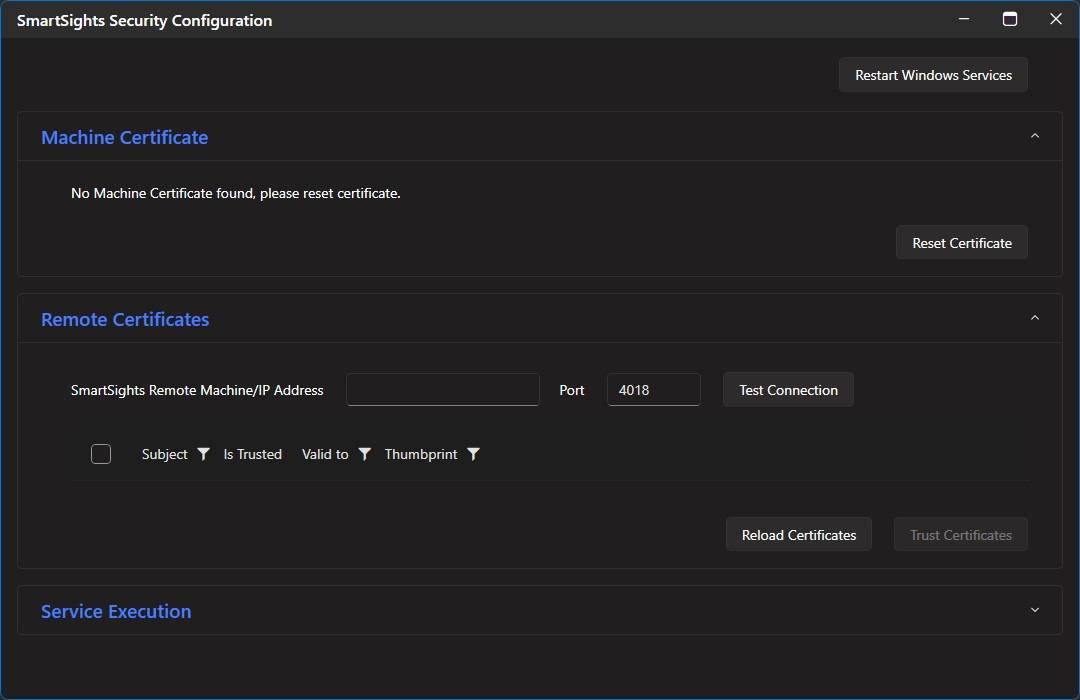 |
If no Machine Certificate is detected, select Reset Certificate.
Under Remote Certificates, enter the Machine/IPAddress. Change the Port if needed.
Click Test Connection. If the connection succeeds, you should see the following prompt:
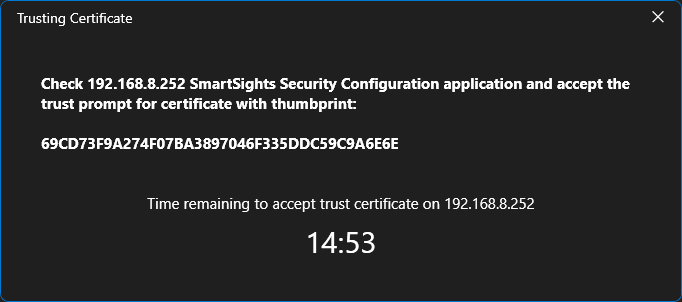 |
Go to the other machine and select Yes to trust the remote certificate.
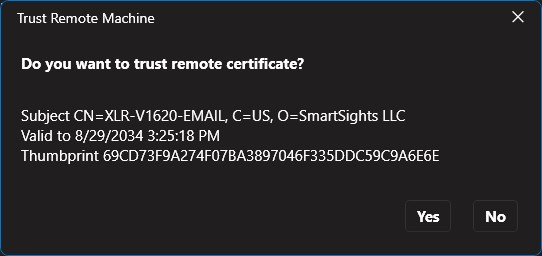 |
Go back to the original machine and also select Yes to trust the remote certificate.
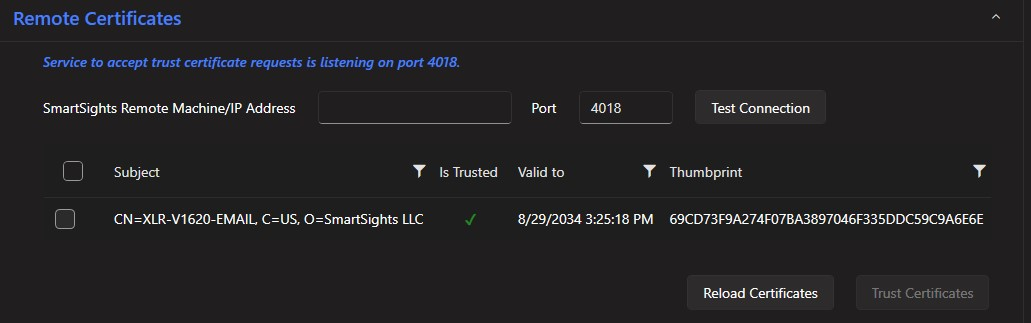
Now each machine should show a trusted remote certificate.
 |
Windows Firewall
If the connection fails and the Windows firewall is enabled, an inbound firewall rule needs to be created on both machines.
To create an inbound rule:
Open the Windows Firewall. Typically, the easiest way to do this is by typing Firewall into the search bar at the bottom left of Windows.
Click Advanced Settings
Right-click Inbound Rules and select New Rule.
For the rule type select Port and click Next.
Apply the rule to TCP.
For port, select Specific local ports and specify the port number used previously in the SmartSights SCU and click Next.
Leave Allow the connection selected and click Next.
Apply the rule for every network type required and click Next.
Give the rule a Name and click Finish.
Once the rules have been created, repeat the steps above to trust the remote certificates on each machine.
Mobile Gateway Account
SmartSights provides you with a mobile gateway account for each XLReporter license. Each XLReporter license requires a unique mobile gateway account.
The account is provided with a temporary password. Instructions are provided to you on how to set this password for your account. This must be done before the Mobile Gateway for XLReporter can be configured.