User Accounts
By default, user accounts are disabled. With user accounts disabled, the default user is Local which is shown in the title bar of the Project Explorer. This account has no restriction on capability and will exist until user accounts have been enabled.
With user accounts enabled, the capability of users is limited by configuration. User accounts are used in both local and multi-user Pro and Ultimate editions of XLReporter. For example, you may wish to allow a user to view reports but not to generate them on-demand.
Enable User Accounts
From the Project Explorer on the right-side Tools tab, in the Security section select User Accounts. If this is the first time then the following is displayed:
 |
The Access Password is created when user accounts are first enabled.
Enable user accounts by checking Enable User Accounts, entering the desired Access Password that will be used if further user account changes are needed, and clicking OK. Make sure to make a note of the password. Other Users must be defined in order to close the User Accounts dialog.
Disable user accounts by entering the Access Password and unchecking Enable User Accounts.
Define User Groups
Except for the Administrators group, all the Group Names can be customized together with the associated Permissions.
Select Modify Groups.
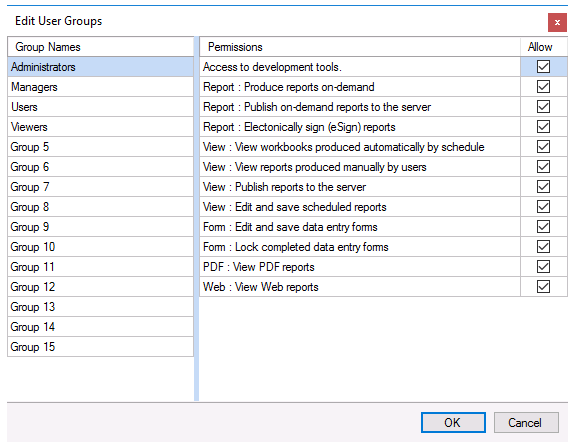 |
In the left pane are the Group Names. Double click a name to edit. Note that the Administrators group name cannot be changed.
In the right pane are the Permissions assigned to the group. The referenced documents can be found in the Document Library which can be opened from the Documentation button in the upper right corner of the Project Explorer.
Access to development tools (see SETUP, Set up a Project in the Project Explorer).
Report: Produce reports on-demand (see REPORT, Deploy On-Demand Reports).
Report: Publish on-demand reports to server (see REPORT, Deploy On-Demand Reports).
Report: Electronically sign (eSign) reports (see Electronic Signatures (eSignatures))
View: View workbooks produced automatically by schedule (see DISTRIBUTE, View and Annotate Reports).
View: View reports produced manually by users (see DISTRIBUTE, View and Annotate Reports)
View: Publish reports to the server (see REPORT, Setup the Web Portal).
View: Edit and save scheduled reports (see DISTRIBUTE, View and Annotate Reports).
Form: Edit and save data entry forms (see REPORT, Deploy Data Entry Forms).
Form: Lock completed data entry forms (see REPORT, Deploy Data Entry Forms).
PDF: View PDF reports (see DISTRIBUTE, View and Annotate Reports).
Web: View web reports (see DISTRIBUTE, View and Annotate Reports).
Define Users
To define a user, click Add User.
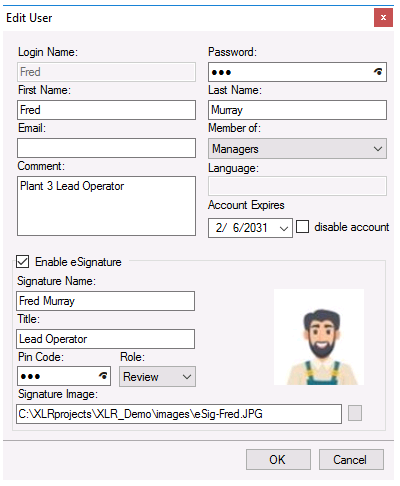 |
Enter a Login Name and assign the user to a Member Of a group. The remaining fields are optional. The account will expire on and after the date configured, this feature can be disabled.
Refer to the Electronic Signature section for more information on the signature settings.
Mobile Gateway
The Mobile Gateway option is available as part of making this XLReporter site available from the SmartSights Mobile App. For more information, see the SmartSights Mobile App documentation.
Log On/Off
When user security is enabled, there are two ways for a user to log on and off. The first is from the Project Explorer by clicking Sign in/User Name in the title bar and the second is from the Distributed Windows Client in the title bar as well. In both cases, the user is prompted to specify for a Protocol (http or https), a User name, and Password.
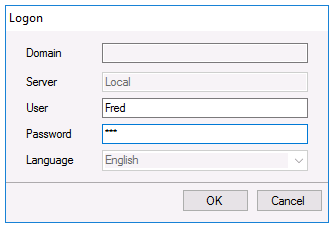 |
Note that after enabling User Accounts, when the User Accounts dialog is closed, you are immediately prompted to log in with a configured user.