Prerequisites
Verify RSLinx License
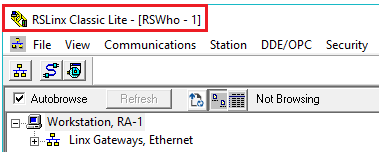
Open the RSLinx Classic control panel from the Rockwell Software program group. In the title bar verify that the installed version is NOT Lite or Enterprise.
 |
Verify Communication
Communication between RSLinx and the PLC (and therefore, XLReporter) can be verified using the OPC Test Client provided by Rockwell Software:
From the Rockwell Software program group, open RSLinx, Tools .
Select the OPC Test Client.
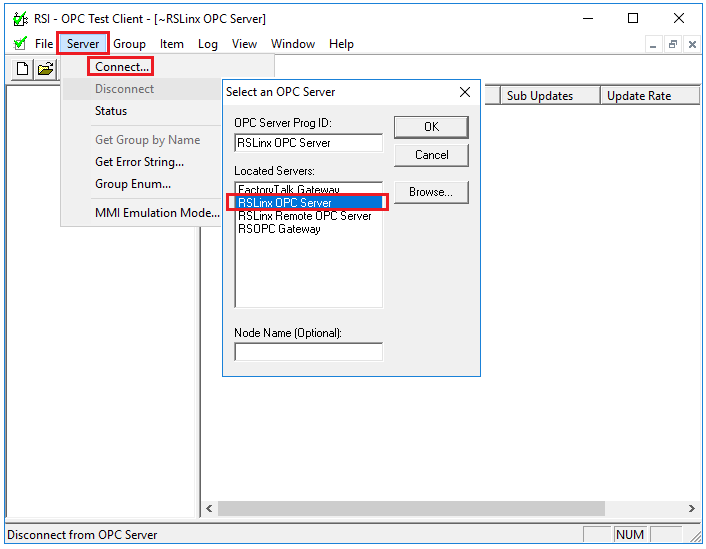
Select Server, Connect to open the Select an OPC Server window.
Choose RSLinx OPC Server and click OK.
 |
Next, add a data group:
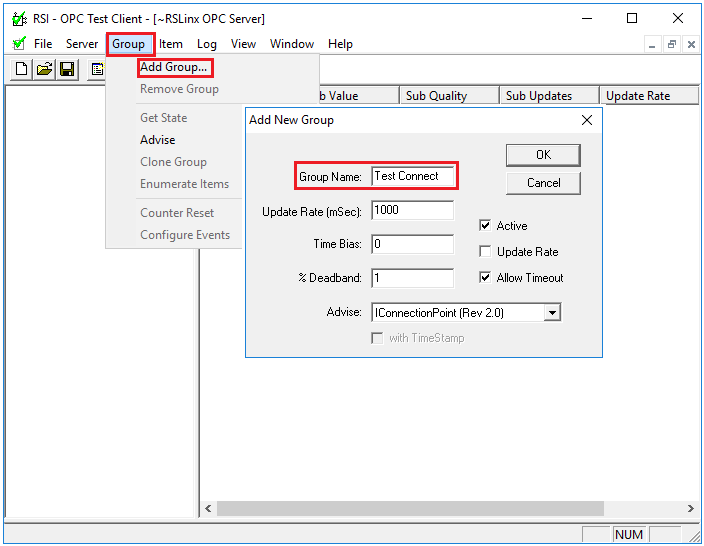
Select Group, Add Group.
Enter a Group Name and click OK.
 |
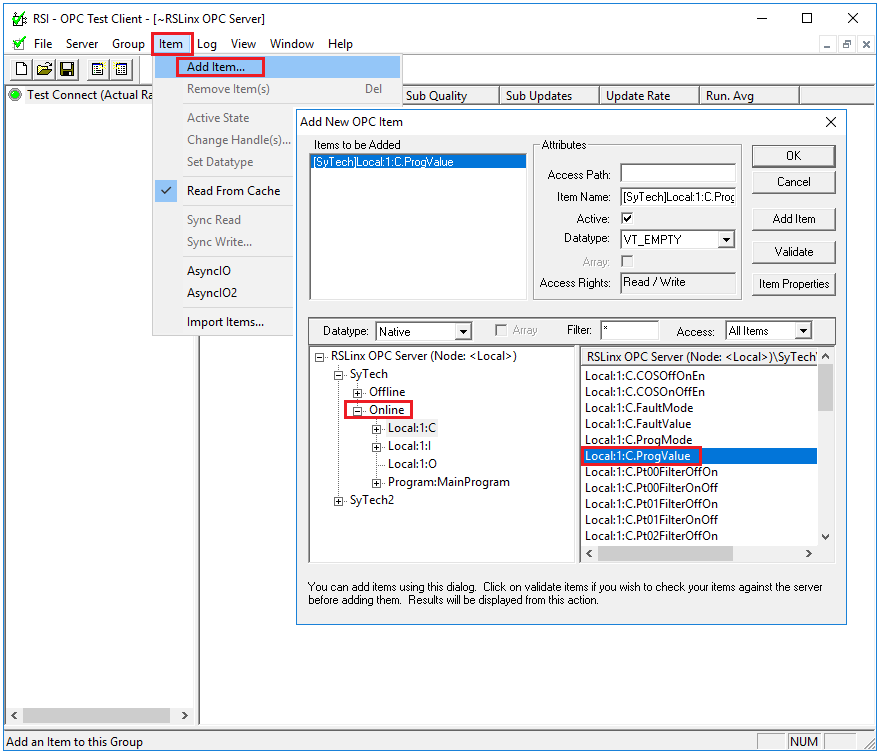
Select Item, Add Item to open the Add New OPC Item window.
Select a tag by navigating in the lower left list, selecting a tag on the lower right list, and clicking Add.
Next, add one or more data items (tags),:
 |
Click OK to return to the OPC Test Client window.
All the selected tags appear along with their real-time values, type, quality, and timestamp.
If the client does not respond as described, contact Rockwell Automation technical support to troubleshoot and correct the issue.