Prerequisites
Verify Driver
To verify the OLE DB Provider exists on the machine,
On the Windows desktop, create a new text document.
Rename the text document to Test.udl.
Double click the file to open.

On the Provider tab, verify that the iHistorian OLE DB Provider is listed.
Verify Data Storage
From the Proficy Historian program group, select Historian Administrator.
At the top click the Tags link.
Click Search Historian Tag Database.
Leave the Search window blank and click OK. All the available tags are now listed.
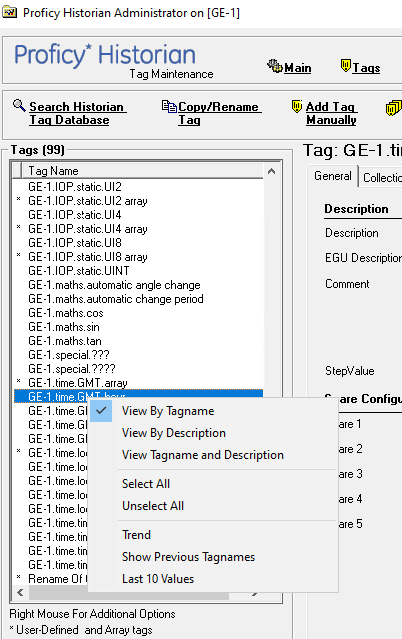
Right click a tag in the list and choose Last 10 Values.
This displays the last 10 values logged to the historian for the selected tag.
Verify Data Retrieval
The Historian Interactive SQL application can be used to verify data retrieval. To open, from the Proficy Historian program group, select Historian Interactive SQL.
Connect to the historian.
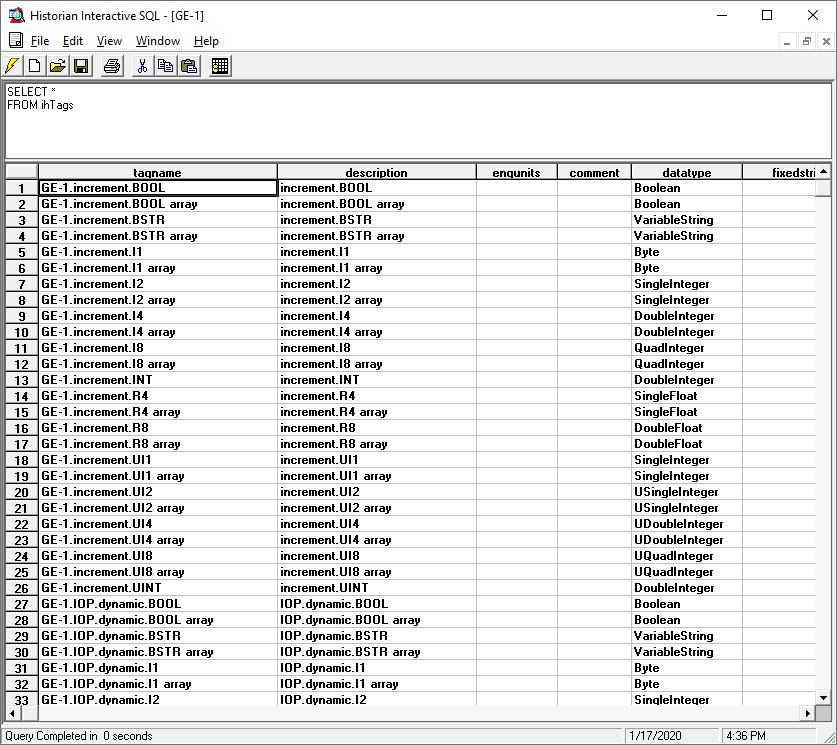
Queries can be entered at the top of the window. Enter the following query:
SELECT *FROM ihTags
Click the
 button to execute the query
This should list all tags configured in the historian.