Set up Historical Value Log
Ignition settings are available through a web browser. Open a web browser and navigate to:
localhost:8088
Log in to Ignition.
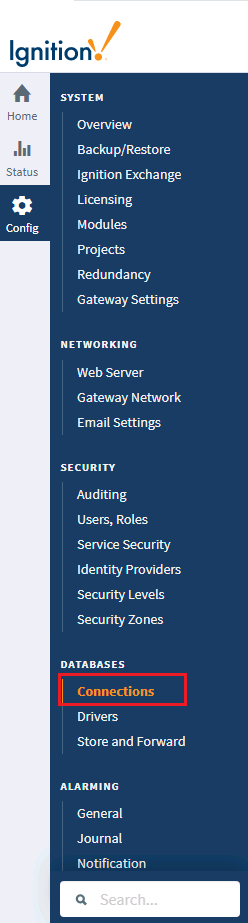
On the left, select Config, then under Databases select Connections.
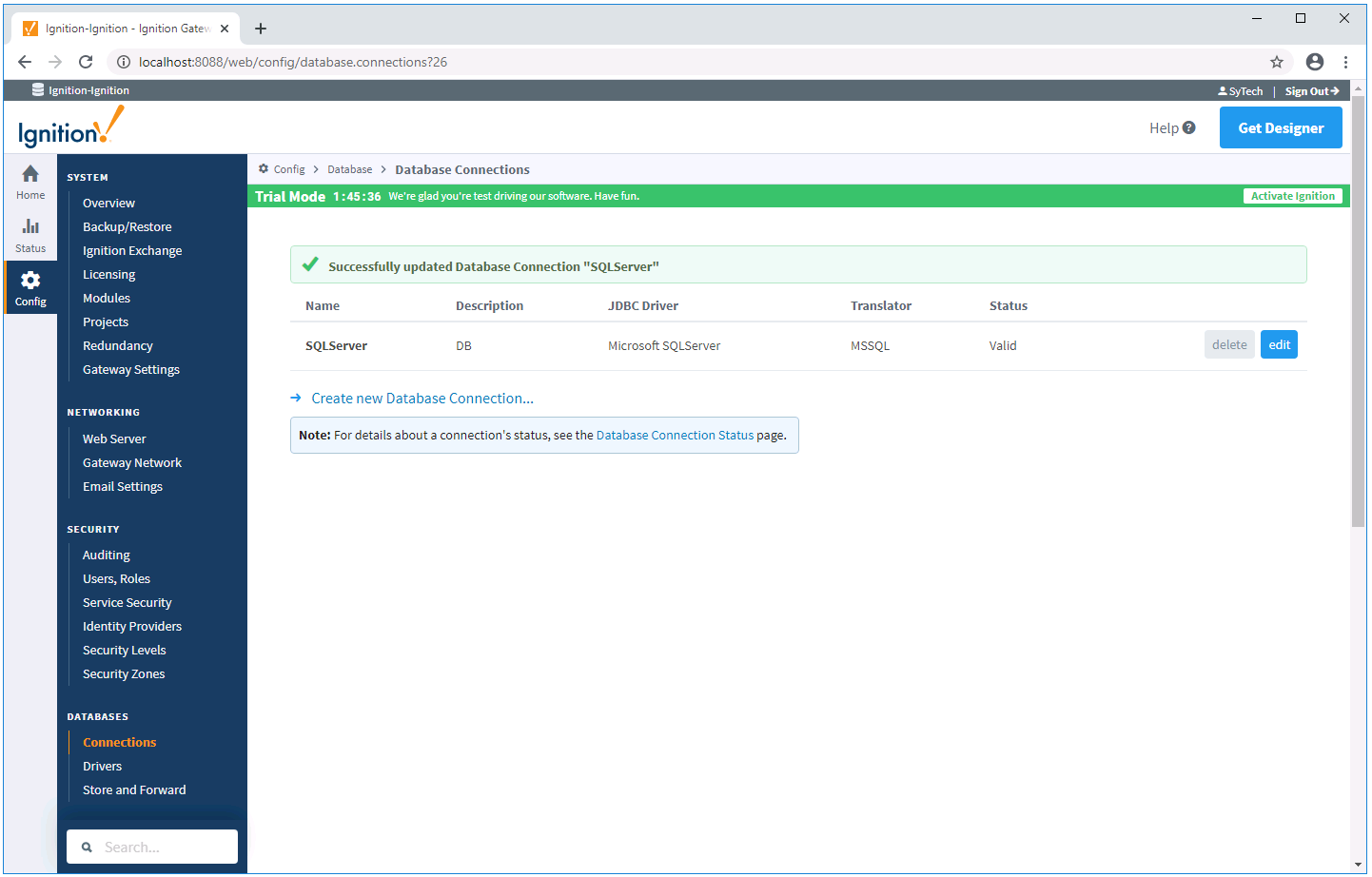
Click Create new Database Connection…
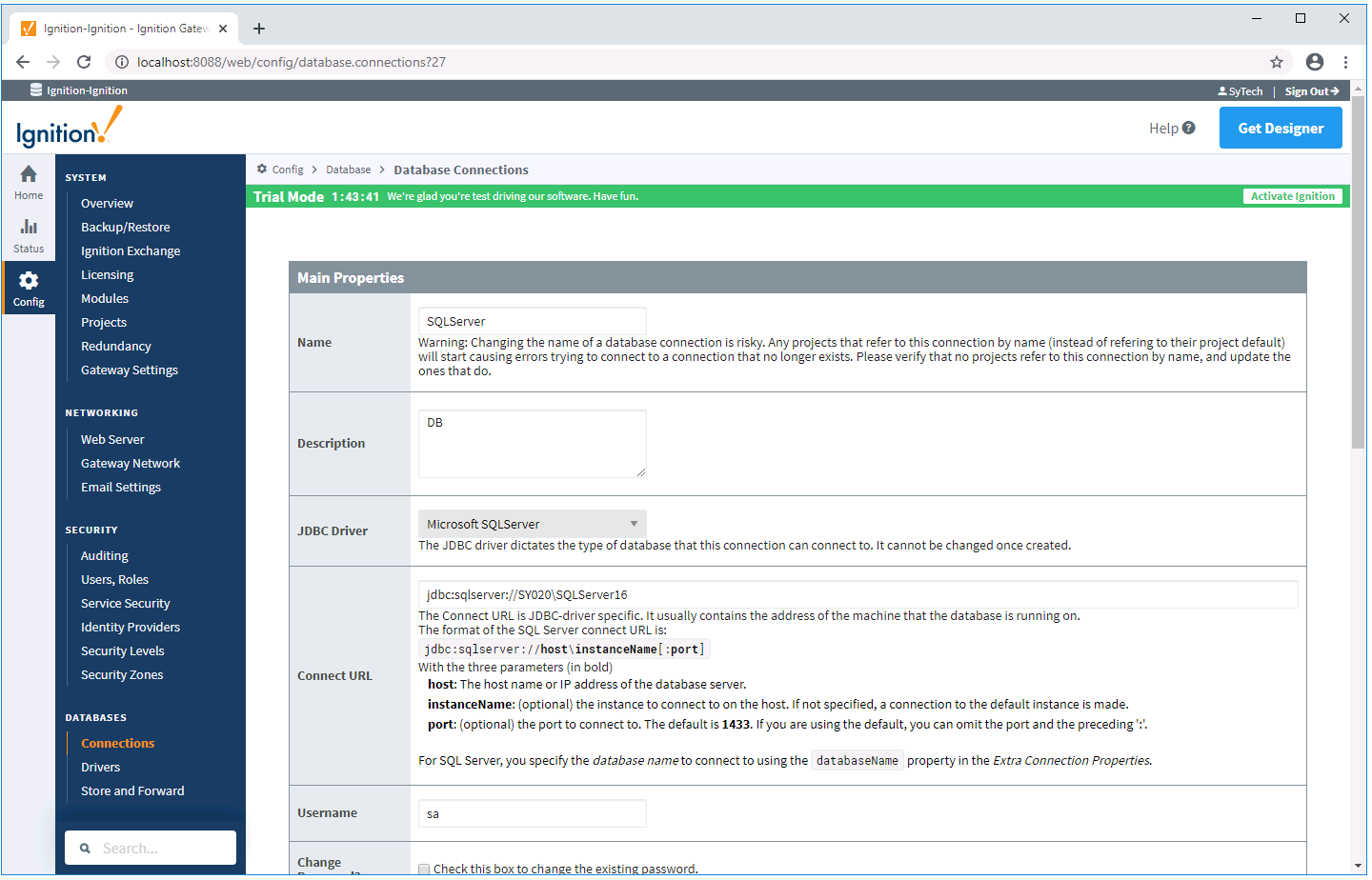
Make the connection to an available database like MySQL or Microsoft SQL Server/SQL Server Express.
Set up Transaction Group
Select the Design Launcher from the program group and launch the project.
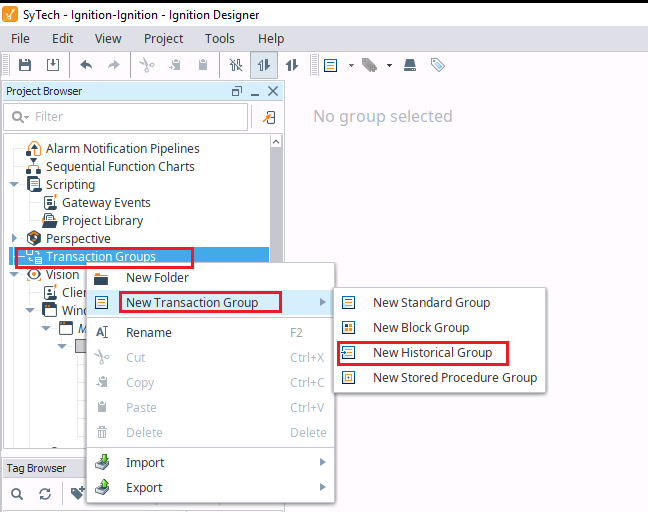
Under the Project Browser panel, right click Transaction Groups and select New Transaction Group, New Historical Group.
Enter a Name.
Click Create Group.
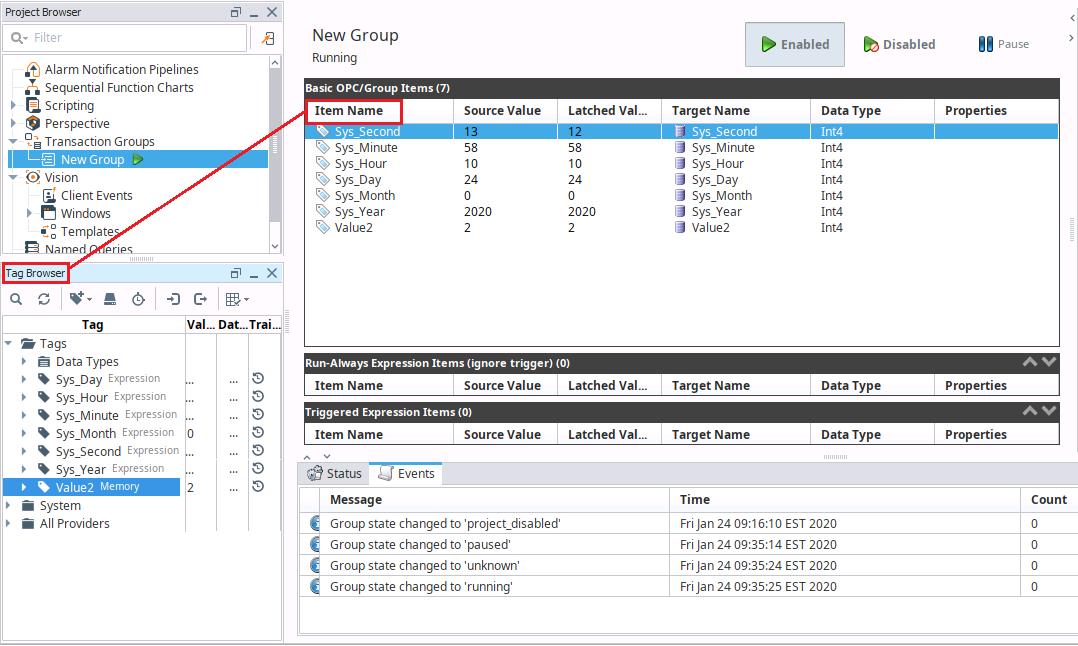
To add tags to the Transaction Group, drag and drop the tags from the Tag Browser panel of the Ignition Designer.
Under the Action tab on the right,
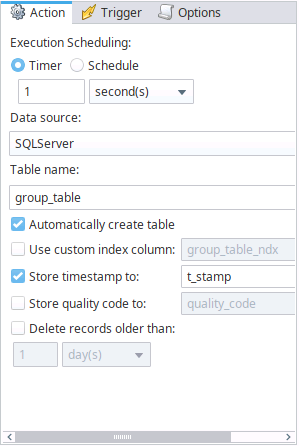
Set Execution Scheduling to the rate at which data should be collected for the group.
Set Data source to the database connection configured.
Set Table name to the name of the table to log to in the database.
If the table specified does not exist, check Automatically create table to ensure it is created in the database.
Check Start timestamp to and leave the setting as t_stamp.
Click Enabled when finished.