Schedule
The Schedule tab determines when Analytics are Updated and Stored.
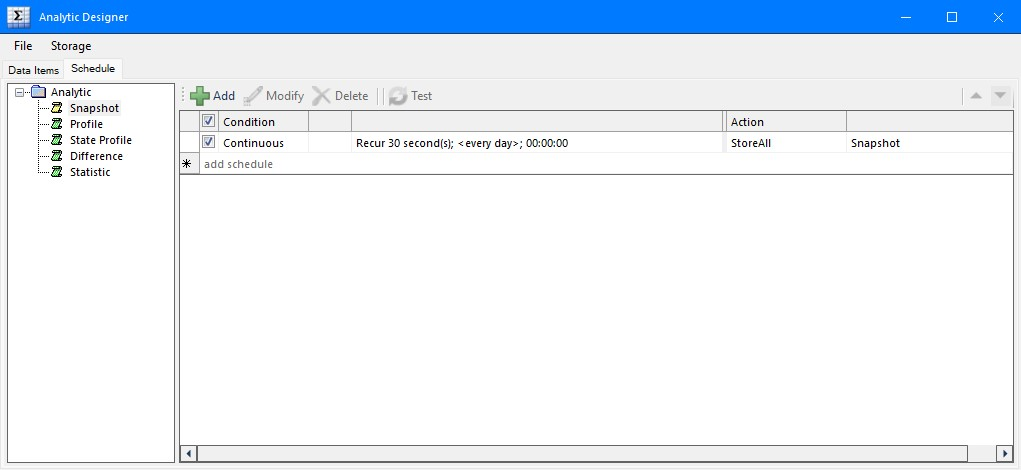 |
The left view of the Schedule tab displays the analytic categories. Select a category to display the configured schedule for that analytic in the grid.
To add a schedule click Add.
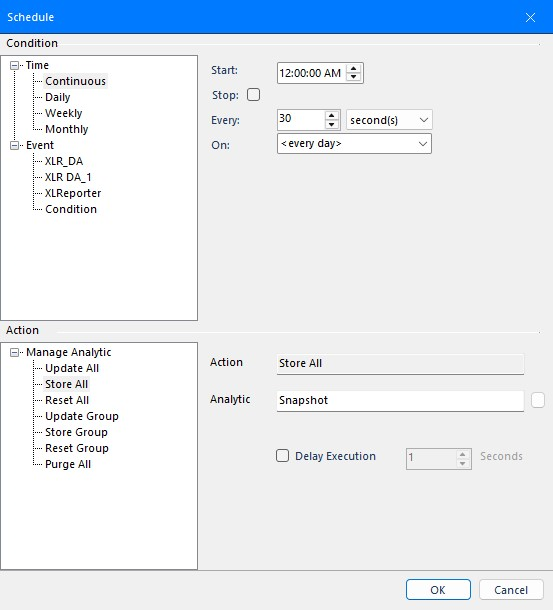 |
In the upper part of the display define the Condition on which to trigger the action. In the lower part of the display, specify the Action to perform when the Condition is met.
Actions
Reset Group, Reset All
These Actions reset the analytic value(s). Typically, this is not required as the reset automatically happens on a Store.
Update Group, Update All
These Actions update the value of the analytic value(s) using the process value assigned to the analytic. This is supported for every analytic except Snapshot.
Store Group, Store All
These Actions store the value of the analytic value(s) so that they can be used in a report. If historical Storage is enabled, they are also saved to a database.
Purge
These Actions purge old records from the historical database that are older than Older (days).
Example: Using a Statistic analytic variable (seen in Data Items, Statistic), calculate the hourly maximum and minimum of the mixer speed from one minute process values.
To achieve this, an Update action is run every 1 minute to collect sample values. A Store action is run every 1 hour for the resulting metric values to be available for reporting.
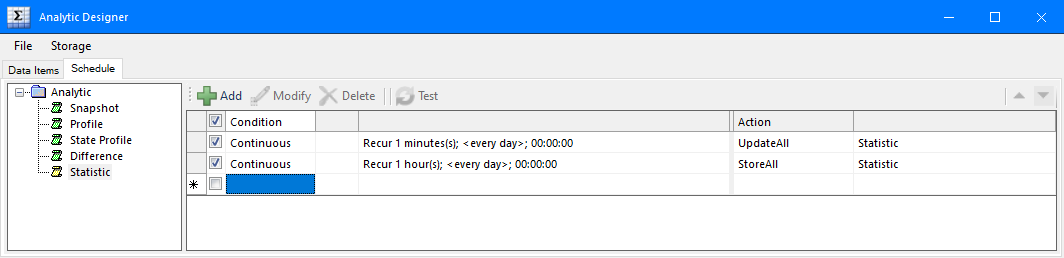 |
When two conditions happen at the same time, for instance every hour in the example above, they are processed sequentally top to bottom.
Schedule Delay
When analytics are Stored on time or on an event, it is usual for a report to be produced on the same condition. To make sure the Store of the analytic has completed before the report is produced, a Delay Execution can be specified in the Update Worksheet or Update Workbook action.
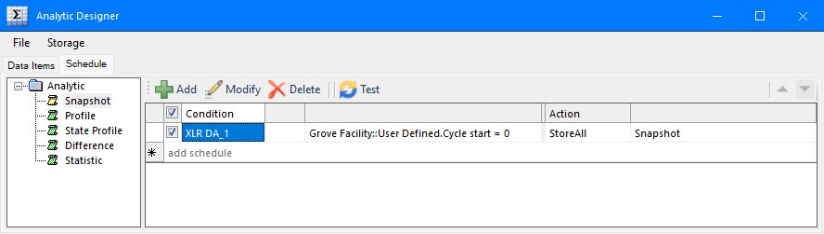
For example, consider the analytic schedule configuration below that represents a Snapshot being Stored when a cycle completes:
 |
The corresponding schedule action to produce the report would be configured as follows:
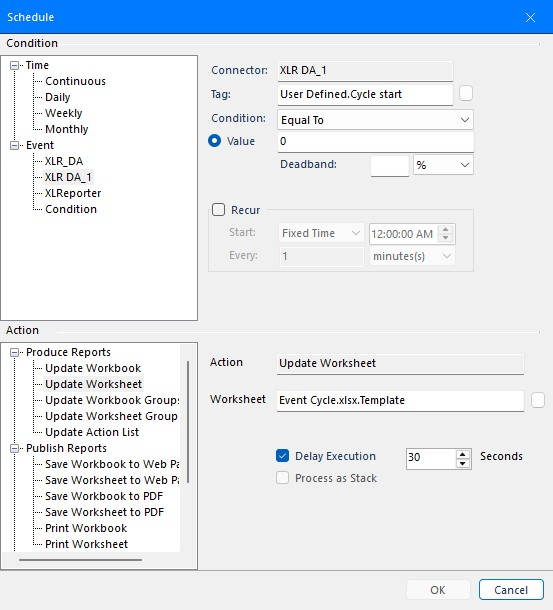 |
Note that the Condition is the same as the analytic Store condition. However, a 30 second Delay Execution setting is used to cause the scheduler to wait 30 seconds after the cycle finishes before it produces the report.