Set up VTScada
Configure a User Account
The VTScada application must be secured with a user that has internet client access privileges. To access these settings, click the Application Configuration button from the VTScada Application Manager.

In the Application Configuration, select Edit Security on the left.
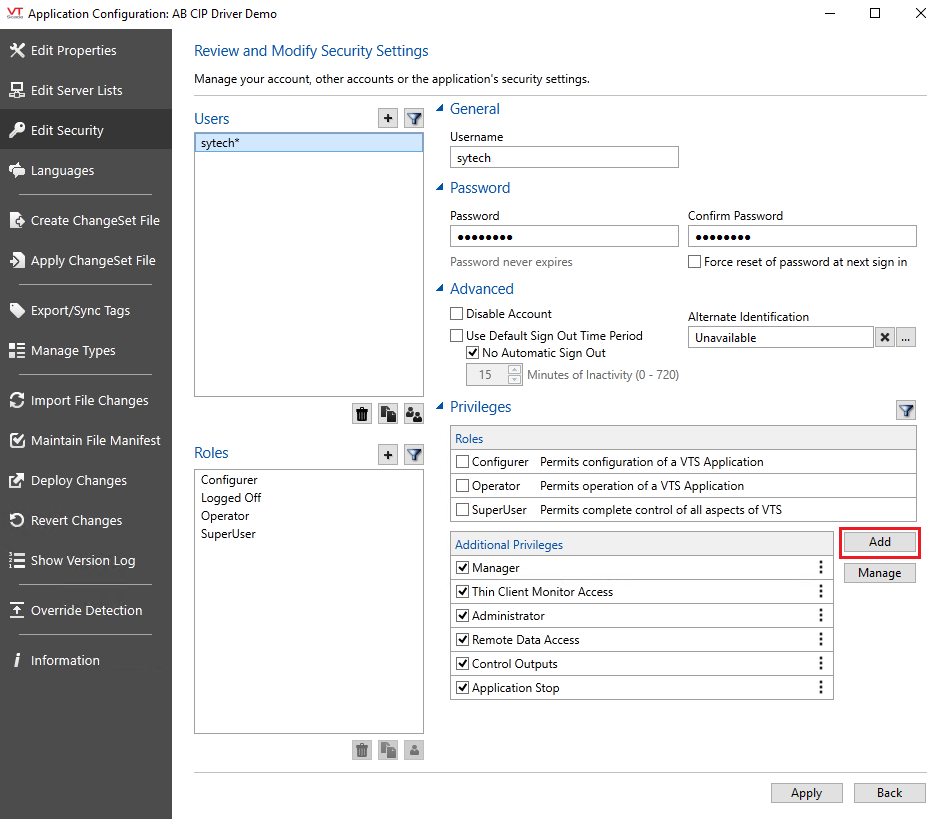
Select Accounts
Select the user to edit.
Select Add on the right.
Under Page Access, choose Thin Client Access or Thin Client Monitor Access depending on the version.
Under Account Control, choose Remote Data Access.
Under Application Configuration, choose Remote Tag Value/History Retrieve or Tag Modify depending on the version.
Click OK.
Click Apply to save the changes.
Configure the ODBC Server
To retrieve historical data, the VTScada application must be configured as an ODBC server.
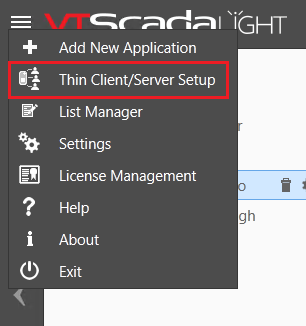 |
In the VTS Application Manager (VAM), select the Hamburger list in the upper left and choose Thin Client/Server Setup or VTScada Internet Client/Server Setup depending on the version.
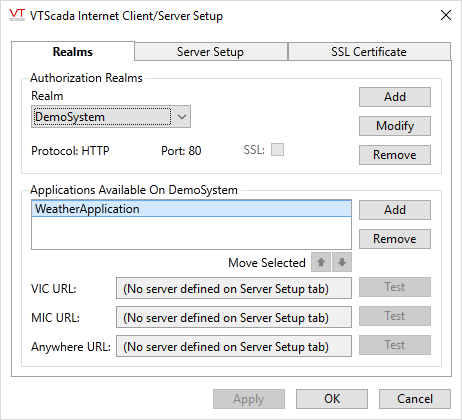
Under the Realms tab, in the Authorization Realms section, click Add to open the Add Realm dialog.
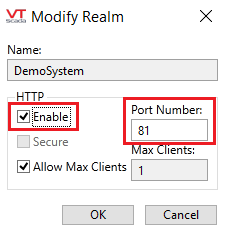
Specify a Name
Under HTTP check Enable
Set Port Number to 81.
Click OK.
Under the Applications Available On ODBCRealm section,
Click Add to add the application to the ODBC Realm.
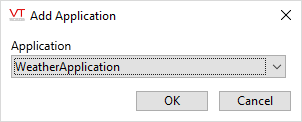
Select the Application to add.
Click OK.
Select the Application Configuration  button from the VTScada Application Manager
Click Edit Properties.
Click Advanced Mode.
To add a property, click Insert.
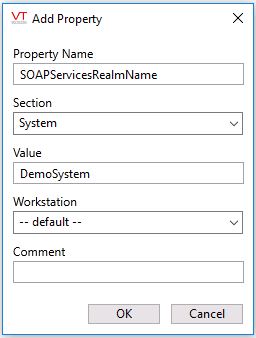
Set the Property Name to SOAPServicesRealmName
Set Value to the name specified for your ODBC Realm.
Restart the application after adding this property for the changes to take effect.
Historical Data Limitations
The number of rows returned from VTScada is limited to 10000 by default. If necessary, the SQLQueryMaxResultRows property can be changed to return more rows.
In the Application Configuration, click Edit Properties. If the property does not exist, it can be added by clicking Insert.
Set the Property Name to SQLQueryMaxResultRows and set Value to the desired maximum.
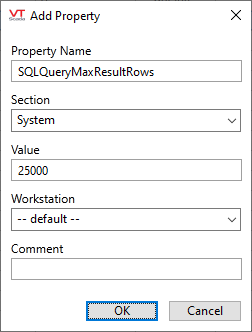
If the property does exist and is greyed out, select it, click Copy and then change Value as needed.
ODBC Set up
To access VTScada history data, the VTScada ODBC driver must be installed.
On the machine where access is required, run VTSODBCDriverInstall.exe to install the ODBC driver. This is distributed with VTScada.
DSN
After installing the driver, an ODBC data source (DSN) can be created.
From the Project Explorer, select the Tools tab
Select DSN Settings to open the Microsoft ODBC Data Sources Administrator utility
Select the System DSN tab
Select Add
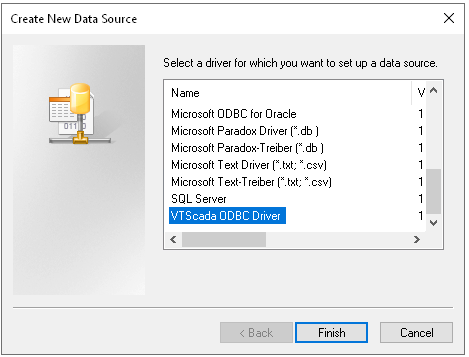
Under Name, select VTScada ODBC Driver and click Finish. This opens the VTScada ODBC Setup dialog.
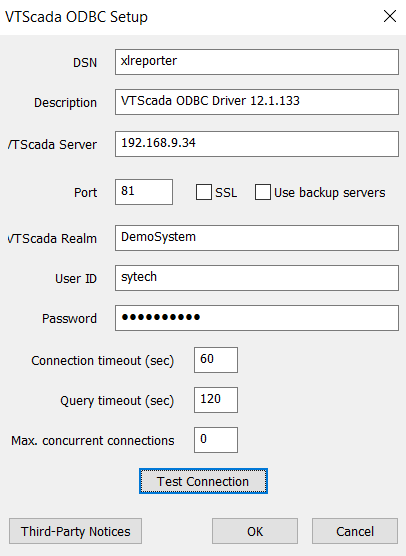
For DSN enter a name that does NOT match the name of the VTScada application.
For VTS Server, enter the fully qualified domain name of the machine running the VTS application or the IP address.
The Port and SSL settings should match that was entered when configuring the ODBC Realm described in a previous section.
Enter that User ID and Password of a user having internet client access privileges.
Click Test Connection to test the validity of the setup. The application must be running for this to succeed.
If user groups are enabled, the User ID specified must be a member of the user group that matches the VTS Realm specified to connect.