Set up OPC HDA Server
Installation
The OPC-HDA server is not installed by default, it is a separate installation found on the installation media under Advanced Server Options\PIDASSetup\OPC DA_HDA\OPC DA_HA Server.
Licensing
A license must be assigned to the Historian to allow access via OPC HDA.
Open FactoryTalk Administration Console from the Rockwell Software program group and select the appropriate FactoryTalk Directory.
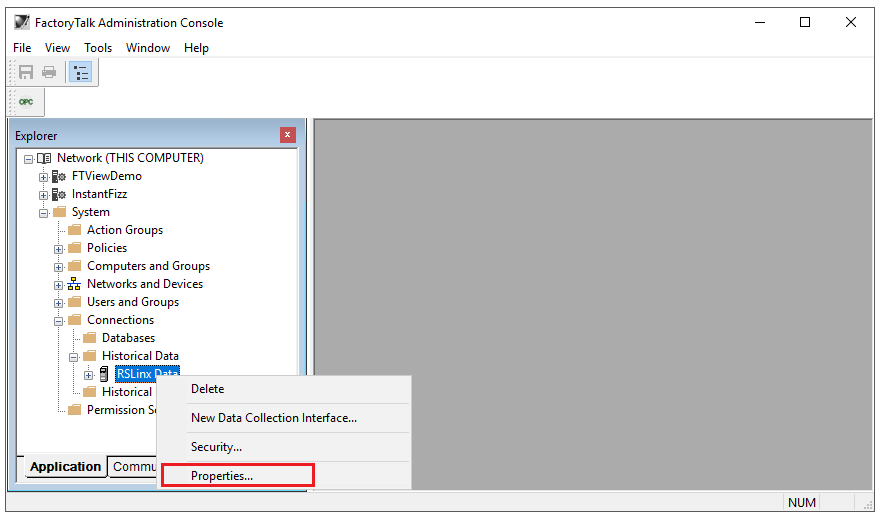
In the Explorer, expand Network, System, Connections.
Expand Historical Data, select the Data Collection Interface configured, right-click and select Properties.
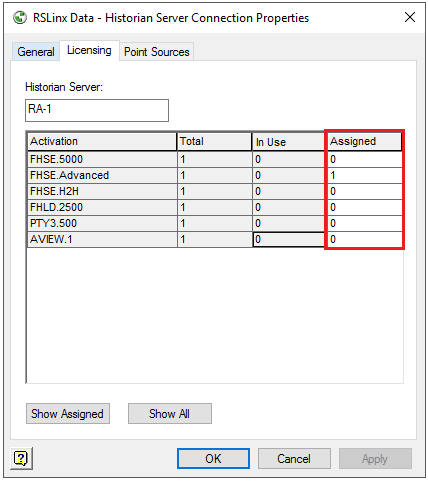
Under the Licensing tab assign the OPC or Advanced Historian license under the Assigned column by setting the value to 1.
OPC HDA Tuning for Automation
The first time XLReporter accesses data from the FactoryTalk Historian, a popup window will appear. This behavior will prevent any report scheduling and so it must be suppressed by launching the server with a specific Windows Account.
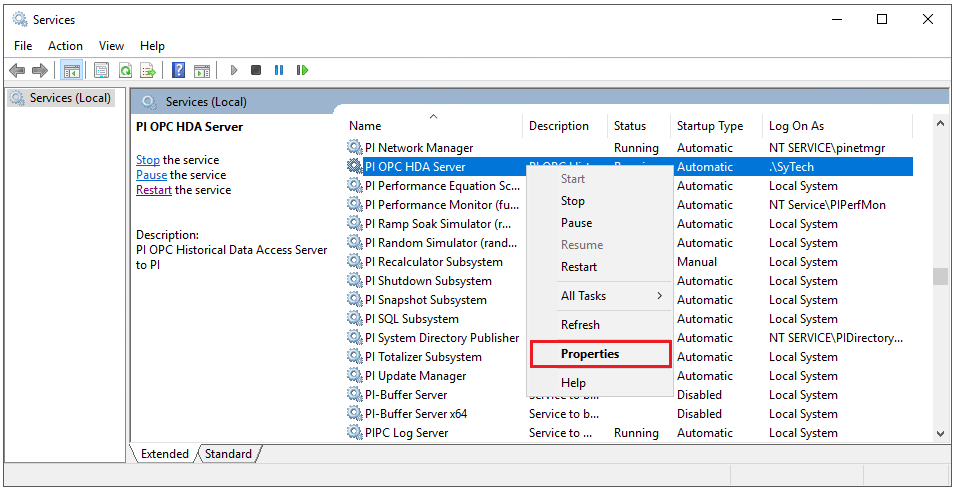 |
Locate the PI OPC HDA Server service, right-click and select Stop.
Right click again and select Properties.
Go to the Log on tab, select This Account and specify an account.
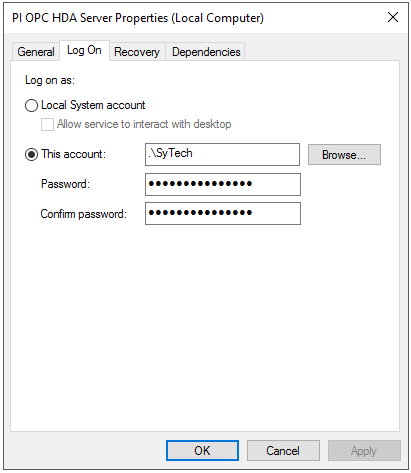
Configure the server itself to launch with the same account by updating DCOM settings.
To access DCOM settings, for a 32-bit operating system, select Start, Run, and enter dcomcnfg. For a 64-bit operating system enter comexp.msc /32.
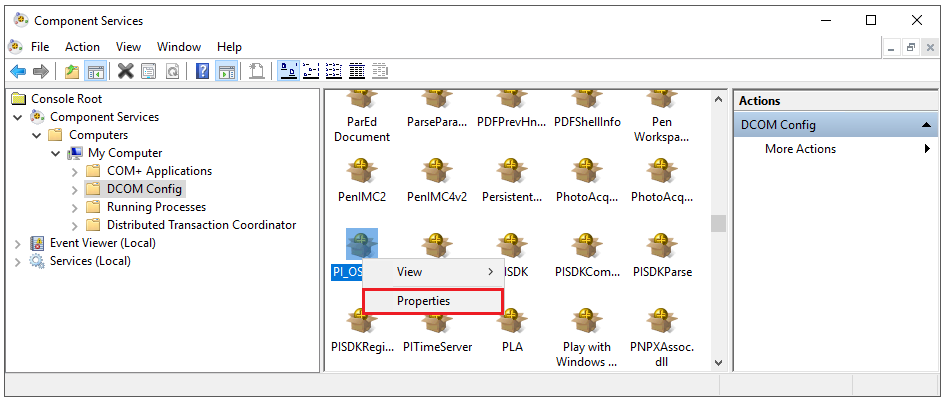
Expand Component Services, Computers, My Computer, DCOM Config.
Select PI OSI HDA Server right-click and select Properties
Select the Security tab
Set Launch and Activation Permissions to Customize
Click the Edit button.
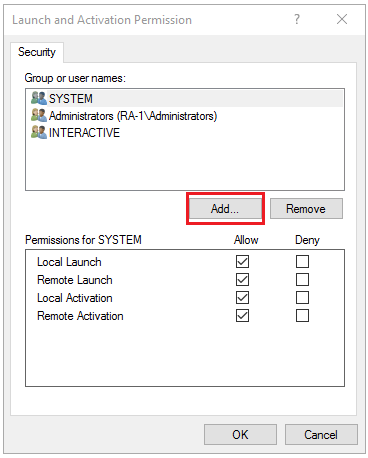
In Launch and Activation Permission, click Add.
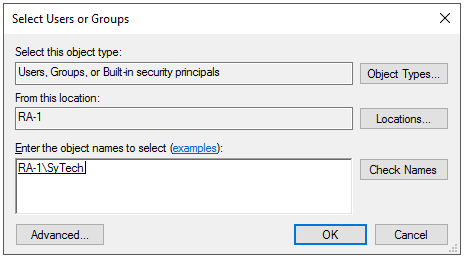
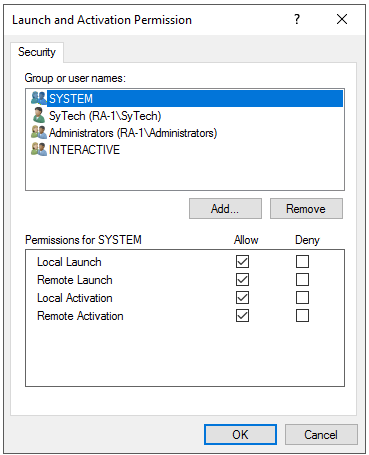
Add the current user, and/or any users associated with XLReporter design and runtime components.
If XLReporter’s Scheduler is set to run as a Windows Service, you must also add the Windows user the Scheduler Service is running. All other Groups or Users should be removed.
To access data remotely with XLReporter Ultimate Edition, the ASPNET user should also be listed. If you experience issues retrieving the data from a team client, also add the user group EVERYONE to the list.
If XLReporter is installed locally, enable Local Launch and Local Activation. For installations where XLReporter and FactoryTalk Historian are installed on separate machines, enable the Remote settings.
Under the Identity tab, Set the account to This user and specify the same user account configured for the Windows Service to run under.
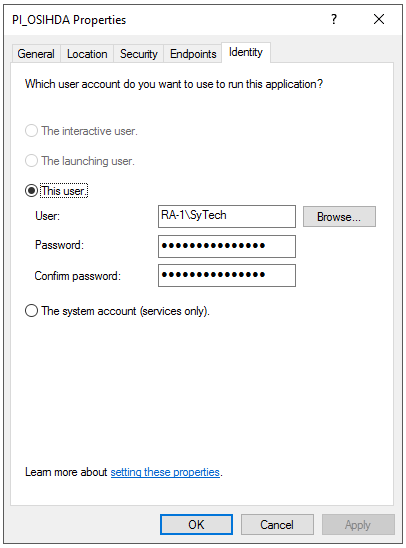
Restart the PI OPC HDA Server Windows service.
For more information, see the Running the OPC Server as a Service section of the PI_OSIOPC document provided with the FactoryTalk Historian installation.
Validate OPC HDA Configuration
To validate that the OPC HDA server is functional, on the machine where the server is installed, run PI_HDATool.exe. This can be found in:
C:\Program Files (x86)\Rockwell Software\FactoryTalk Historian\PIPC\PI_OPC Tools\PI_HDATool
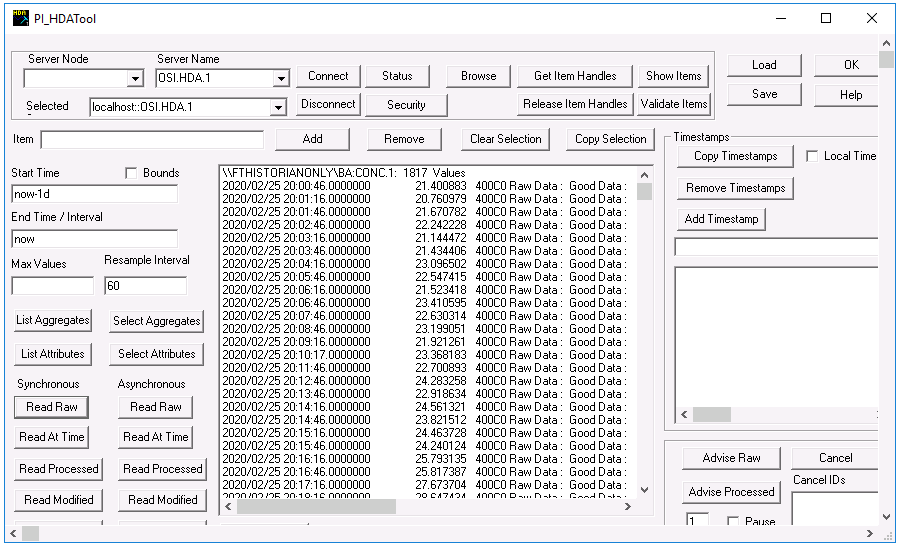 |
Set Server Name to OSI.HDA.1.
Click Connect.
Click Browse.
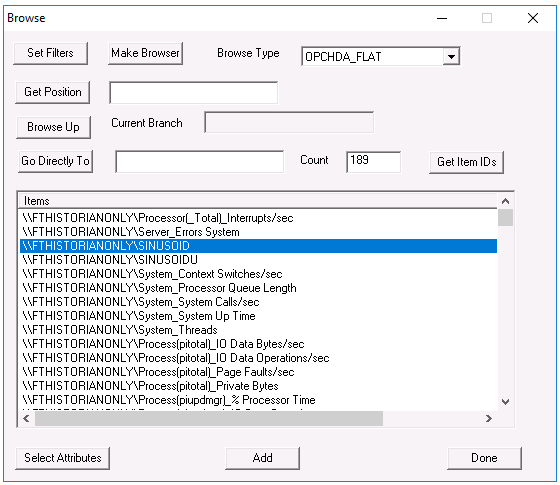
OPC-HDA Tag Browsing
Click Make Browser.
Change Browse Type to OPCHDA_FLAT and a list of tags should appear.
Select a tag that is currently being logged and click Add.
If a prompt appears about the tag not being a full ItemID, click Yes to continue.
Click Done to close the browser.
Click Show Items and then Get Item Handles. The tag should appear with Connected appended to it.
On the right side, under Timestamps, check Local Time.
On the left side, set Start Time to now-1d and End Time / Interval to now.
Under Synchronous click Read Raw.
The raw values collected for the past day for the selected tag should appear.
If there are any errors or no data is returned, contact Rockwell Automation technical support to correct the issue.