Analytic Database
This connector is used to define the database where XLReporter Analytics are logged and is used to get analytic data for reporting.
Connector
For details on the Analytics connector, see Analytic Data Logging and Analysis.
To configure the connector, from the Project Explorer select Connect, Connectors.
Click Add
Select XLReporter, Analytic values
Click OK
 |
Primary Database
This defines a connection to the database where the Analytic data is stored. A browse button […] is provided to define.
Settings
The Settings button opens the Settings dialog that defines characteristics of the database that are used to retrieve data.
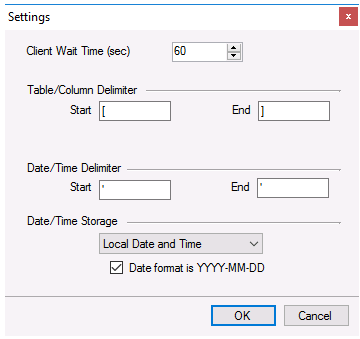 |
Typically, these settings are defaulted correctly based on the Primary Server.
If queries timeout, increase the Client Wait Time.
The delimiter and timestamp settings are typically filled in automatically for the database and can be modified for other databases.
The Date/Time Storage settings define how timestamps are stored in the database. Using this setting the timestamps are manipulated when data is retrieved so that local timestamps are submitted in and returned.
Many databases require the Date format to be YYYY-MM-DD so that no interpretation needs to occur based on the Region settings of the Windows Operating System. It is recommended to always have this option checked.
Tables
When this connector is saved the first time, a set of tables and views is created in the Primary Database.
If the connector is modified, but the Primary Database remains the same, when saved the user is prompted to overwrite the tables. If this is done, all the analytic data logged previously is deleted.
Analytic Editor
After the Analytic connector is defined, to configure the Analytics to store to the database, open the Analytic Designer (Project Explorer, Connect, Analytics).

In the Analytic Designer select Storage.
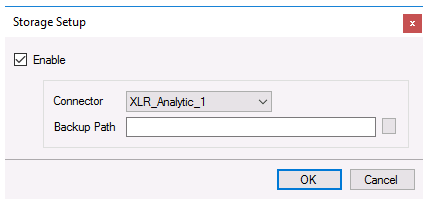 |
By default, Enable is checked, the Connector is set, and the Backup Path is configured to a folder in the Data subfolder of the project.
Data Group
The following describes the historical data group settings specific to the Analytics connector.
Group Types
The following Group Types are available:
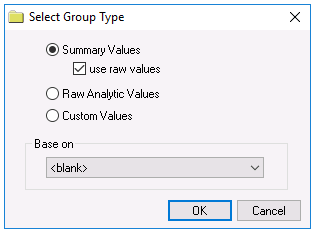 |
Summary Values retrieves stored values from the analytics and performs calculations on those for reporting.
Raw Analytic Values retrieves every value logged to the database between the start and end time specified.
Custom Values opens the Database Group builder where a query can be configured to retrieve data from any table in the database.
Note
By default, summary values are calculated time weighted, and values are propagated based on the last known value. However, to change this so that summary values are calculated strictly on the data returned check use raw values.
Group Settings
The following settings are available under the Setup tab:
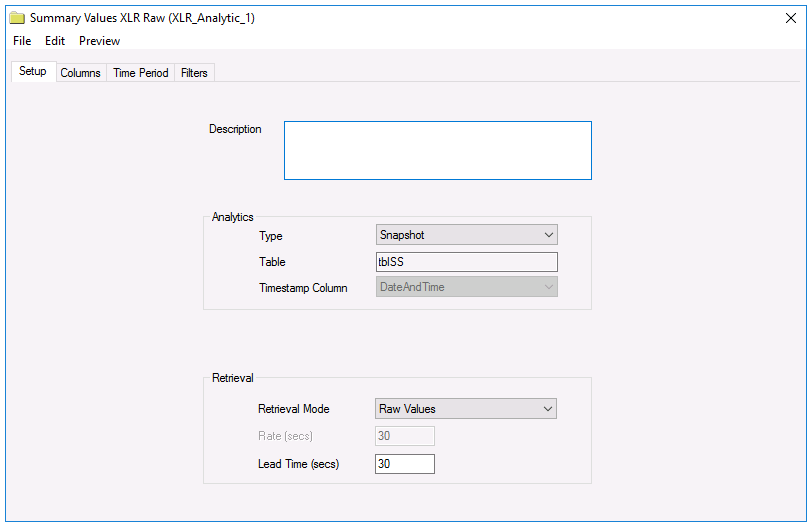 |
The Analytics section defines which Analytic Type is used for the selected Columns. Every Type is listed regardless of whether or not any have been configured.
For Summary Values from XLReporter groups, the Retrieval settings define how data is retrieved for the calculations selected for the group. The following settings are available:
Retrieval Mode setting defines how data is retrieved from the historian. For Analytics only Raw Values are available.
Lead Time defines the amount of time (in seconds) to retrieve data before the start time.
Verify the Data Connector
From the XLReporter Project Explorer , select Connect, Connector Groups
Set the Type Raw Analytic Values and click OK
On the Setup tab, select an Analytic Type that has been configured with at least 1 row
On the Columns tab of the group, select the analytic values to read
Select Preview, pick a Start date and click Refresh