Stack Wizard
The Stack Wizard quickly produces the framework of a stacked report template. It requires information about the sub reports and the stacking rule.
The wizard is launched from the Design Studio using the File, New options on the menu bar.
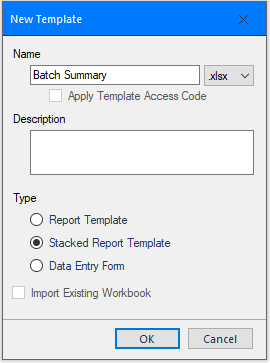 |
Enter a Name for the template.
For Type select Stacked Report Template
Click OK to open the wizard dialog.
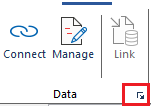
The wizard can also be accessed in the Design Studio Connect tab from the launcher of the Data group.
 |
This option is useful when edits are needed to an existing configuration.
 |
Template Name
The Template Name is read-only and is the name that was given on the previous step.
Stack Master
The Stack Master is usually set to a database group which return a list of items. Each item in the list will be used to drive the rules specified in the grid.
Date Column
The Date Column is set to a column in the Stack Master that represents a date and time. If there no such column, set this to None.
When the report is produced on-demand this setting is used to filter the items in the Database Panel. When the report is Scheduled, the Filter setting is used to filter the list (see later).
Stacked Reports are produced automatically, on-demand, or both.
The on-demand option is always enabled. When used in a windows or web client, the user is presented with the Stack Master list in a Database Panel (described in a separate document). Selecting one or more items will iteratively drive the rules specified to produce the report.
For automatic reports, the check Scheduler and setup a schedule Condition and a Filter.
Condition
The Condition indicates when the report is scheduled, either Time or Event. The dialog that displays when the browse […] is clicked gives the same choices as those in the Schedule Designer (discussed in a separate document).
Filter
The Filter setting indicates the filter that will be applied to the Stack Master list before the report is produced. The available choice for the filter depends on the selection for the Date Column (see above).
Each row in the grid represents a sub report. When a report is produced, the Stack Master list determines the framework of the report. Each item of the list is applied to the rows in the grid top down.
Group Name
The records of the Group Name are retrieved using the implicit variables of the Stack Master item and any parent Rules that are set to Iterate. For each record of the Group Name, the Rule is checked to see if it is satisfied and, if so, the report is updated using the Connect ID setting.
Connect ID
This setting is related to the group IDs of the template and indicates which connections in the template are performed when the row is processed.
Usually this is configured to first copy the sub report target report (management connection) and then populate with data (data connection). When multiple connections IDs are required in this way, they are separated by a comma e.g., 10,1.
Note that by leaving this setting blank, the row will be processed according to the rule. but it will not affect the content of the report.
Rule
Always
The Connect ID is performed for all the records of the data source given by the Group Name before the next row in the grid is processed.
Iterate
The Connect ID is performed for each record of the data source given by the Group Name. Each value in the record is assigned a variable name in the form group:name and can be used in other sub reports. With a sub report iterating, all the rows below this row need to be completed before the next record is processed.
Condition
The Connect ID is performed if the Condition criteria is met.
Consider Stack Rules in the context of the example mentioned in a previous section of this document.
 |
For the Batch Summary report, the Stack Master group returns a list of batch records. Each record contains the ID, start time, and end time of a batch.
 |
The stacking process to generate the report is as follows:
Stack Master
Retrieve the batch records from the Stack Master group grpBatchList.
The Iterate rule is always applied to the stack master, and the first row is triggered.
grpBatch
Process the record returned by the batch ID from the Stack Master record.
Generate a batch subreport for this record.
Apply the Iterate rule to trigger the next row.
After the last record from this group is processed, return to the parent iteration (grpBatchList)
grpLot
Retrieve lot records matching the batch ID from grpBatch.
Generate a subreport for the first lot.
Applies the Iterate rule to trigger the next Rule.
After the last record from this group is processed, return to the parent iteration (grpBatch)
grpProcess
Retrieve process data matching the time frame of the lot record from grpLot.
Generate a subreport for the lot time period.
Apply the Always rule to return to the parent iteration.
The next three columns can only be edited if the Rule is set to Condition. With the Rule as Condition, the row in the grid will be processed only if the condition specified is met. The Condition consists of a Variable, Operator and Value.
Enter a Variable.
Select an implicit variable from the list.
Enter an Operator.
Enter a Value.
Consider the Condition rule in the context of the example mentioned in a previous section of this document.
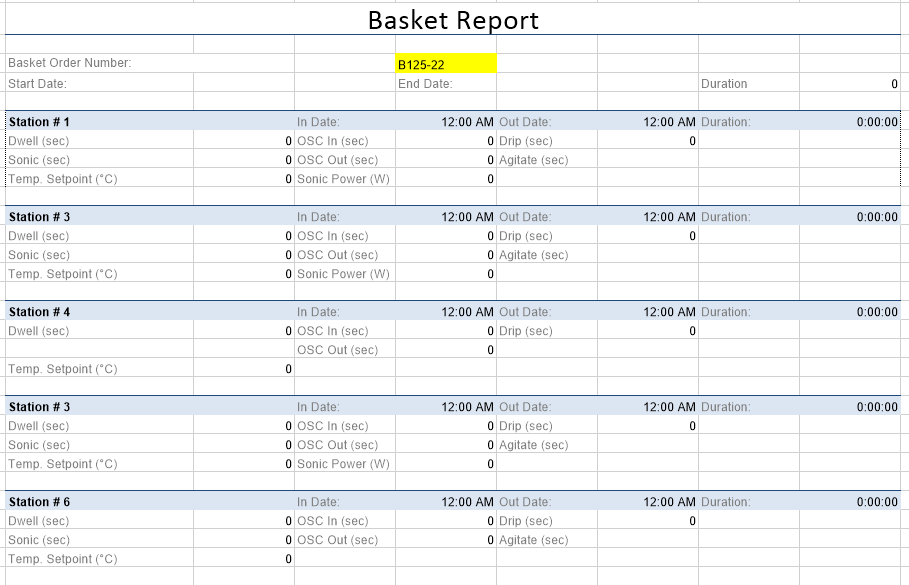 |
For the Basket Report, the Stack Master returns a list of Basket IDs, along with a start and end time for each.
 |
The stacking process to generate the report is as follows:
Stack Master
Retrieve the batch records from the Stack Master group grpBasketList.
The Iterate rule is always applied to the stack master, and the first row is triggered.
grpBasketStation
Process the record returned by the basket ID from the Stack Master record.
Generate a basket subreport for this record.
Apply the Iterate rule to trigger the next row.
After the last record from this group is processed, return to the parent iteration (grpBasketList)
grpStation1 through grpStation6
the set of Condition rules behaves effectively like a switch, or case statement.
Based on the value of Station in the record returned by grpBasketStation, generate a subreport for that time frame and tags corresponding to that station.
Return to the parent iteration (grpBasketStation)
By clicking OK, a template is created by the wizard using the Name specified. The Data and Management connections are created, an input panel for on-demand client is configured (if selected) and a schedule is setup (if selected).
The template theme is taken from workbook htStack.xlsx which is in the _library\_Stack folder of the installation. Since this workbook is used by the wizard, it is suggested that any file changes are limited to color and text.