Range to JSON
The Range to JSON function is used to export a range of cells from the report to a file formatted as JSON.
The Orientation of the range determines how the JSON is outputted. For example, if the range is name value pair columns like this:
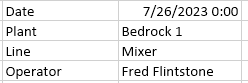 |
The output of the JSON file is:
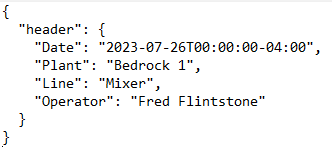 |
If the range is a data table like this:
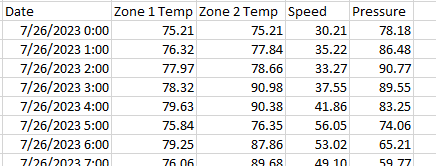 |
The output of the JSON file is:
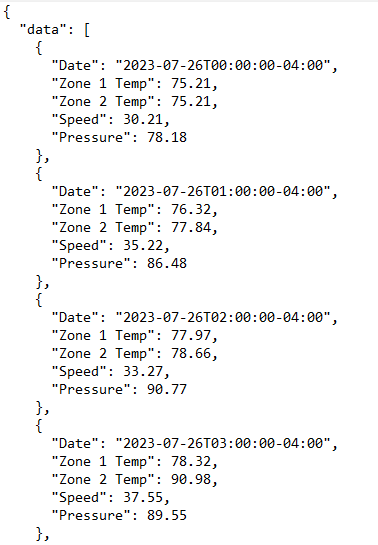 |
If the range is name value pair rows like this:
 |
The output of the JSON file is:
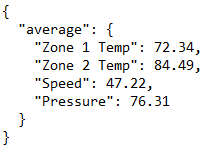 |
If the JSON file exists it can either be overwritten or can be appended to with the new JSON object.
For the data itself, numbers and text are exported as formatted in the cell. For example, if the cell is a number formatted to 2 decimal places, even if the underlying value is more than 2 decimal places it is exported as it is displayed in the cell.
Date values are exported in the standard format yyyy-MM-ddTHH:mm:ss-xxx where xxx is the offset from UTC.
Settings | ||||||
|---|---|---|---|---|---|---|
Directory | The directory where the JSON file is saved. If this is left blank, the Reports Directory of the current project is used (as defined in the Project Explorer). If this is not a full path reference, the setting is used as subfolders of the Reports Directory. If any part of the directory does not exist, it is created. This can be a fixed name or cell reference where the cell reference contains the directory. Fixed names can contain XLReporter Name Types like {YYYY}, {MMM}, etc. See the Name Types chapter for the full list of supported keywords. Note that some keywords, such as {DATIM} contain illegal directory characters when evaluated. These keywords cannot be used for the directory. | |||||
File | The name of the JSON file to export the range to. If no file extension is specified, .json is used. If this setting is left blank, the text file is named after the target workbook in the format Workbook.json. If this is run on demand the target workbook is the name of the template. Note that keywords for the date and time can be entered for the file name e.g., entering {MMM}_{DD}_{YYYY} will name a report generated on June 1st 2020 as Jun_1_2020.json. Note that some keywords, such as {DATIM}, contain illegal file name characters when evaluated. These keywords cannot be used for the file name. This setting may also be specified as a cell reference. | |||||
Mode | This defines how the JSON file is treated if it exists. Overwrite means the JSON file is overwritten with the JSON object produced. Append means the new JSON object is appended to the existing file content and saved out. This allows 1 file to contain multiple JSON objects. | |||||
Orientation | The Orientation of the range of data to export to JSON (as depicted above). The following are available:
| |||||
Object Name | The name of the JSON object exported. By default, this is set to data. This can be a fixed name or cell reference and can contain XLReporter Name Types like {YYYY}, {MMM}, etc. If this is not specified, it defaults to the worksheet name. | |||||
Format | The format applied to the JSON in the file when exported. None means that no formatting is applied at all. Indent means that the JSON object(s) is indented, making it easier to read if the file is to be viewed. When indented, any invalid JSON is cleaned up. If set to None, none of the exported data is analyzed and is used as is, which may result in incorrect syntax. | |||||
Range to JSON - example
Taking the example explained above, if all 3 ranges were to be saved to a single JSON file, this would be done in 3 Data Export Range to JSON connections.
The first exports the header information:
|
If this data is in the range $B$4:$C$7, and the JSON file is named after the Target Report and saved in the Reports folder of the project, the following settings are used:
Apply To | |
|---|---|
Cell | $B$4:$C$7 |
Direction | None |
End | All cells are empty |
Setting | Value |
|---|---|
Directory | |
File | |
Mode | Overwrite |
Orientation | Name-Value Column |
Object Name | header |
Format | Indented |
The next connection exports the hourly data table:
|
If the headings for this data are $B$10:$F$10, the following settings are used:
Apply To | |
|---|---|
Cell | $B$10:$F$10 |
Direction | Down |
End | All cells are empty |
Setting | Value |
|---|---|
Directory | |
File | |
Mode | Append |
Orientation | Data Table |
Object Name | data |
Format | Indented |
Finally, the last connection exports daily average values:
|
Note that these values are calculated by using the AVERAGE formula on the hourly values in the data table shown above.
If this range is $C$37:$F$38, the following settings are used:
Apply To | |
|---|---|
Cell | $C$37:$F$38 |
Direction | None |
End | All cells are empty |
Setting | Value |
|---|---|
Directory | |
File | |
Mode | Append |
Orientation | Name-Value Row |
Object Name | $B$38 |
Format | Indented |