Variable Editor
The Variable Editor is used to configure Functions and view the current values of Functions and Analytics (to configure see Analytics). The editor is opened from the right-side Tools tab of the Project Explorer in the Connect section by selecting Variables.
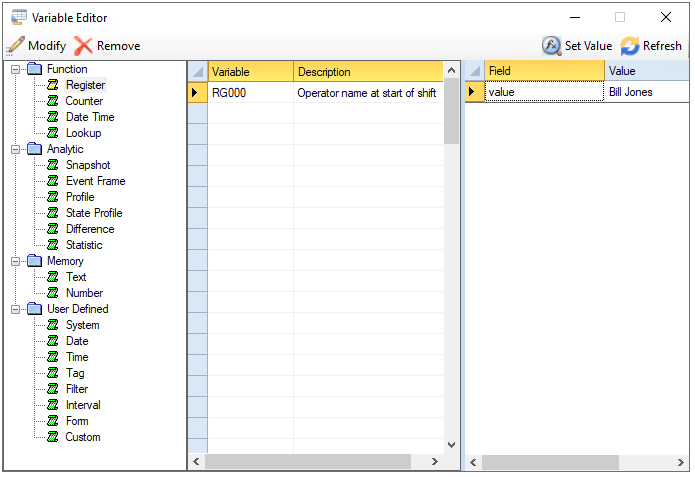 |
In the Left view are the variable types and categories. Select a category to display all the configured variables in the grid where Name is the name of the variable and Description is a description of the variable.
To add or modify variable, select a row and double-click, click the Modify menu option or select Modify from a right click. Note that Analytic variable cannot be edited in this dialog; they are edited in the Analytic Designer.
To remove a variable, select a row and press the Delete key, click the Remove menu option or select Remove from a right click. Note that Analytic variable cannot be deleted in this dialog; they are edited in the Analytic Designer.
The current value of a variable can be viewed by selecting the variable and have its value display in the Right view. Since they are multi-valued, the values are distinguished by a Field. Note that User Defined variables do not persist so no value is shown for those.
The Function and some Memory variables also permit their values to be edited directly from the display by clicking Set Value. This is helpful during development. In practice, their values would be modified by schedule actions.
 |