Insert Into Range
The Insert Into Range function takes a Collection (a range of cells containing items such as formulas and charts) and inserts them above, below and/or within the Apply To range. The function can be used to insert subtotals and charts into a range of data.
Settings | |
|---|---|
Top Collection | This setting is a range of cells containing all the labels, formatting, formulas, and charts to insert at the top of each determined range (as defined by Insert Mode). This range must be on the same worksheet as the Apply To range. Any charts or formulas within the collection that refer to data in the Apply To range should only reference the top row within the range. When the Collection is inserted, all of these cell references are automatically adjusted to the amount of data in the range. |
Bottom Collection | This setting is a range of cells containing all the labels, formatting, formulas, and charts to insert at the bottom of each determined range (as defined by Insert Mode). This range must be on the same worksheet as the Apply To range. Any charts or formulas within the collection that refer to data in the Apply To range should only reference the top row within the range. When the Collection is inserted, all of these cell references are automatically adjusted to the amount of data in the range. |
Paste | This defines what is pasted from the Collection(s) to the range. This can be set to just copy the Values, just the Fomulas or All to copy everything in the Collection(s) including all formatting configured. |
Insert Mode | This defines how the Collection(s) are inserted into the range. All means that the Top Collection (if defined) is inserted at the very top of the Apply To range and the Bottom Collection (if defined) is inserted at the very bottom of the Apply To range. Column Change means that at every change in value of a specified Column (see below) the Collection(s) are inserted into the range. |
Column | If Insert Mode is set to Column Change, this setting defines the column in the range to monitor for a change in value. The setting must be set to a column reference, e.g., $B for the B column. |
Add Grouping | When set to Yes, every Collection inserted into the range will have an outline defined for it within the worksheet. The outline appears to the left of the row labels and can be used to show or hide the rows within it. |
Initial State | If Add Grouping set to Yes, this setting defines the initial state of the group outline, either Expanded or Collapsed. |
Clear Collection | If set to Yes, after the function is complete the Collection range(s) are cleared from the worksheet. |
Example
Add a subtotal showing the average temperature of each tank.
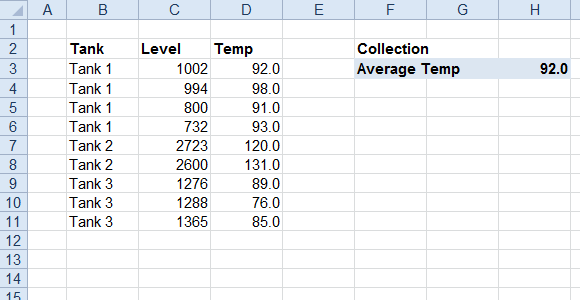
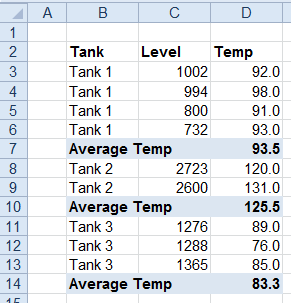
The collection contains an average in H3 = AVERAGE(D3)
Apply To | |
|---|---|
Cell | $B$3:$D$3 |
Direction | Down |
End | All cells are empty |
Setting | Value |
|---|---|
Top Collection | |
Bottom Collection | $F$3:$H$3 |
Paste | All |
Insert Mode | Column Change |
Column | $B |
Add Grouping | No |
Initial State | Expanded |
Clear Collection | No |