Tools
Install Design Studio
This option is enabled when Microsoft Excel is installed on the system and the Template Design setting for the project is set to Use XLReporter Addin in Excel but the XLReporter ribbon has not been installed into Excel. When selected it attempts to install the XLReporter ribbon into Excel for use in designing reports.
Repair Design Studio
This option is enabled when Microsoft Excel is installed on the system, the Template Design setting for the project is set to Use XLReporter Addin in Excel and the ribbon has been installed. When selected it attempts to repair any issues between the ribbon and Excel itself.
Set up Web Portal
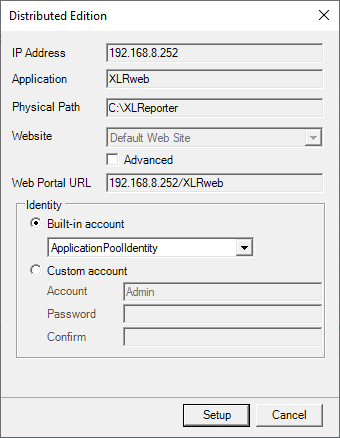
If the Distributed Edition of XLReporter is installed but the web portal configuration needs to be changed, this option can be used to open the same set up configured during installation.
 |
Note, Windows Administrator privileges are required to access this application.
For information on the settings provided, see the Setup the Web Portal.
Distributed Clients
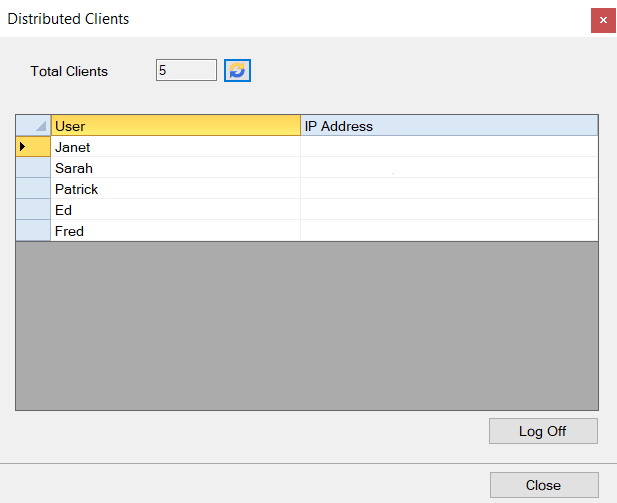 |
If the Distributed Edition of XLReporter is installed, this option displays the list of currently logged in clients to the XLReporter Team Server. The list contains clients connected using the Web Portal, the Windows Client, or the REST API.
Each client User name is listed along with the IP Address of where they are connected from. If User Accounts are not enabled in the project, the User name appears as Guest. If the IP Address is shown as local, this means the client is connected on the local machine using localhost as the server name.
A client may be logged out here by selecting the row and clicking Log Off.
Please note that this list is not dynamically refreshed. To refresh, click the Refresh button  to the right of the Total Clients count.