Connector
To configure the connector, from the Project Explorer select Connect, Connectors.
Click Add
Select Database (time series), Historical values (wide)
Click OK

Primary Database
This defines the database where the report data is located. A browse button […] is provided for the selection. If there are issues connecting to the database, please refer to the Database Connectors document for the specific database.
Table
With a database selected, select the Table containing the values. In the above example the Activities table was selected.
Date/Time Column
From the columns of the Table selected the column representing the date and time. If both the data and time are in the same column, check Date includes Time.
Settings
The Settings button opens the Settings dialog.
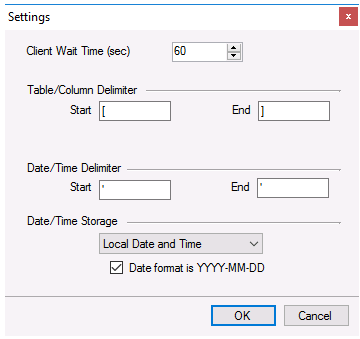 |
Typically, these settings are defaulted based on the Primary Server.
Client Wait Time
If the connector is used for a large volume of data or the database is slow to respond it is possible that the connection times out. In these cases, increase this value.
Date/Time Storage
This indicates the format of the timestamps in the database, for example, set to Local Date and Time indicates the timestamp in the database is expressed in local time.
When records are retrieved from the database using the timestamp, the request can be formatted as YYYY-MM-DD which removes any ambiguity of the calendar components. It is rare that this default needs to be unchecked.