Group Builder
Columns Tab
The Columns tab shows the item Names configured in the group. Up to 40 items can be configured in a group.
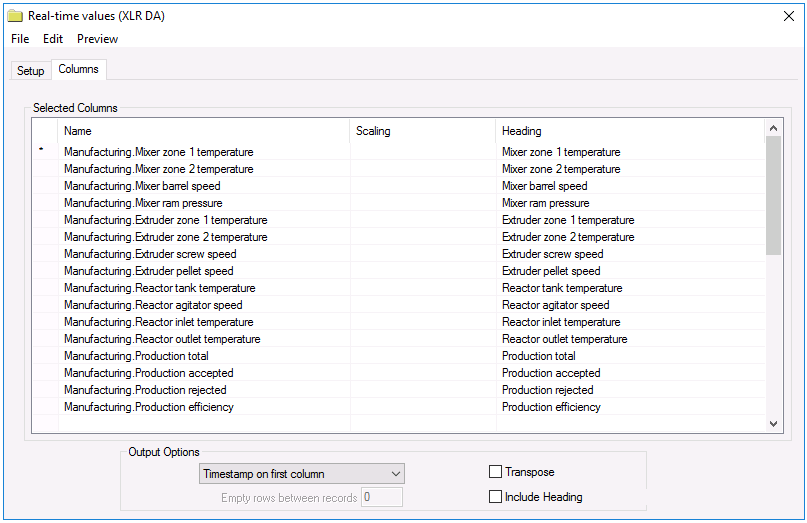 |
Browsing and Selecting Item Names
To add an item, select a cell in the Name column, and click the browse button (…) to open the item browser. A Name can be one of three choices:
Literal name: Actual name of the item (as configured in the server). A literal name can be selected from the Online browser or from a Catalog.
Variable name: A variable item is a placeholder that is assigned a literal item name at the runtime of a report. Variable names can be selected from the Variables branch of the item browser and can be a User-Defined or a Register variable. User defined variables are not limited to the {Tag X} syntax – these can be assigned to any expression, e.g. {Temperature} or {Pressure} by typing in the name.
Static Variable name: Fixed text.
Variables (displayed in {}) provide a way to assign the item names externally, e.g., when the group is used on-demand, the item name is specified.
Static Variables (displayed in *{}) are considered fixed text for display only and is not used for data retrieval. Select Treat as Text to configure.
Grid rows are moved relative to each other, Inserted or Deleted by right clicking on the left most column or using the up/down and insert/delete keys on the keyboard.
When empty rows are set between two items, the output of the group will contain empty rows/columns. Use empty rows to prevent calculations in the template from being overwritten in the report.
If the Scaling is left blank then the value is not scaled. By selecting Scaling the scaling dialog is displayed (see Scaling).
The Heading shows the text that appears in the output if Include Heading is enabled. This is fixed text or a variable. By selecting Heading the heading dialog is displayed (see Heading).
By default, the output has each selected column as a column. By selecting Transpose, each selected column is displayed as a row.