Overview
Data Management provides a suite of functions that are applied to report data. They provide numerous features such as handling of dynamic ranges, performing data analysis, and importing/exporting from a workbook.
Usually, the Manage connections are applied after the Data connections. This ordering can be refined by using the Group setting.
Configuration
To configure Data Management in a template, open the Template Studio and under the Connect tab select Data, Manage.
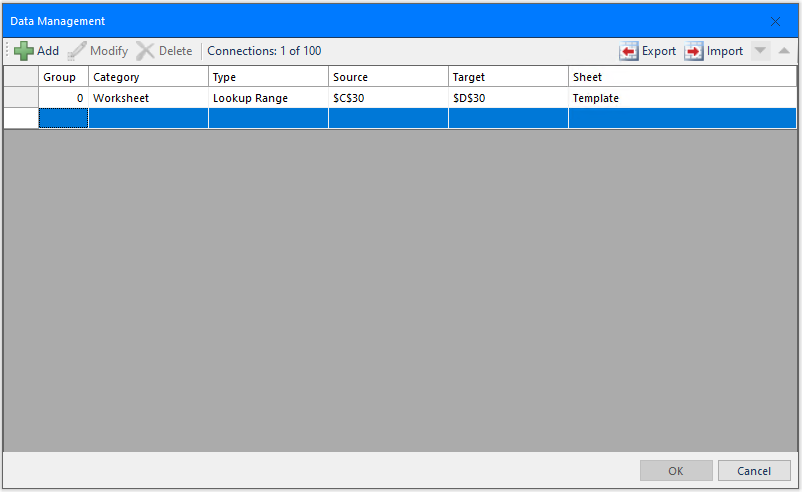 |
To add a new management connection click Add. To modify an existing connection, click Modify.
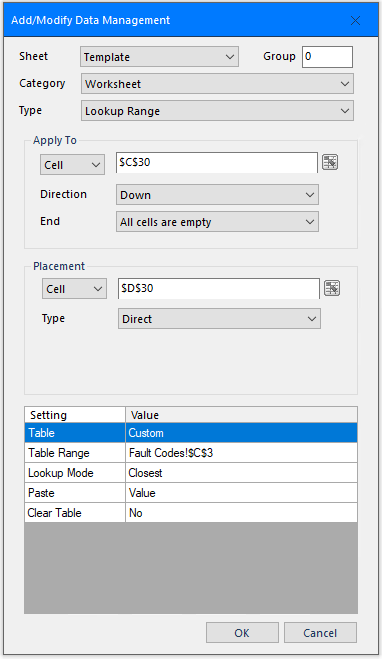 |
The Sheet and Group settings determine which worksheet or Group activates the function. With the defaults, Any Sheet and a Group set to 0, the update of any worksheet causes the management function to execute.
However, by setting Sheet to a specific sheet, the function only activates on the update of that specific sheet. Likewise, by setting a Group number greater than zero, the function only activates when an action with that Group number is executed.
The available management functions are organized by Category. Each Category supports a set of functions listed in Type.
Apply To/Source/Range
Most management functions operate on a range of data that is determined by the Apply To (Source or Range) settings where the Start cell(s), Direction and the End condition collectively determine the range at runtime.
Start
This defines the initial range. It can be a single cell, single row, single column or a range of multiple rows and columns. This range is then expanded based on the Direction and End Conditions.
Direction
This determines the direction in which the Start range is expanded. The following options may be available depending on the management function selected.
None
No expansion is done. The Start range is used as is.
Down
The Start range is expanded down based on the End criteria.
Across
The Start range is expanded across based on the End criteria.
Down (variable columns)
The Start range is first expanded across the columns based on the End criteria, then expanded down using the same End criteria.
Across (variable rows)
The Start range is first expanded down the rows based on the End criteria, then expanded across using the same End criteria.
End
This determines when the expansion of the range stops. Note that if multiple rows or columns are specified in the Start range, the End criteria is applied starting at the bottom row or rightmost column depending on the Direction.
Edge cell is empty
The range is expanded until the first empty cell in the leftmost column or topmost row (depending on Direction) is found.
All cells are empty
The range is expanded until the first entirely empty row or column (depending on Direction) is found.
First empty cell
The first empty cell in each row (or column) is determined and then the range is expanded to the topmost (or leftmost) cell relative to the range.
Last empty cell
The last empty cell in each row (or column) is determined and then the range is expanded to the bottommost (or rightmost) cell relative to the range.
For example: A history data group connection placed in $B$4 provides a date/time and 4 columns. If a border is required around the report data, then the Apply To settings are $B$4:$F$4, Down, All cells are empty.
Placement
Management functions that produce output, such as Copy Range, require a Placement to determine where the output is placed.
The Cell location determines the placement. The Type indicates how the placement is performed.
The following Types are available:
Direct
The output of the function is placed directly into the cell given by the Cell.
Offset
The output of the function is placed in a row or column (see Direction) relative to the Cell according to the value of the Offset. The Offset can be an XLReporter counter variable (e.g., CR000) or a time-based calculation (e.g., mM/15, 15-minute offset of the month).
Append
The output of the function is appended onto the end of the existing data in the row or column relative to the Cell according to the Direction.
Insert At Start
The output of the function is inserted at the Cell in the specified Direction. Any content below or to the right of the insertion is moved down or across.
Insert At End
The output of the function is inserted at the end of the existing data in the row or column relative to the Cell according to the Direction. Any content below or to the right of the insertion is moved down or across.
Insert At Start (full)
The output of the function is inserted at the Cell in the specified Direction by inserting entire rows or columns (depending on Direction). Any content below the Cell row or to the right of the Cell column of the insertion is moved down or across.
Insert At End (full)
The output of the function is inserted at the end of the existing data by inserting entire rows or columns in the row or column relative to the Cell according to the Direction. Any content in rows below the Cell row or to the right of the Cell column is moved down or across.
Cell References
In the above, the Cell determined the placement. This can be expressed in two ways.
Absolute Cell Reference
The setting can be either fixed text or a cell reference, the cell reference must be an absolute reference (e.g., $A$1).
Named Cells/Ranges
For any cell reference setting, a Named Cell/Range can be used. The advantage of using a named cell or range is that if rows or columns are inserted or deleted from the worksheet, the named cell or range is shifted accordingly.
For more information on how to configure named cells and ranges, see the Named Cell/Range section of the Template Studio document.
Variables and Name Types
Any function setting that supports a hard coded value can also be set with a Variable or Name Type.
Order of Operations
By default, management connections are updated after the data connections so that the management connections can operate on the data brought in by the data connections.
To change order in which connections are updated, use the Group setting for both the data and management connections and then configure the Update Group actions accordingly.