ALARM CUSTOM
The Alarm Custom sub report provides a custom output based on a specified set of columns and filters.
Output
 |
The available columns to return with this sub report.
Headings
If a heading is written for each selected item.
No Headings
No headings are written to the report
At Runtime
Headings are written to the report when the report is generated
At Deign Time
Headings are written to the report when the data connection is configured if the cells where the headings go are blank.
Filter
 |
This tab defines filters that are applied to the sub report metric.
Facility
The facility to get the data from. This can be the Default as defined in the connector or a Specific facility defined in the connector.
Position
Operator Position filter to apply to the sub report metric. Every Operator Position filter defined in the connector is available to select.
Module
Module filter to apply to the sub report metric. Every Module filter defined in the connector is available to select.
Attribute
Attribute filter to apply to the sub report metric. Every Attribute filter defined in the connector is available to select.
Cycle
Cycle filter to apply to the sub report metric. Every Cycle filter defined in the connector is available to select.
Overwrite at Runtime
If checked, if filters are specified either On Demand or in the Schedule, the filters set here take precedence. Otherwise, the filters specified in On Demand or the Schedule take precedence over what is set here.
Custom Filter
Filter is a valid SQL WHERE clause. Note that custom variables can be used as part of the clause. For example, using the filter Level = {LevelSetting} introduces a custom variable which can be set from either on-demand or from the Scheduler.
Order
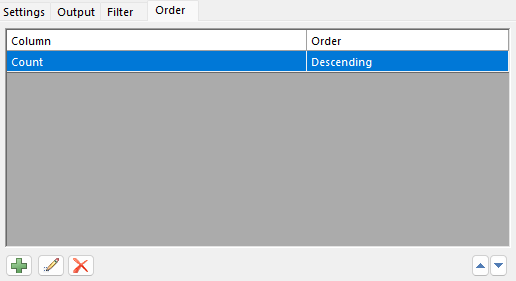 |
The order of how records are returned from this subreport.