Office 365 Setup
Please note that this is provided for legacy customers or those with a perpetual license. For those with a new installation of XLReporter that wish to use their Office 365 account for emailing, please use either the SmartSights Email or WIN-911 Email server options.
Microsoft is in the process of deprecating basic authentication for the Office 365 SMTP server. This means a more modern authentication is required where a token is provided which the sender must use in order access the Office 365 SMTP server.
The following section documents the steps needed for XLReporter’s Mailer to send email and text messages using Office 365. This assumes that the Office 365 account used to send email can consent to an application’s request. If you are unsure, please contact your administrator.
Microsoft 365 Admin Center
The first step is to make sure Authenticated SMTP is enabled for the user that you wish to send email through.
This is done by going to the Microsoft 365 admin center, locating the user under the Active Users, clicking the Manage email apps link and checking Authenticated SMTP.
Azure Active Directory
The next step is to create an XLReporter Mailer app in the Azure Active Directory. To do so, use your web browser open the Azure Active Directory (portal.azure.com).
Log in with the user you wish to send email through, if it is not already logged in.
 |
In the Manage Azure Active Directory section click View.
Create and Register Application
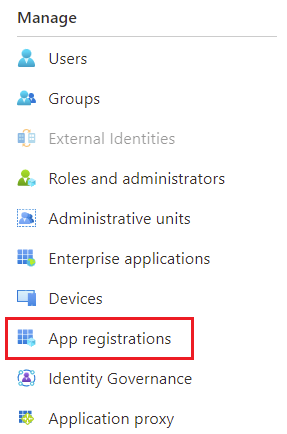 |
On the left side, under Manage, select App registrations. In App registrations on the right, select New registration.
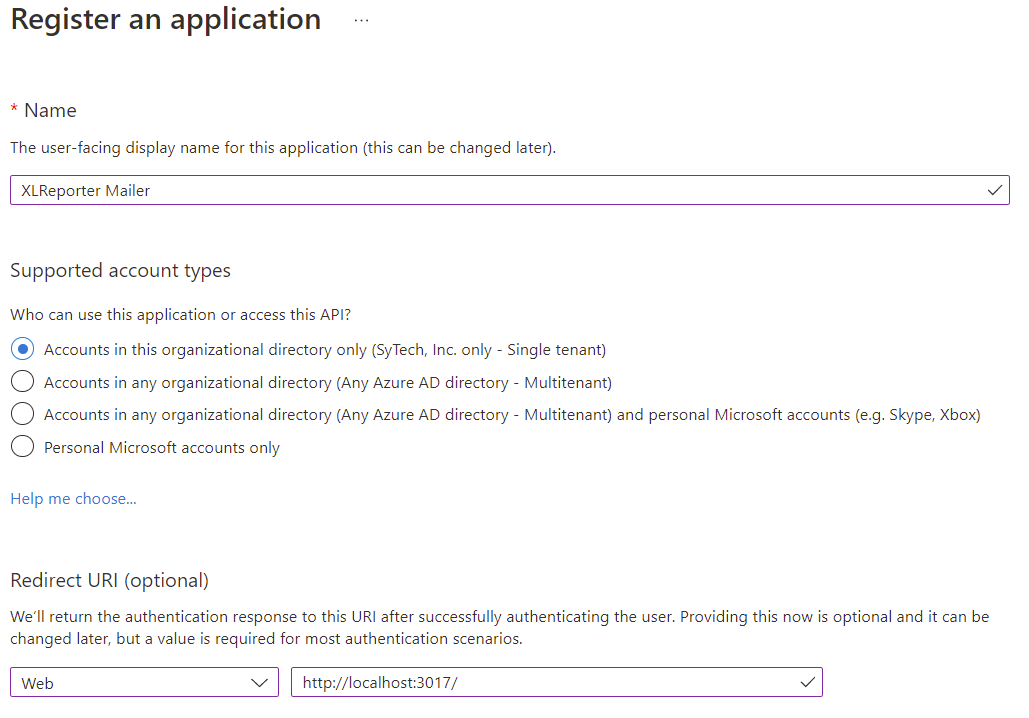 |
Set Name to XLReporter Mailer. Under the Redirect URI section, select Web and then specify http://localhost:Port/ where Port is an open port number on your system (typically port 3017 is not used by anything). Click Register at the bottom to register the application.
Add Permissions
Now permissions need to be added. Select API permissions on the left side. The following permissions need to be added:
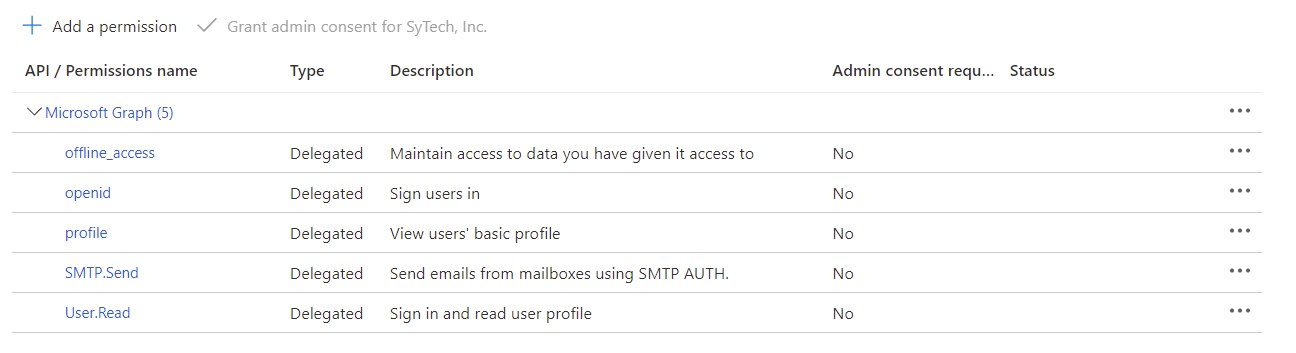 |
Permissions are added by clicking Add a permission, selecting Microsoft Graph, Delegated permissions and then checking the ones listed. The offline_access, openid and profile permissions are found under OpenId permissions and SMTP.Send is found under SMTP.
Create a Client Secret
Select Certificates & Secrets on the left side. On the right side, click New client secret.
In Add a client secret, set a Description and when it Expires. Click Add when complete.
Be sure to record the Value for the secret you just created. This is the only time it will be visible, and you will need to provide it to XLReporter.
Identify Information
The application configuration is now complete. The following information must be identified and provided to XLReporter:
Port
The port number specified in the Redirect URI. If you do not recall, you can view this in the Overview by clicking Redirect URIs.
Client ID
The client ID can be found in the Azure Active Directory by selecting Overview on the left side. Application (client) ID is listed directly under Display Name.
Client Secret
The client secret value should have been recorded in the previous step.
OAuth 2.0 authorization endpoint (v2)
In the Overview, click Endpoints at the top. The OAuth 2.0 authorization endpoint (v2) is the first one listed.
OAuth 2.0 token endpoint (v2)
In the same Endpoints display, OAuth 2.0 token endpoint (v2) is the second one listed.
Windows Firewall
If the Windows Firewall is enabled on the machine where XLReporter is installed, the XLReporter Mailer application should be allowed to communicate through Windows Defender Firewall. You will need administrator privileges to do this.
Open the Windows Defender Firewall. Click Allow an app or feature through the Windows Defender Firewall.
To add, click Change settings at the top. Scroll to the bottom and click Allow another app…
Browse to C:\XLReporter\bin (assuming XLReporter is installed on the C drive) and select XLRiMailDesign.exe. Click Add.
XLReporter Mail Designer should now appear in the list. Check to enable the appropriate networks.
Please note that if this step is skipped, when attempting to authenticate you may receive a message from Windows Defender Firewall prompting to allow the application to communicate. This will require administrator privileges right at that time which may not be readily available which is why this step is strongly recommended.
Mail Designer
Office 365 Setup
In the Mail Designer, under the Edit menu select Office 365.
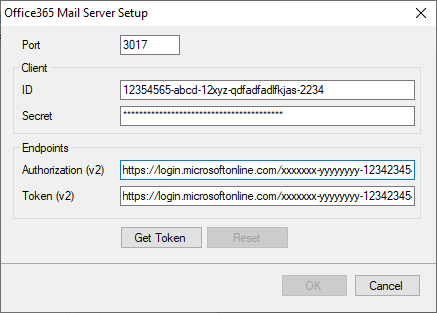 |
Specify the information recorded from the previous step. When completed click Get Token.
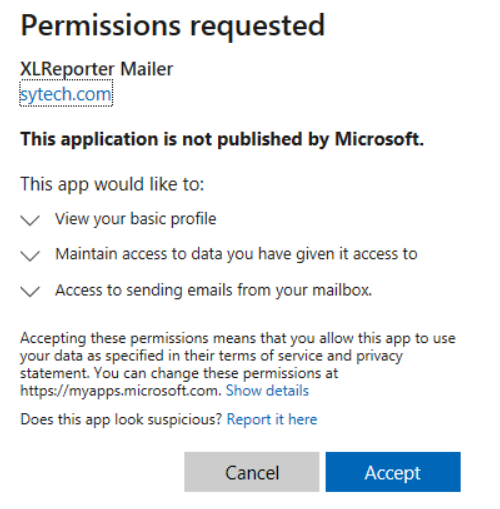 |
The Office 365 Verification window opens. If you are not logged in, log in as the user to send email through. For Permissions requested, click Accept. This will retrieve your token and close the verification window. Click OK to save the settings.
The token generated will expire at some point in the future. During runtime, if the token is expired it will be automatically refreshed with Office 365 without any user intervention. If you would like to manually refresh the token, you can access these settings and click the Refresh button to do so. Click OK to save the settings.
If you need to generate a new token (for instance, if you want to change the account with which to send email or your Client Secret has expired), you can do so by accessing these settings and clicking the Reset button. You can then enter the required information and click Get Token to generate a new token. Click OK to save the settings.
Server Setup
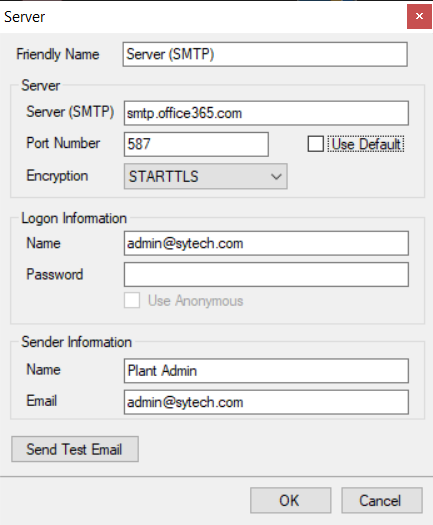 |
When configuring the SMTP server, under Logon Information, the Password does not need to be specified because authentication is now done using the token established in the previous step.
Expired Client Secret
The client secret set up in the Azure Active Directory must be set with an expiration. When this secret expires, the Mailer will fail to send emails, logging the error “Failed to refresh access token”.
At this point, you must return to the Azure Active Directory and select the XLReporter Mailer application by clicking App registrations on the left and then clicking the application itself,
Click the Certificates & secrets on the left and define a new client secret. You can also delete the expired secret listed since it is no longer valid. Be sure to record the new secret Value.
In XLReporter’s Mail Designer (Project Explorer, Tools, Email and SMS) select Edit, Office 365. Click Reset to enable the settings and set the Client Secret to the new secret generated. Click Get Token to generate a new token and OK to save the settings.
Email and text messages should now send again.