Connector
To configure the connector to Cimplicity, from the Project Explorer select Connect, Connectors.
Click Add
Select GE Vernova, Cimplicity Historical values.
Click OK
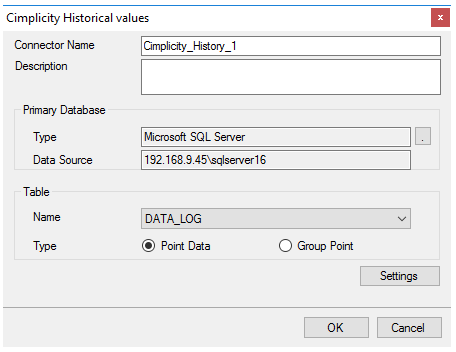
Primary Database
This defines the connection to the database where the Cimplicity Data Logger is logging. The browse button […] is provided to define.
Table
Once the connection is made, under Table, specify the Name of the table containing the logged data.
The default Table for Point Data is DATA_LOG. The default table for Group Point is GROUP_LOG.
As stated above, Point Data, causes every configured point to be logged as a separate record (also known as a Narrow Table) and Group Point causes every configured point to be logged as a single record (also known as a Wide Table). For more information, see the Cimplicity documentation.
Settings
The Settings button opens the Settings dialog that defines characteristics of the database that are used to retrieve data.
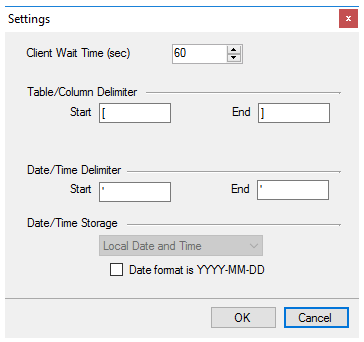 |
Typically, these settings are defaulted correctly for the Primary Database.
If queries timeout, increase the Client Wait Time.
The delimiter and timestamp settings are typically filled in automatically for the database and can be modified for other databases.
The Date/Time Storage settings define how timestamps are stored in the database. Using this setting the timestamps are manipulated when data is retrieved so that local timestamps are submitted in and returned.
Note
Many databases require the Date format to be YYYY-MM-DD so that no interpretation needs to occur based on the Region settings of the Windows Operating System. It is recommended to always have this option checked.