Setting up Email using Gmail
Feb 7, 2025 Knowledge
As of May 30th, 2022, Google ceased functionality of applications using their security setting "less secure apps." To continue using GMAIL with WIN-911 you will have to set up an APP PASSWORD within the Google account.
https://support.google.com/accounts/answer/185833?hl=en
Do not use your personal Gmail account with WIN-911, as your email could be deleted automatically. Always use a dedicated email account for sending and receiving emails with WIN-911.
Note
Please be aware that Google enforces a sending limit of 500 emails in a rolling 24 hour period. If you send more than 500 emails in 24 hours, emails from WIN-911 will not be sent.
Enable 2-Step Verification
Before you can create an App Password, you must enable 2-Step Verification on your Google account.
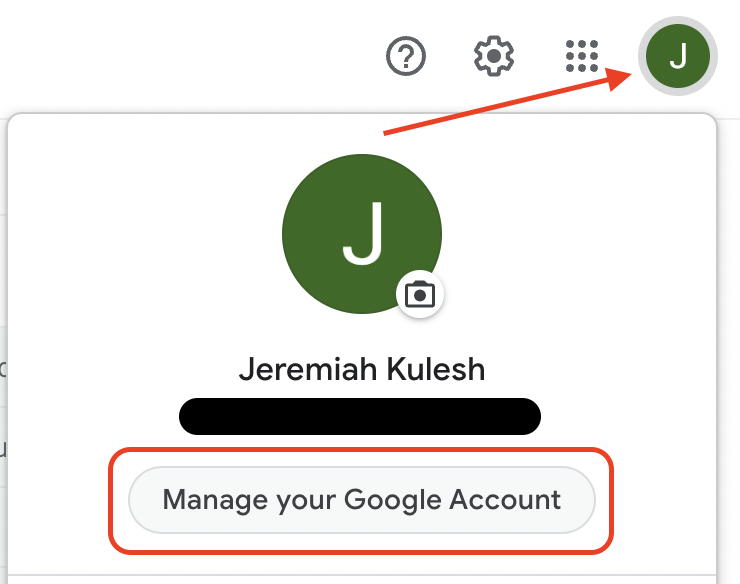
Open your Google Account in a browser and click on the icon in the top right corner, and click "Manage your Google Account"
In the navigation panel, select Security and click on 2-Step Verification under the "Signing in to Google" heading.

Follow the on-screen steps to finish setting up 2-Step Verification. When done, click the back arrow.

You should now see 2-Step enabled, and the option for App Passwords with "None" displayed, since it has not been created yet. Click on App Passwords.

Note: If you don’t have this option, it might be because:
2-Step Verification is not set up for your account.
2-Step Verification is only set up for security keys.
Your account is through work, school, or other organizations.
You turned on Advanced Protection.
You will need to verify your Gmail password to proceed.

Click the drop down menu for "Select app" and then select "Mail."
Now click "Select device" and then select "Windows Computer."
Click "Generate" to create the 16-digit App Password.
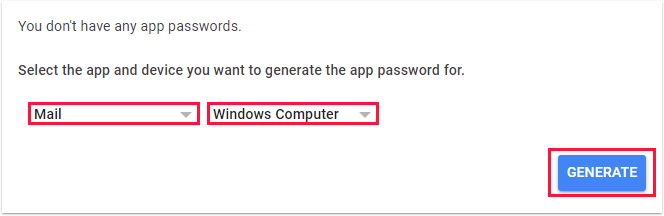
You should copy and paste this 16-digit app password somewhere safe for future use.

When you click DONE, click the back arrow again to return to the security settings tab, and you should see "1 password" under the "Signing in to Google" heading.

You must now paste the 16-digit app password into the password field in WIN-911 workspace for the email gateway settings.
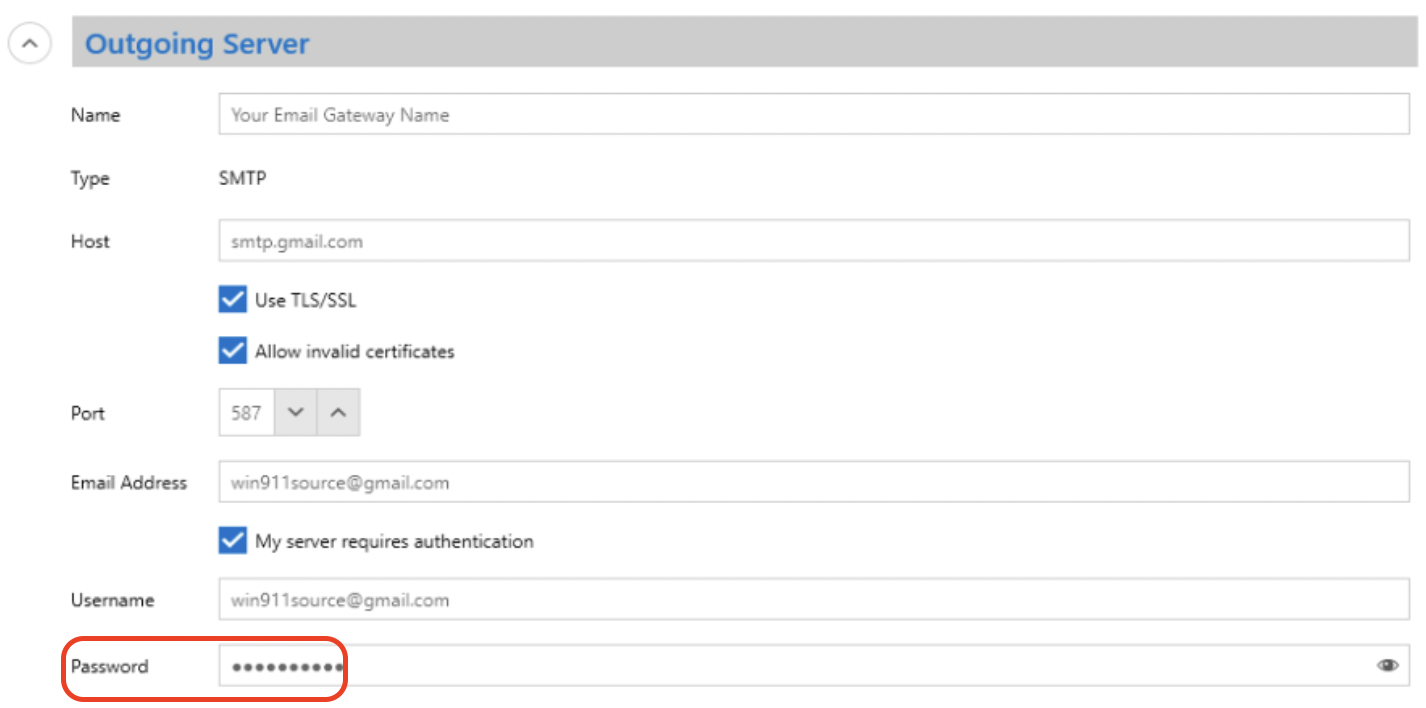
Save and test your new email gateway settings.
Gmail Setup - New Installation
Enable POP or IMAP
WIN-911 sends email through an SMTP server, which Gmail enables by default, but it sends mail through POP or IMAP, which must be enabled.
Login to your Gmail account.
Click the gear on the top right and under Quick settings, select all settings.
Select the Forwarding and POP/IMAP tab.
POP Settings
Select Enable POP for all mail.
Set When messages are accessed with POP to delete Gmail's copy.
IMAP Settings
Select the Enable IMAP option.
Click the Save Changes at the bottom of the screen.

Gmail Server Settings
You can now use Gmail to send emails with WIN-911. Use the following server settings when configuring an email Gateway.
Outgoing Server
Type | SMTP |
|---|---|
Host | Enable Use TLS/SSL |
Port | 587 |
Email Address | Your Gmail email address Enable My server requires authentication |
Username | Your Gmail email address |
Password | The app password you generated |
Incoming Server POP
Type | POP3 |
Host | Enable Use SSL |
Port | 995 |
Poll Rate | 1 min |
Select Use Outgoing Credentials |
Incoming IMAP
Type | IMAP |
|---|---|
Host | Enable Use SSL |
Port | 993 |
Poll Rate | 1 min |
Select Use Outgoing Credentials |
ADDITIONAL SECURITY CONSIDERATIONS
Depending on the level of security in your environment, you will need to ensure that the WIN911 machine can communicate to the gmail certificate revocation authority.
For checking the revocation status of a Gmail certificate using the Online Certificate Status Protocol (OCSP), the port used is port 80. This means that when a client wants to verify if a Gmail certificate is still valid, it will send an OCSP request to the Gmail server on port 80 to receive a response regarding the certificate's status.
The URL for Gmail certificate revocation is typically "http://crl.pki.goog"; this is the address where browsers can access the Certificate Revocation List (CRL) for Google services, including Gmail, to check if a certificate has been revoked. You might also see "http://crls.pki.goog" or "http://c.pki.goog" which serve the same function.