SIP.US
Feb 11, 2023 Knowledge
Create an account with SIP.US
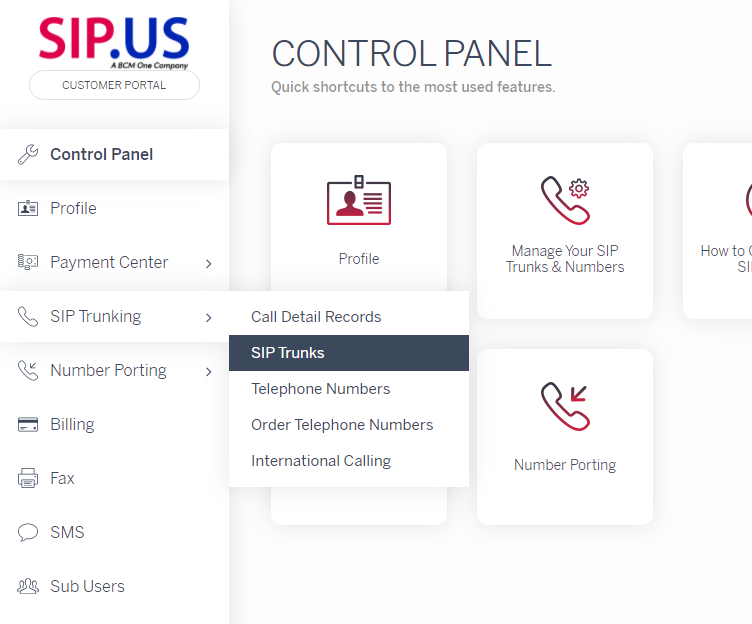
Once an account is established for use, login to the SIP.US customer portal and navigate to SIP Trunking > SIP Trunks:
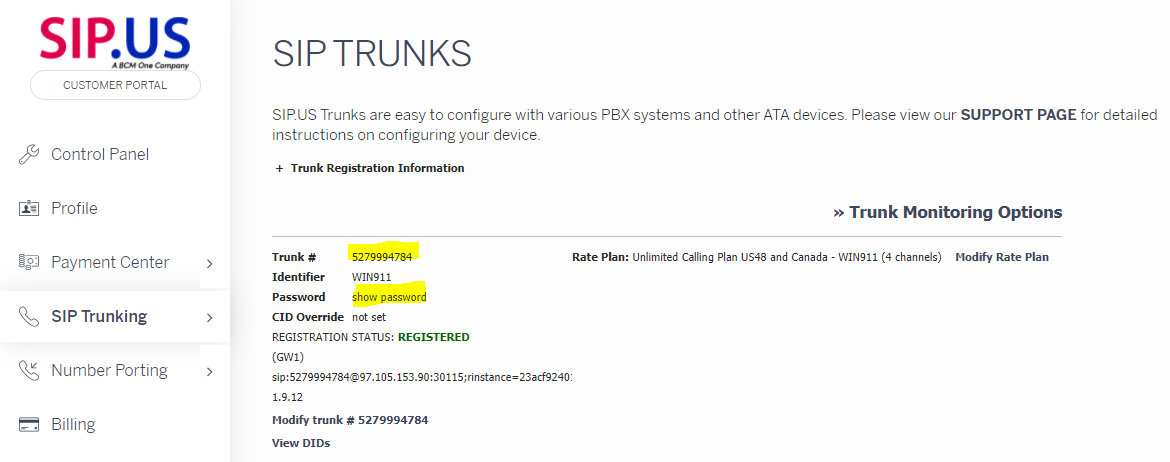
Click the + to expand the Trunk Registration Information

These username, password, and server fields translate directly into the WIN-911 Voice Gateway settings:
WIN-911 SIP.US Configuration
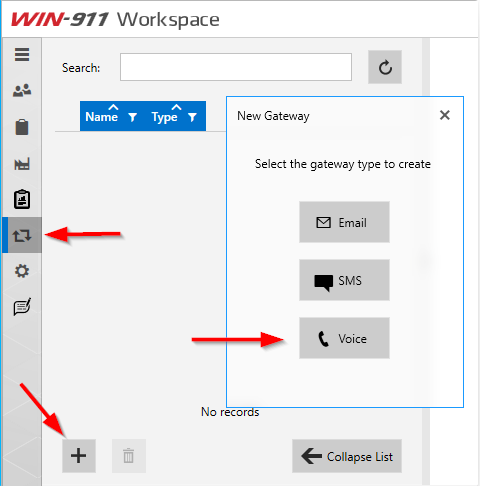
Open WIN-911 Workspace from the Start menu and navigate to Gateways then click the PLUS icon to create a new Gateway and select Voice.
Note
You will always be in edit mode, but MUST click Save Changes if wanting to make any changes.
Select "SIP/VoIP" button
Make sure the "Registration Required" box is checked,
Enter the Trunk # as the User ID and Registration ID
Enter the password from the SIP.US trunk "show password" field.
Note
The password can be changed by the SIP.US account holder at any time by clicking the "Modify trunk #xxxxxxxxxx" link
Enter "gw1.sip.us" as the Server Address.

Important
Sometimes a STUN server can help in delivering RTP (the actual voice) traffic, and sometimes it is not necessary. Make sure you test with BOTH options, with and without, to see what happens in your network.
To ensure the actual RTP Voice traffic (the speaking on the call) is not lost through NAT at the firewall, it is SOMETIMES required to use the SIP.US built-in STUN server.
A STUN (Session Traversal of User Datagram Protocol [UDP] Through Network Address Translators [NATs]) server allows NAT clients (i.e. IP Phones behind a firewall) to setup phone calls to a VoIP provider hosted outside of the local network.

The STUN protocol is defined in RFC 3489.
To utilize the STUN server, simply change the NAT type in WIN-911 to STUN and enter "stun.sip.us" in the server field:

Important
If you have more than 1 IP address assigned to your machine running WIN-911, you MUST change the "Network Adapter" setting to "Specify IP" and enter the IP address that is on the correct network to communicate with the internet.
All other settings can remain default.