Preparing the Databases for Backup
You will need to shut down WIN-911 or temporarily restrict access to its configuration to prevent errors during the backup and restore process.
Stop WIN-911 Modules individually
You will need to stop each WIN-911 Module manually. The modules may differ for each system since all WIN-911 modules are not required to be installed. Here is the list of all possible modules with their corresponding Runtime Services:
WIN-911 Module | Runtime Service |
|---|---|
CIMPLICITY | WIN-911 Cimplicity Runtime |
Dispatcher | WIN-911 Dispatcher Runtime |
WIN-911 Email Runtime | |
FTAE | WIN-911 FTAE Runtime |
iFIX | No Service (runs as an application) |
InTouch | Optional Service (runs as an application) |
InTouch Edge HMI | WIN-911 InTouch Edge HMI Runtime |
System Platform | WIN-911 System Platform Runtime |
Navigation | WIN-911 Navigation Runtime |
OPC DA | WIN-911 OPC DA Runtime |
Reporting | WIN-911 Reporting Runtime |
SMS | WIN-911 SMS Runtime |
Voice | WIN-911 Voice Runtime |
WIN-911 Mobile | WIN-911 Mobile Runtime |
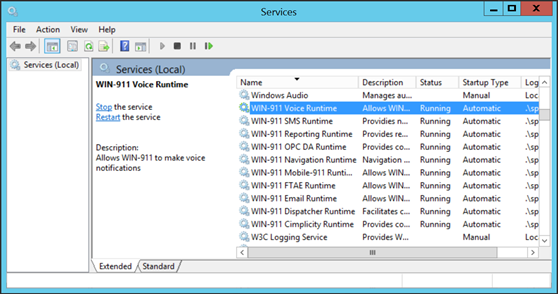
To stop a WIN-911 Runtime Service, open Windows Services. Select a WIN-911 Runtime Service and click Stop. Repeat until all WIN-911 Runtimes are stopped.
 |
GE iFIX Users Only
The WIN-911 iFIX Module is running as a Windows application instead of a Windows service. If the WIN-911 iFIX module is running, the runtime icon  will be in the Windows System Tray. Right-click and select Exit to stop the WIN-911 iFIX WPF Host App.
Wonderware InTouch Users Only
The WIN-911 Wonderware Module is most likely running as a Windows application, instead of as a Windows Service. If the Wonderware module is running, the runtime icon will be in the Windows System Tray. Right-click and select Exit to stop the WIN-911 InTouch WPF Host App.