OPC Data Access (updated for 2021 R5)
Feb 11, 2023 Knowledge
Important
Please review the System Requirements page for supported SCADA versions and other helpful information.
Important OPC Notes
Important
Please review the OPC Network Diagrams for recommended architecture examples.
WIN-911 OPC Data Access Configuration
In the WIN-911 Workspace, expand Alarm Sources > OPC DA > Click Add New.
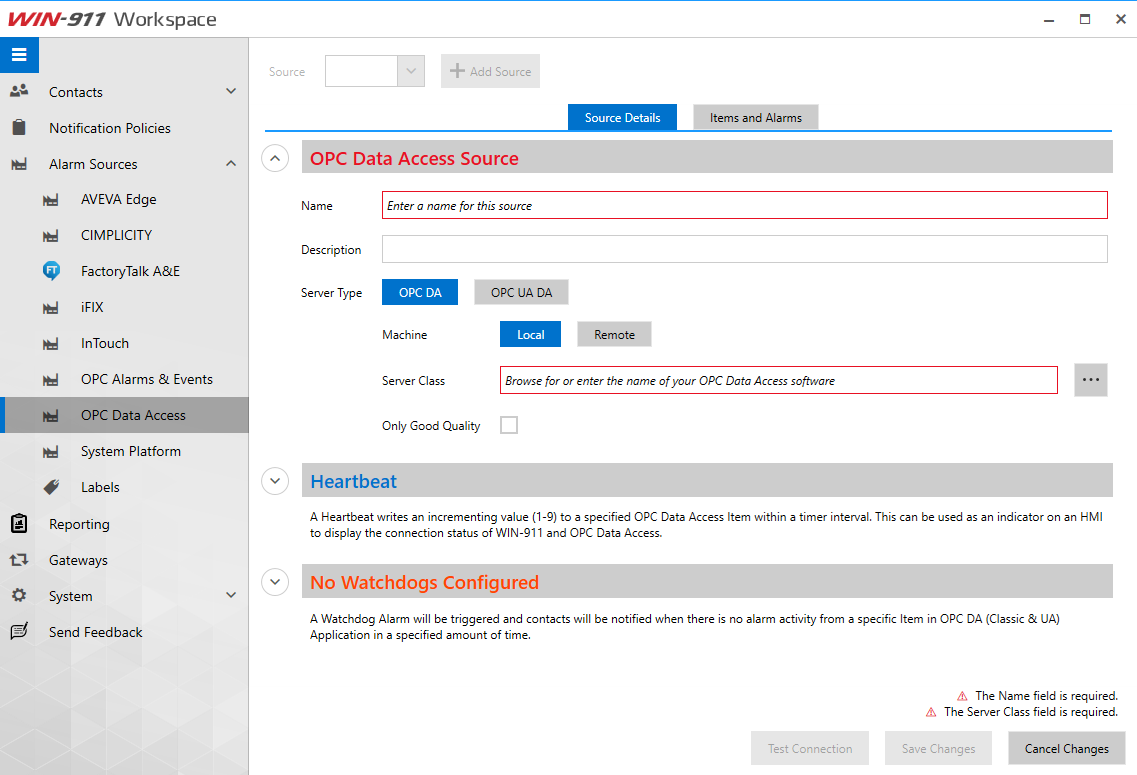
Fill out the corresponding fields in WIN-911, to connect to the OPC Server.
Name: Enter a name for your OPC data source.
Server Type: This should be OPC DA for the purpose of this article.
Machine: Select whether the OPC server installed and running on the same Local machine as WIN-911 or on a Remote machine.
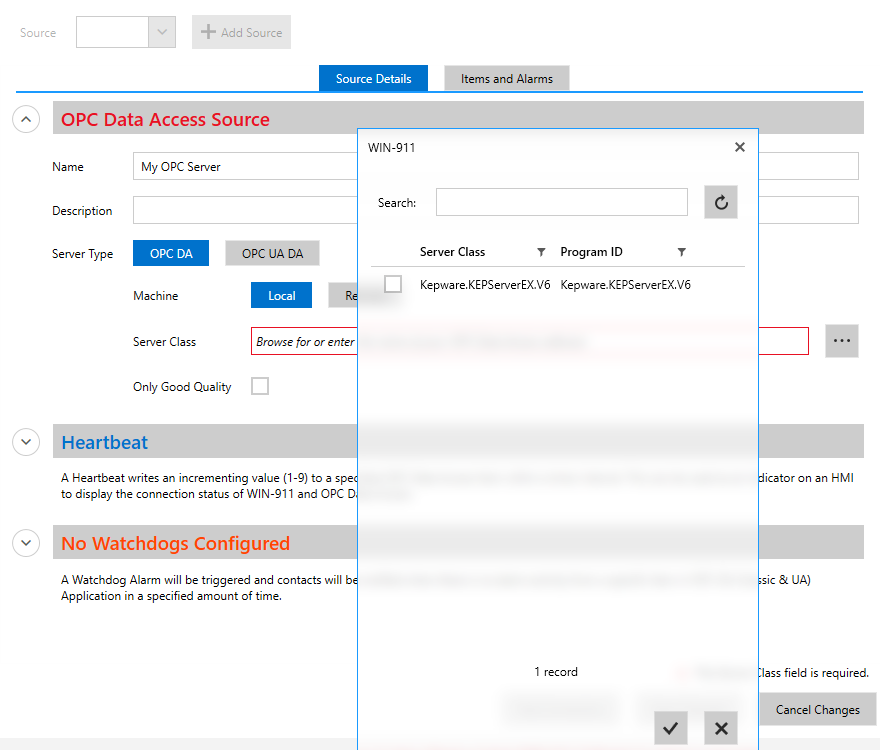
Server Class: Click the ellipsis button (3 dots on far right) to browse for the server class on the selected machine. Choose the correct OPC server from the list.
Alarms are configured in WIN-911 for OPC DA data sources and WIN-911 determines when a specific alarm condition exists.
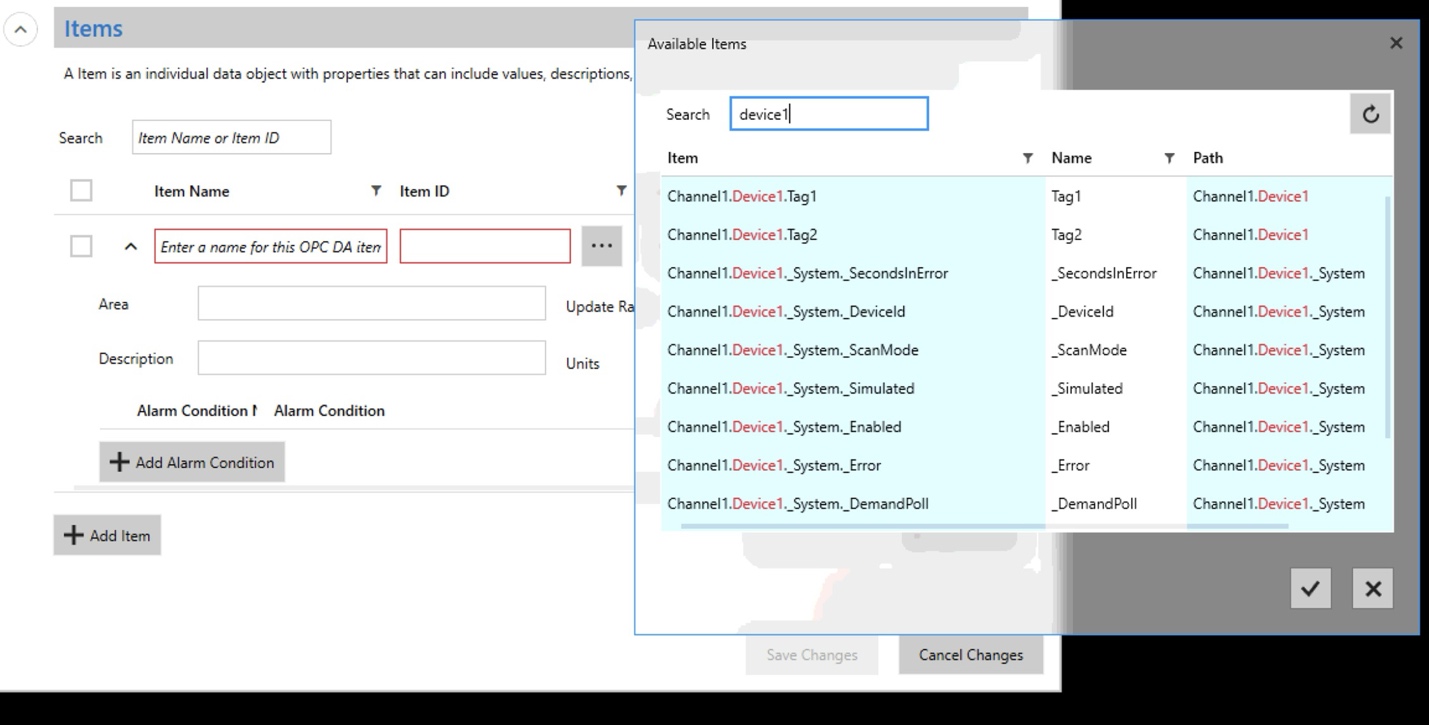
Clicking + Add Item will present a new item configuration entry.
Enter an Item Name, the Item ID can be manually entered exactly as it exists in the OPC server, or simply browse for the item with the ellipsis button (NOT ALL OPC servers support a browse feature).
Note
The browse window can easily be filtered with the search field.
Importing Items
If your OPC server supports the browse functionality, and DCOM is configured correctly to allow it, importing items to create alarms can be much easier and less time consuming.
This is done by clicking the "Items and Alarms" tab and then "Import Items."
The options available to import OPC items into WIN-911 are displayed:
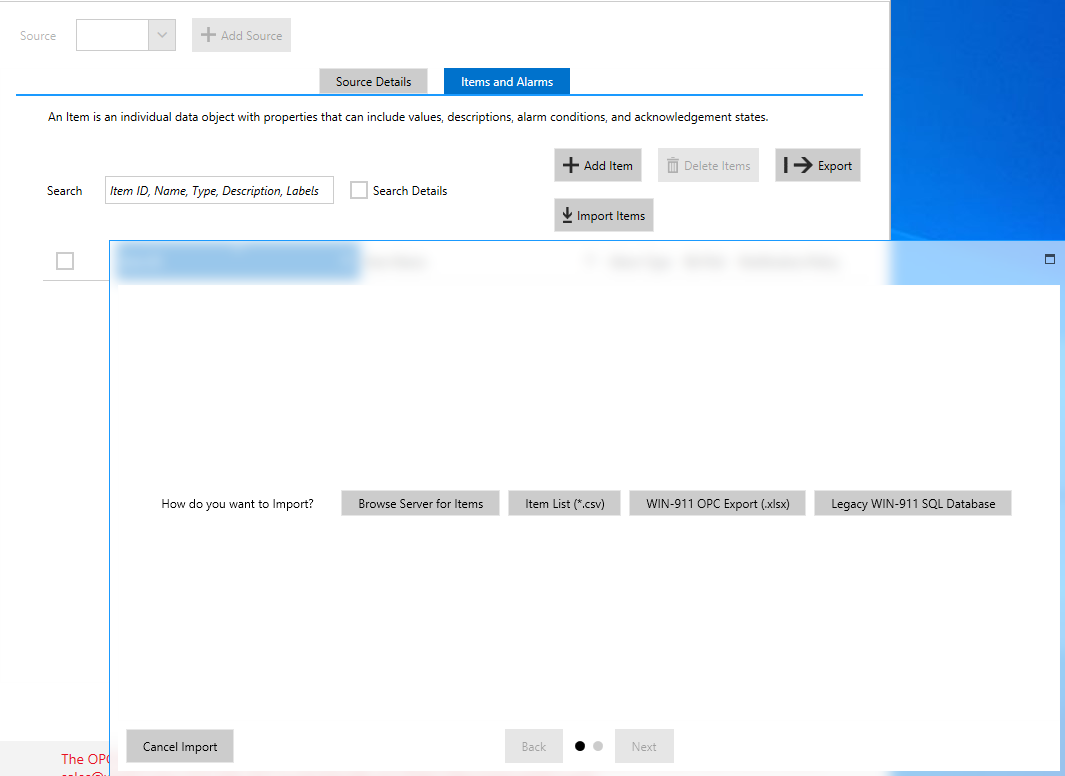
Select the desired import method and click Next to continue through the prompts.
If attempting a "Legacy WIN-911 SQL Database" import, please follow the Legacy WIN-911 SQL DB Import which covers that process in more detail.
In this example, we will choose to browse the OPC server for items.
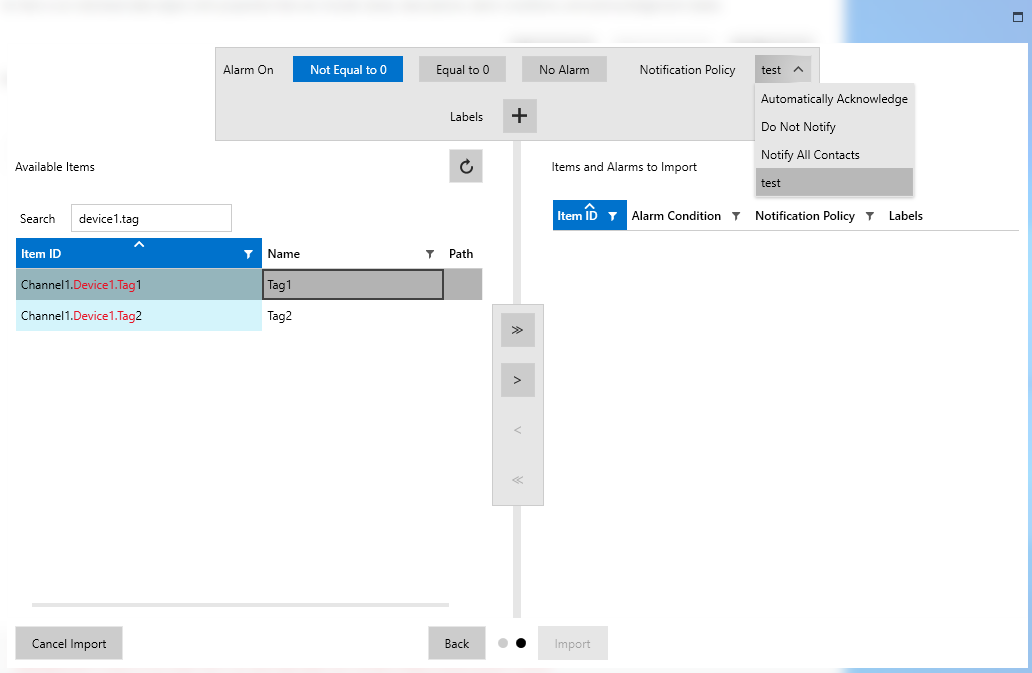
Select the desired items, the "Alarm On" option, and the Notification Policy the alarms should be sent to. Click the > arrow to move them to the right side and click Import.
Once imported, further customization can be made to the OPC Item + Alarm Type settings.
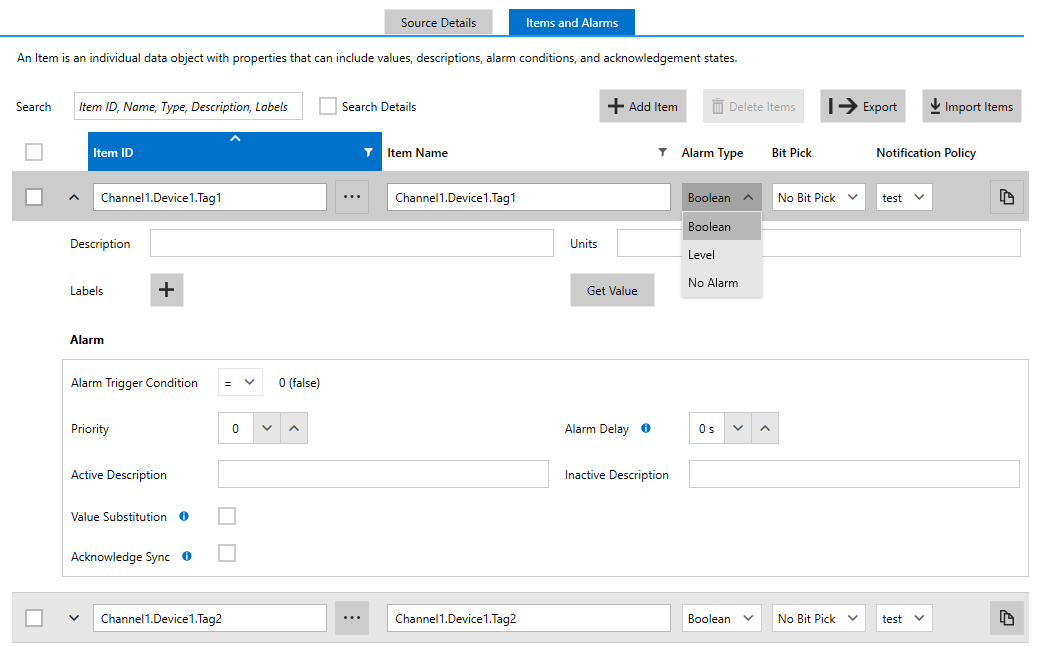
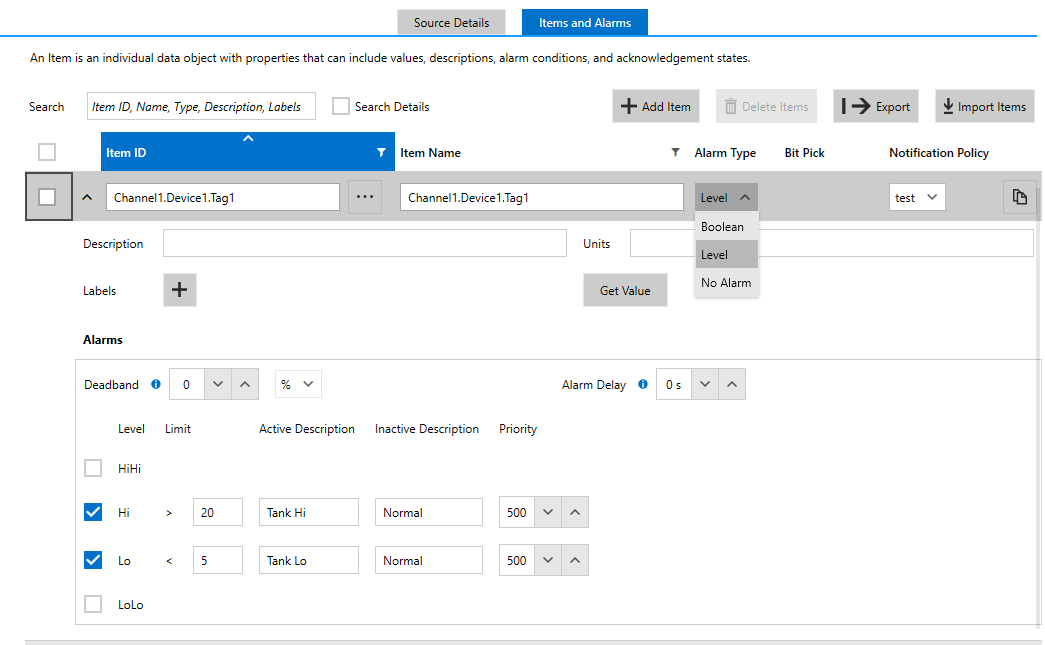
Example of changing Alarm Type to a Level alarm:
Additional OPC features:
***Value Match
***Bit Picking
***Ack Sync
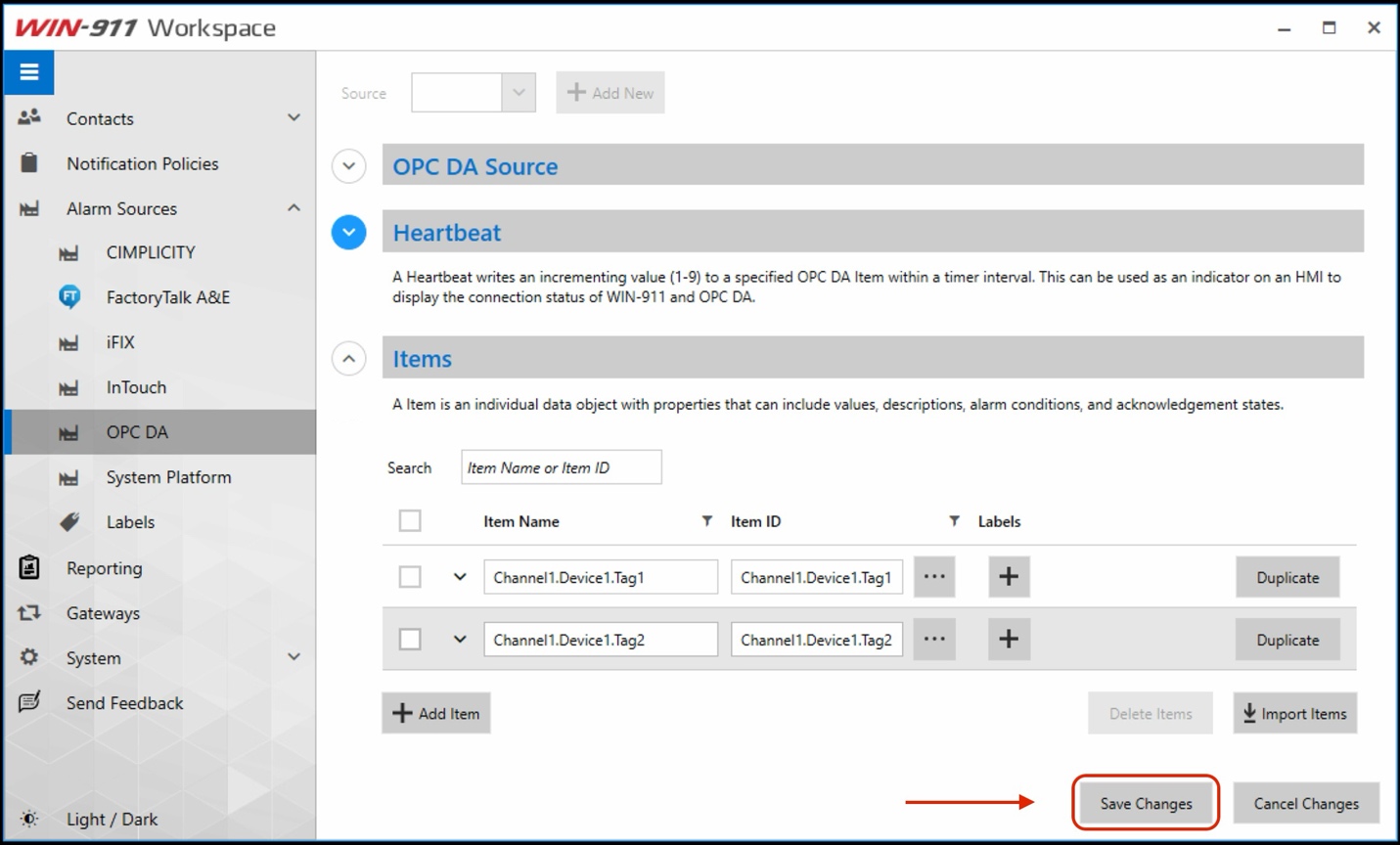
And always... Save your changes!
Heartbeat (Optional)
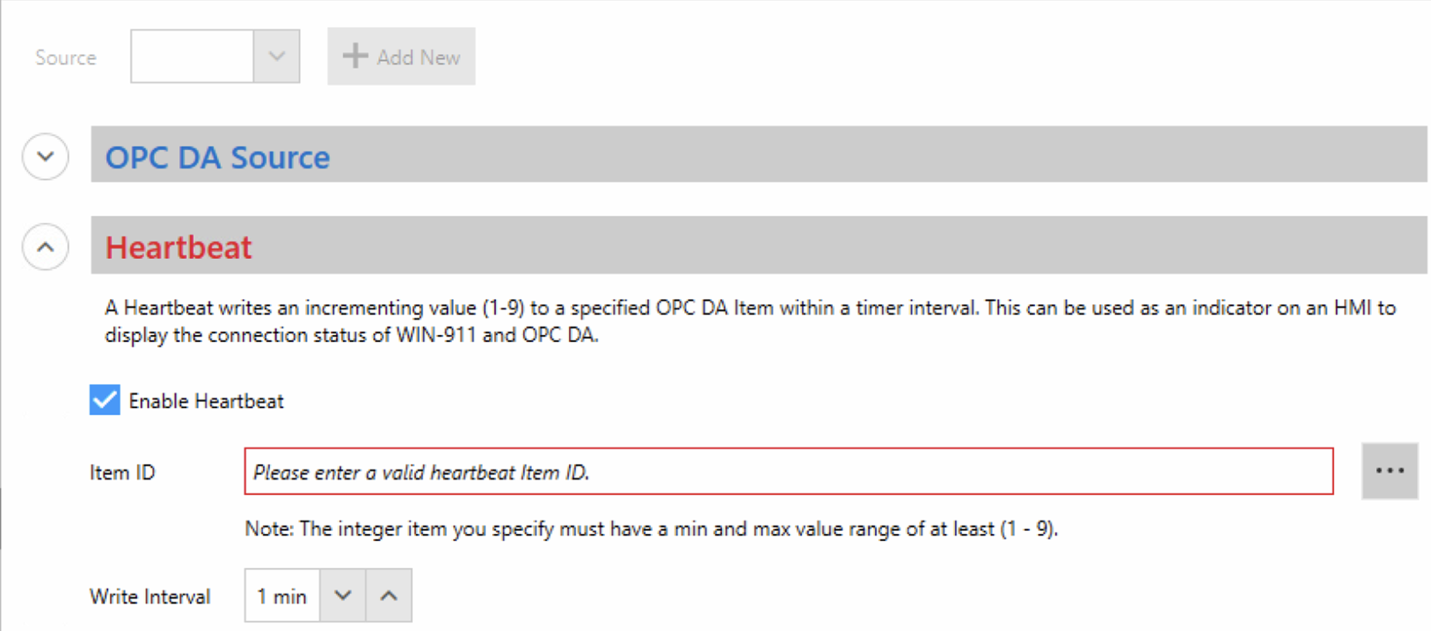
WIN-911 can indicate its operational status by writing a periodically changing value to a specified OPC DA item. We call this function a Heartbeat because it provides a vital-sign to your Application, allowing for corrective action to be taken.
The Heartbeat takes the form of an Integer value that ramps from 1 to 9 at a write interval of your choosing. After the value reaches 9 it resets to one, and the process is repeated ad infinitum. If the tag fails to update within the specified time, you can assume that WIN-911 is in an impaired state and no longer able to receive alarm event information.
 |
Watchdog (Optional)
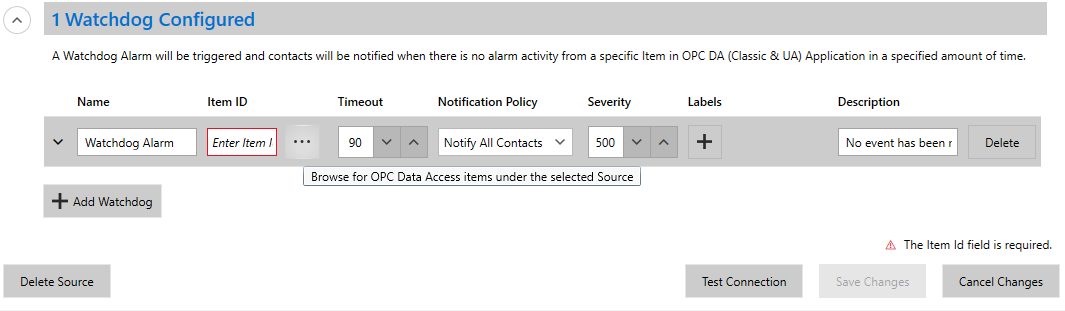
WIN-911 has the option to configure a watchdog to check if it can still communicate with the OPC DA server. This will monitor the specified Item ID for changes. If no changes are detected within the configured timeout period, WIN-911 will generate an alarm.
Enter a name, enter or browse for the Item ID to monitor, select the timeout interval, and choose which Notification Policy to use for notifying.
 |