Devices Purchased From WIN-911
Note
If you did not purchase the Grandstream from WIN-911 then you will have to follow a different set of instructions.
The Grandstream is available for purchase directly from WIN-911 using part number WIN-911/IPPBX. The device has been pre-configured for use with WIN-911 with one phone line, however, you still need to complete 3 basic steps:
Set your static IP address
Set Date/Time settings
Configure WIN-911 settings
A 10-minute overview and configuration video is available on the WIN-911 Software YouTube channel.
Connecting the Grandstream
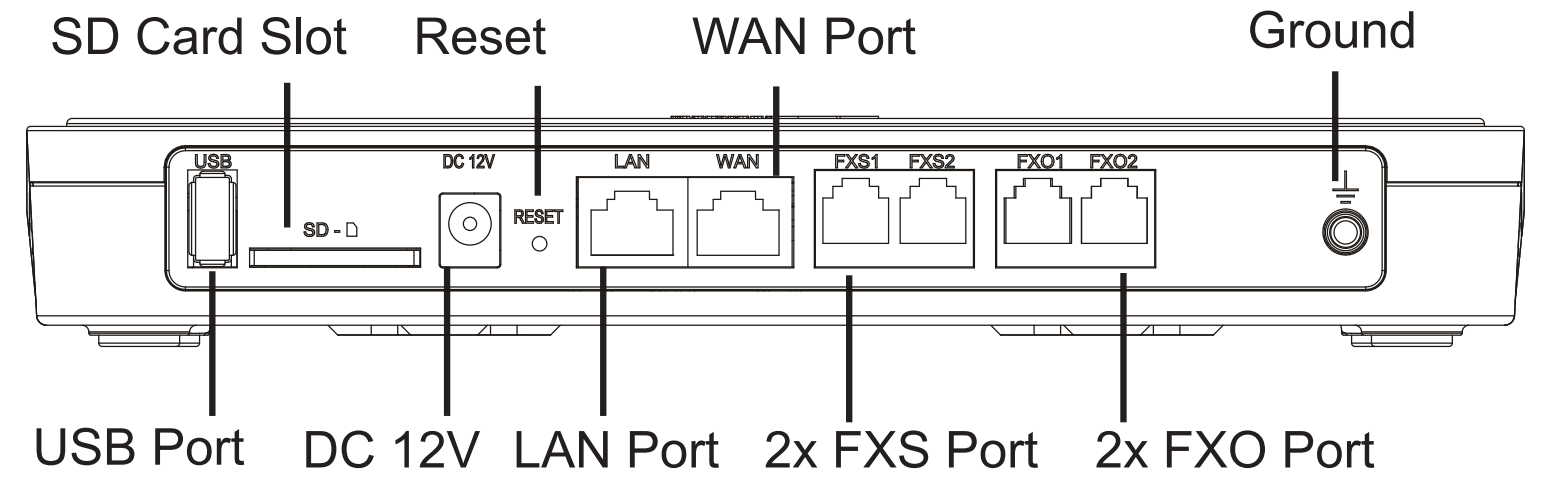
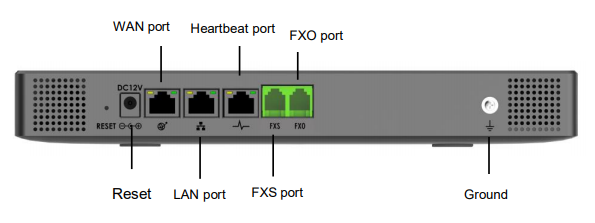
Connect one end of an Ethernet cable into the WAN port of the Grandstream, and the other end into your switch or directly into the WIN-911 machine.
Connect the 12V DC power adapter into the 12V DC power jack on the back of the device. Insert the main plug of the power adapter into an appropriate surge-protected AC power outlet.
Wait for the Grandstream to boot up. The front LCD display will show the device hardware information when the boot process is completed.
Once the Grandstream is successfully connected to your network via the WAN port, the Network LED indicator on the front of the device will be lit green, and an IP address will be shown on the LCD display. Take note of the IP address, you will need it to access the Web GUI.
Connect your phone line from the wall jack to the FXO1 port. Do NOT use the FXS ports.
Accessing Web GUI
The Grandstream is configured via a Web GUI interface after the device has booted, you should have an IP address that can be used to access it.
1. Open a web browser and enter the IP address into the address bar in the following format: https://ipaddress:8089 (The IP address is displayed on the LCD screen of the Grandstream)
Note
Your WIN-911 Machine will need to be on the same network as the Grandstream Modem.
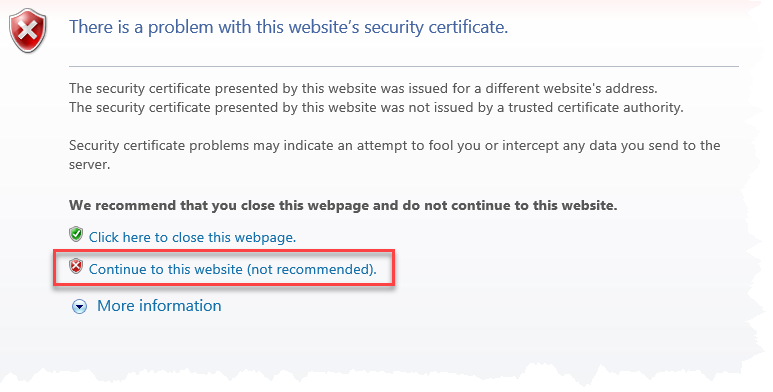
Depending on your browser, you may receive a warning about the security certificate. You can ignore this warning and continue to the website. Here is an example of the warning in IE.
After the portal loads, enter the default credentials.
Username: admin
Password: txsNS6kH!
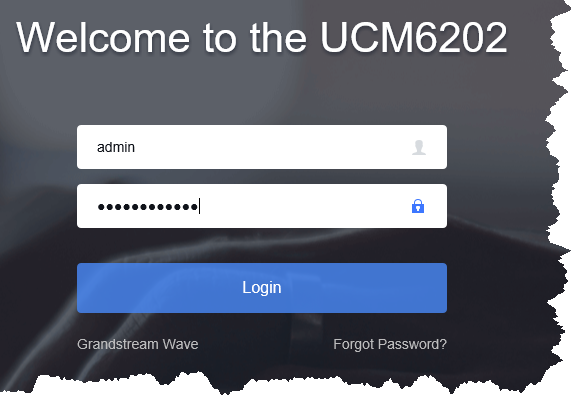
You will now be logged into the Web GUI and you can begin configuring the device.
Grandstream Configuration (purchased from WIN-911)
We strongly suggest setting a static IP address for the device. Please be aware that it is possible for an IP address to change when using DHCP. You may need to work with your IT team to arrange a static IP address that can be assigned to the device.
Configure Static IP Address
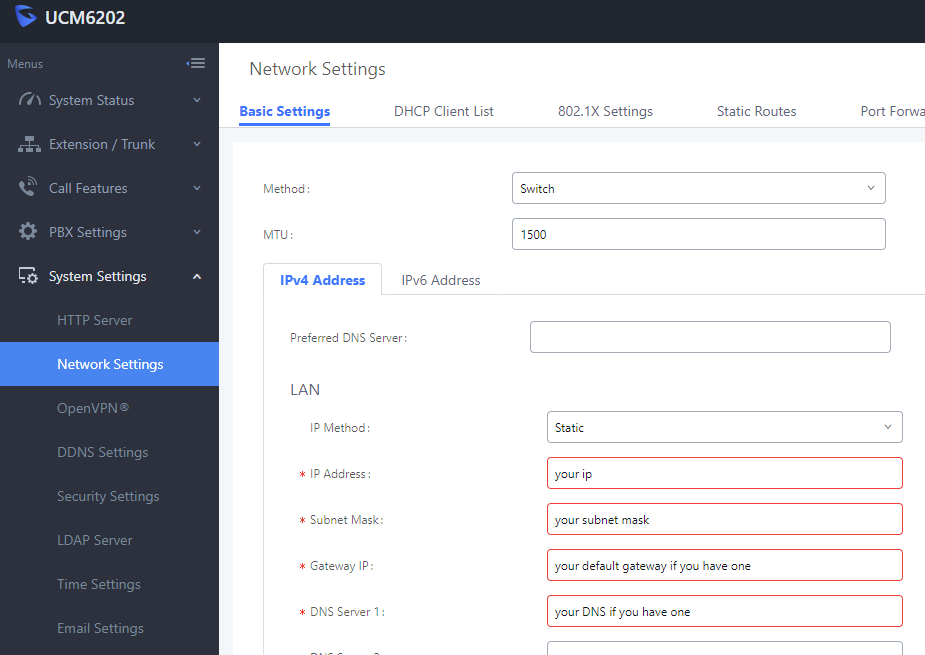
After logging in to the Web GUI, expand System Settings on the left and select Network Settings
Change "Method" drop down from Route -> to Switch
Change IP Method from DHCP to Static
Using the information provided by your IT team, fill in the fields for IP Address, Subnet Mask, Gateway IP, and DNS Server 1
Click the Save button on the top right and then click Apply Settings.
You will be prompted to reboot the device, click OK and wait for the reboot to complete.
Set Date/Time
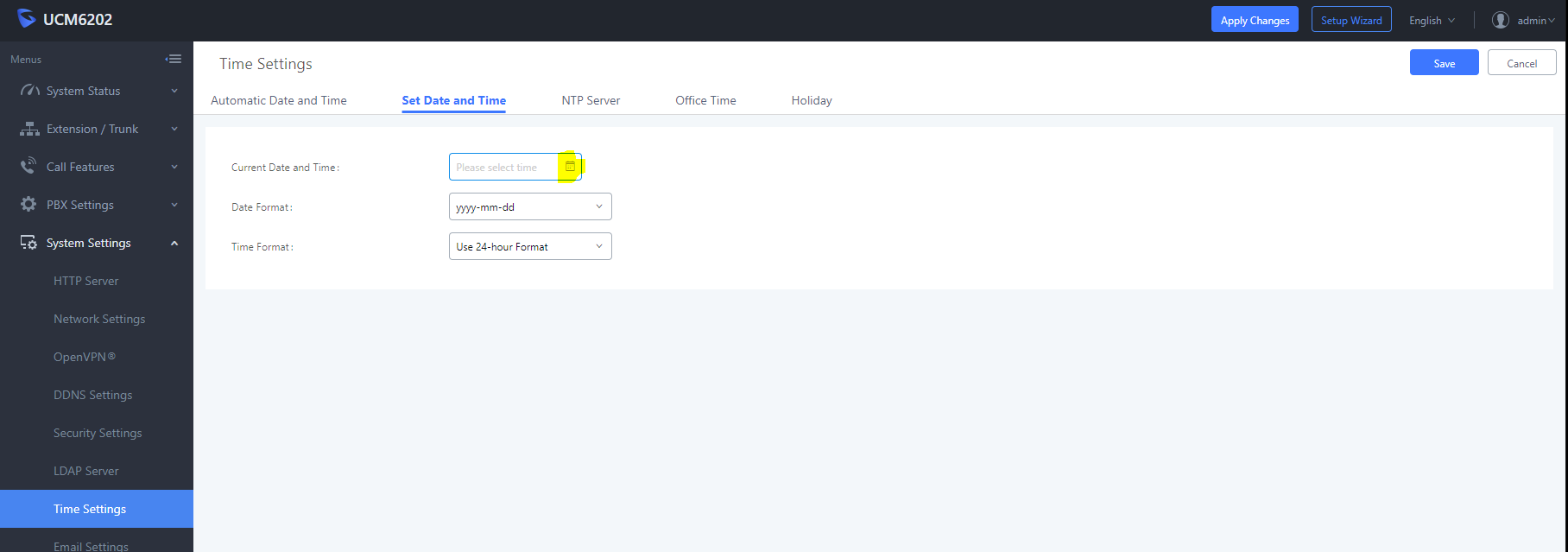
Expand System Settings and select Time Settings
Click Set Date and Time tab
Click on the little calendar icon to set the date and time
Click Save and Apply Settings
You will now be brought back to the login screen.
WIN-911 Grandstream Configuration
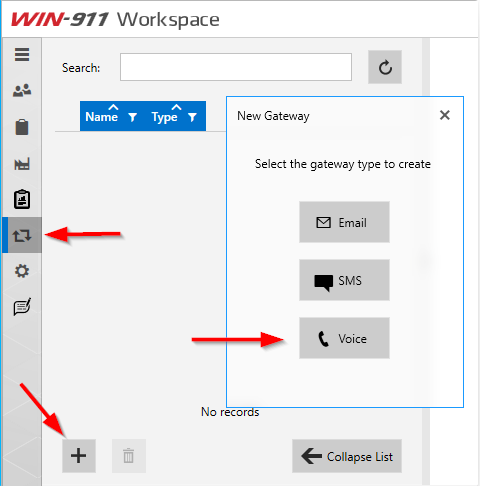
Open WIN-911 Workspace from the Start menu and navigate to Gateways (arrow square) then click the PLUS icon to create a new Gateway and select Voice.
 |
Note
You will always be in edit mode, but MUST click Save Changes if wanting to make any changes.
Server Settings
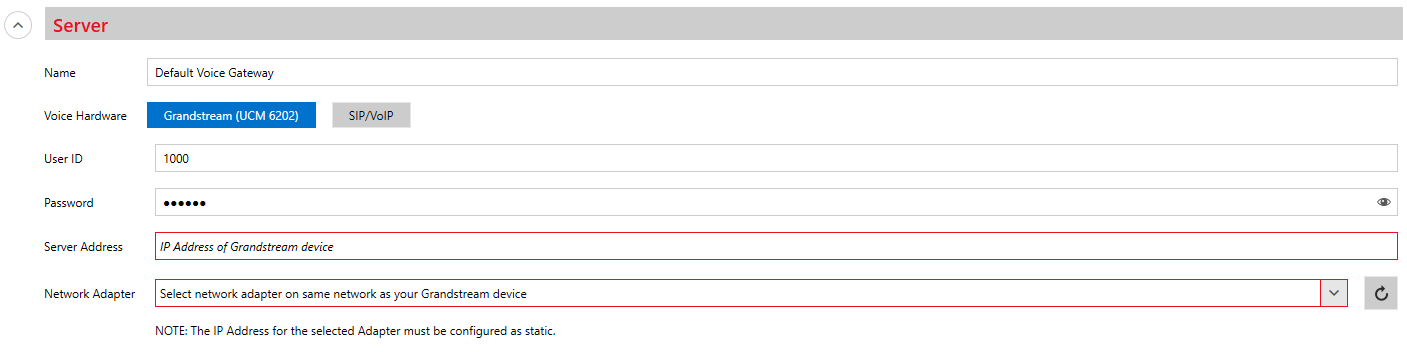
The Voice Hardware Grandstream will be selected by default with several settings pre-set for you.
Name: Default Voice Gateway (pre-set, changeable)
User ID: 1000 (pre-set)
Password: 123abc (pre-set)
Server Address: Enter the IP address of the Grandstream device
Network Adapter: Using the dropdown, select the IP Address WIN-911 will use to communicate with the Grandstream (IP Address can be manually entered)
Important
The Grandstream and WIN-911 machine MUST be on the same network. Advanced network configurations are possible with your Network Administrator's assistance.
 |
Audio Settings
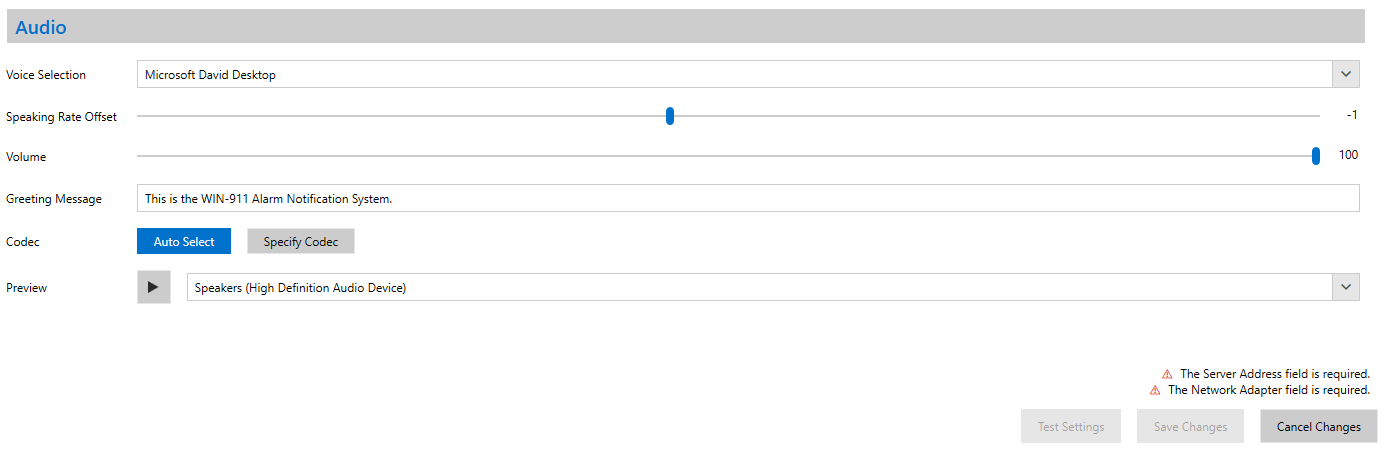
These settings will be pre-set and most can be adjusted as needed.
Voice Selection: Microsoft David Desktop (pre-set). Use the drop down to select the text-to-speech engine WIN-911 will use to generate audio during phone calls. Text-to-speech engines vary depending on the Windows operating system.
Speaking Rate Offset: Allows you to control the speed of the text-to-speech engine.
Volume: Set the volume level of the text-to-speech engine playback.
Greeting Message: Custom greeting that will play at the beginning of all phone calls (pre-set, changeable)
Codec: Auto Select (pre-set, do not change)
Preview: Click the Play icon to hear the Greeting Message in the selected voice.
 |
Click the Save Changes once all required fields have been filled.
Test SIP Settings
Now that the Grandstream and WIN-911 are set up, return to the WIN-911 Voice Gateway created to place a test phone call.
Click on the Test Settings button at the bottom of the Gateway screen.
Enter a phone number to dial. (Be familiar with your phone line from your provider, does it require a prefix to dial out? Do you have long distance enabled? etc...)
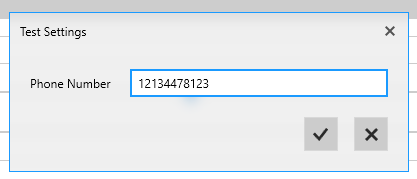
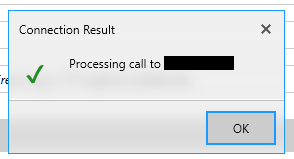
Click the Check Mark button and WIN-911 will attempt to place a call. If the Grandstream accepts the call, a confirmation dialog will appear.