Devices NOT Purchased From WIN-911
Note
If you purchased the Grandstream from WIN-911 then you will have to follow a different set of instructions.
You need to access the Grandstream Web GUI to upload this configuration file, and then follow this guide to complete the following steps:
Reset your Grandstream default password
Set your static IP address
Set Date/Time settings
Configure WIN-911 settings
Connecting the Grandstream
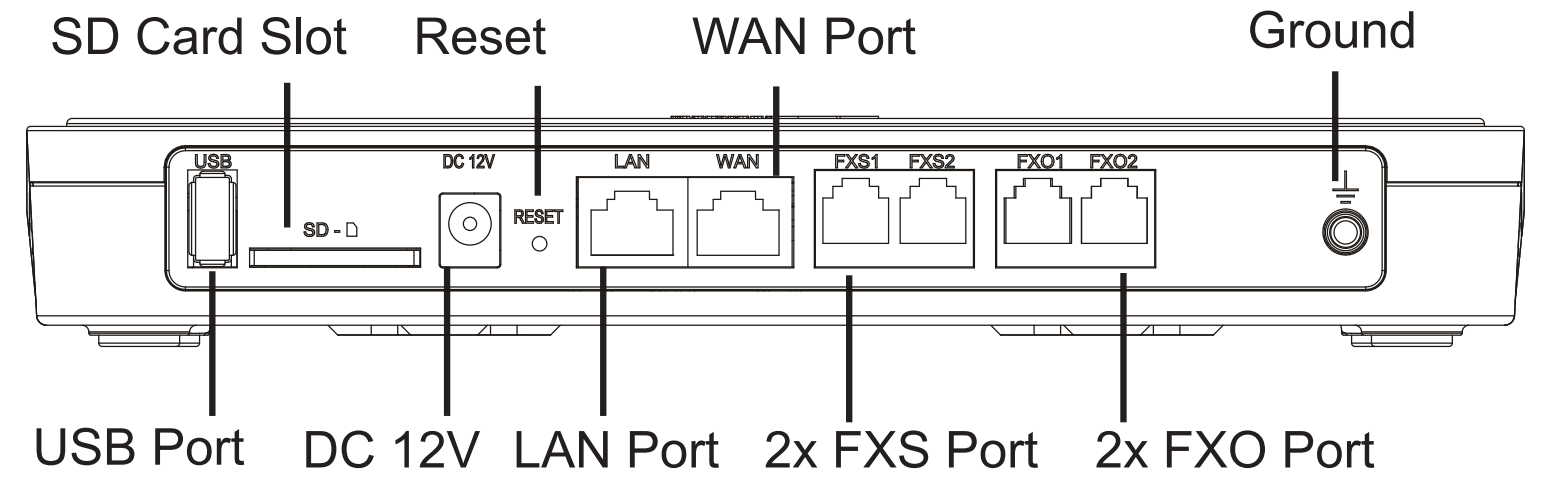
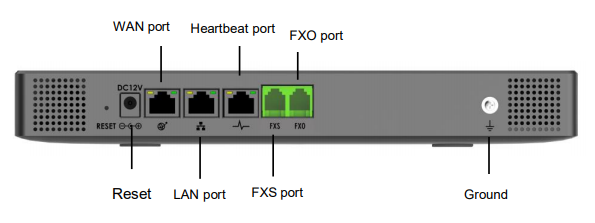
Connect one end of an Ethernet cable into the WAN port of the Grandstream, and the other end into your switch or directly into the WIN-911 machine.
Connect the 12V DC power adapter into the 12V DC power jack on the back of the device. Insert the main plug of the power adapter into an appropriate surge-protected AC power outlet.
Wait for the Grandstream to boot up. The front LCD display will show the device hardware information when the boot process is completed.
Once the Grandstream is successfully connected to your network via the WAN port, the Network LED indicator on the front of the device will be lit green, and an IP address will be shown on the LCD display. Take note of the IP address, you will need it to access the Web GUI.
Connect your phone line from the wall jack to the FXO1 port. Do NOT use the FXS ports.
Accessing Web GUI
The Grandstream is configured via a Web GUI interface after the device has booted, you should have an IP address that can be used to access it.
1. Open a web browser and enter the IP address into the address bar in the following format: https://ipaddress:8089 (The IP address is displayed on the LCD screen of the Grandstream)
Note
Your WIN-911 Machine will need to be on the same network as the Grandstream Modem.
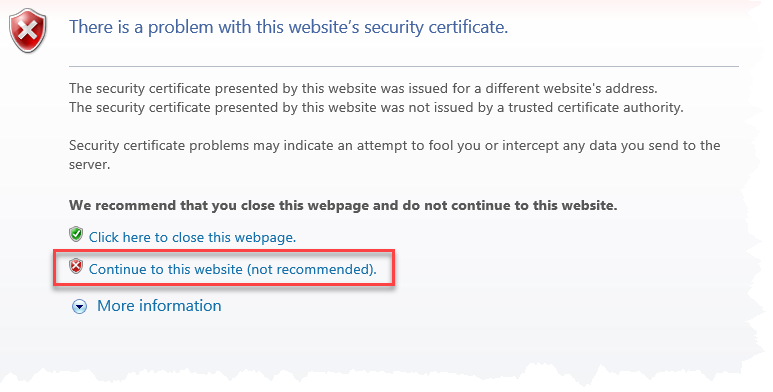
Depending on your browser, you may receive a warning about the security certificate. You can ignore this warning and continue to the website. Here is an example of the warning in IE.
After the portal loads, enter the default credentials.
Username: admin
Password: txsNS6kH!
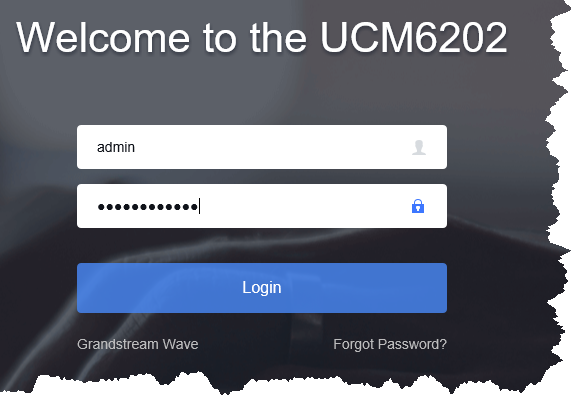
You will now be logged into the Web GUI and you can begin configuring the device.