Configure Remote Access on a SQL Server
Feb 15, 2023 Knowledge
This article explains how to configure remote access on a SQL Server instance to allow connection from WIN-911.
Configuring Remote Access on a SQL Server Instance
To enable remote connection on SQL Server right – click on the server and select the Properties option.s
In the Server Properties dialog under the Connections tab check the Allow remote connections to this server option:

Go to Start -> Programs -> Microsoft SQL Server 20XX -> Configuration Tools and select the SQL Server Configuration Manager:

Under the SQL Server Network Configuration select Protocols for :

Make sure that TCP/IP protocol is enabled and right click on TCP/IP and select the Properties option. In the TCP/IP Properties dialog select the IP Addresses tab and scroll down to IPAII. If the TCP Dynamic Ports dialog box contains 0, which indicates that the Database Engine is listening on dynamic ports, delete the 0 and set the TCP Dynamic Ports to blank and TCP Port to 1433. Port 1433 is the default instance that SQL Server uses:
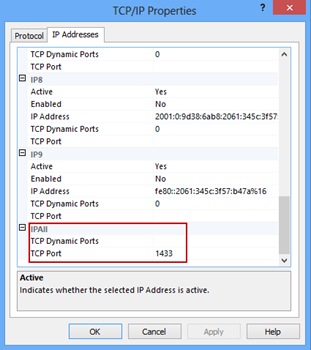
When you click the OK button you will be prompted with a message to restart the service:

In the left pane of SQL Server Configuration Manager click SQL Server Services, right-click SQL Server, and click Restart:

Note
If you are using a firewall, you need to add an exception for the 1433 port to allow TCP/IP traffic on Port 1433. A network firewall will require assistance from your Network Administrator to configure. See steps below to configure an inbound access rule on the SQL Server machine that only uses Windows Firewall.
Configuring Windows Firewall rules for SQL Remote Access
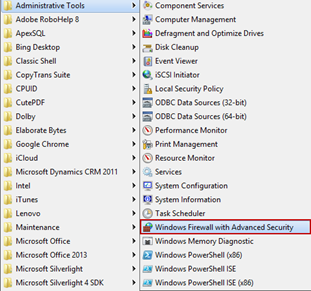
To add a firewall exception for the 1433 port go to Programs -> Administrative Tools select the Windows Firewall with Advanced Security option and follow the steps:
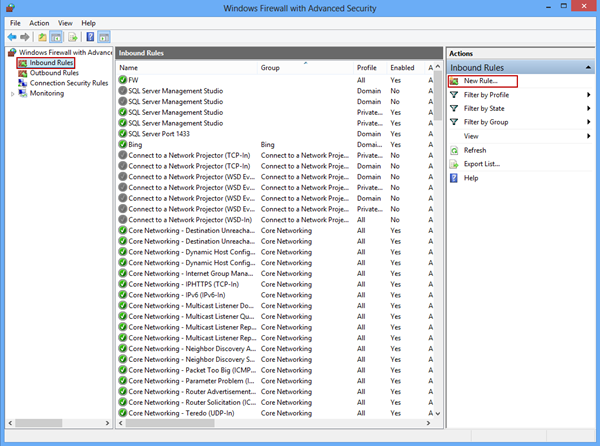
In the Windows Firewall with Advanced Security dialog click on the Inbound Rules option and select the New Rule command:
In the New Inbound Rule wizard select the Port option and click Next:

In the Protocols and Ports window specify the protocols and ports to which a rule applies. Select the TCP option, in the Specific local ports text box enter the 1433 port, and click Next:

In the Action window select the Allow the connection to specify the action to be taken when a connection matches the conditions specified in the rule:

Specify the profiles for which the rule applies in the Profile window, and click Next:

In the last window specify the name of the created rule and click the Finish button:
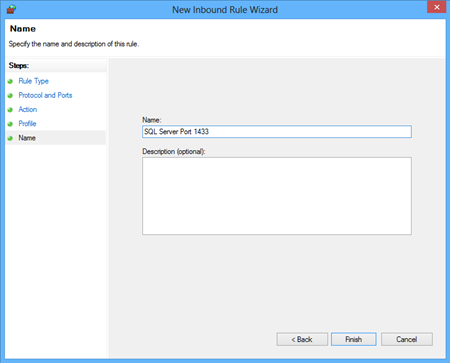
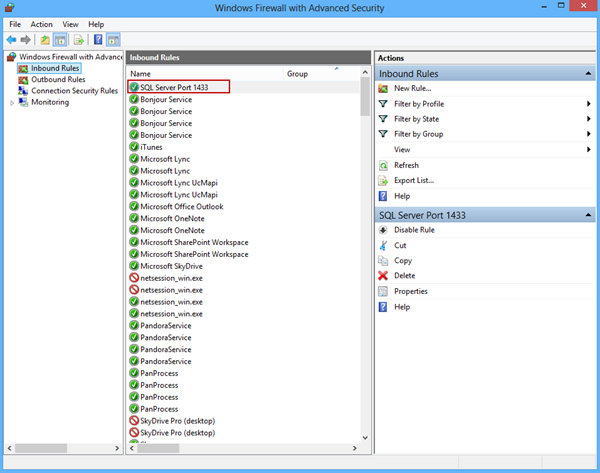
You can now see the created rule in the list of inbound rules:
Configuring Remote Access on a Named Instance of SQL Server
Steps Required for SQL Instances created by WIN-911 installation (instance name WIN911).
The default instance that SQL Server listens is port 1433. For a named SQL Server instance, however, the ports that are used to talk to the SQL Server are by default dynamic.
To set up remote access to a SQL Server's named instance go to Start -> Programs -> Microsoft SQL Server 20XX -> Configuration Tools and select the SQL Server Configuration Manager.
In the TCP/IP Properties dialog select the IP Addresses tab and scroll down to IPAII. Set the TCP Dynamic Ports to blank and TCP Port to 1434, and restart the SQL Server service.
This is because when connecting to a SQL Server named instance the SQL Server Browser claims the UDP port 1434. In the SQL Server Configuration Manager make sure that the SQL Server Browser is set to Automatic and Running:

A firewall rule will be needed for UDP port 1434. See similar steps above to create the Windows Firewall rule or seek assistance from your Network Administrator.

You will now be able to connect to the SQL server from remote machines using SQL Instance credentials.