Setting up the Email Gateway
Feb 11, 2023 Knowledge
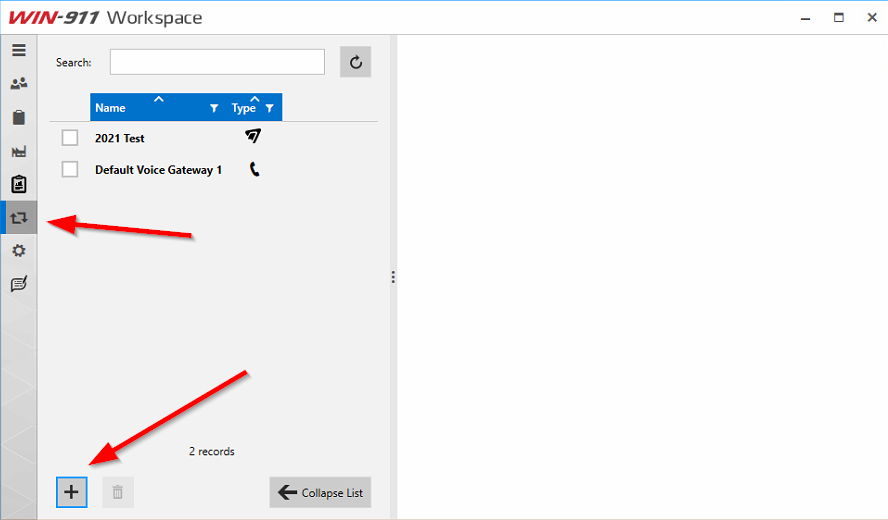
In WIN-911 Workspace, click on Gateways then + to create a new gateway.
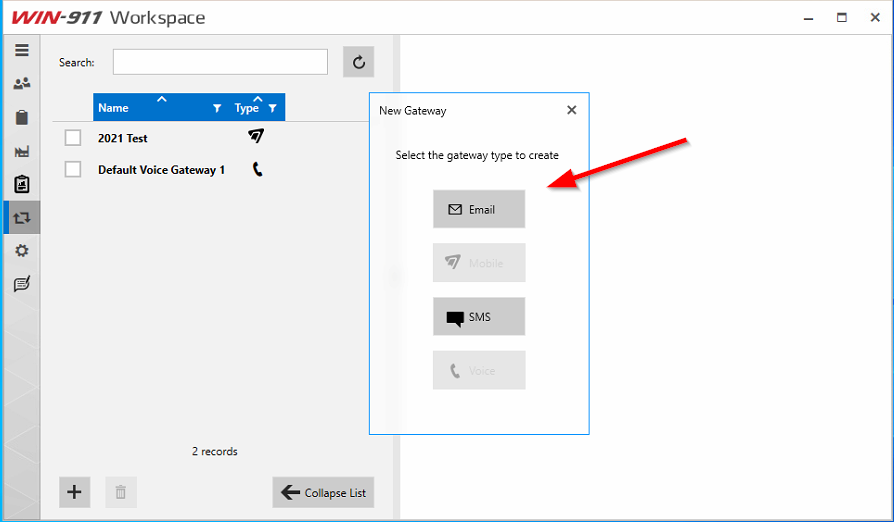
Select the Email option
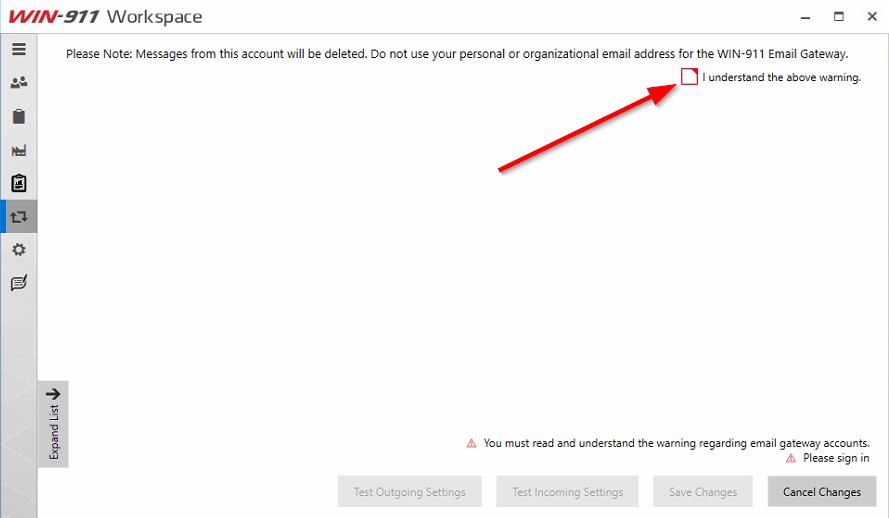
Read the warning and check the box.
Note: WIN-911 strongly recommends to create and use a Service Email account!
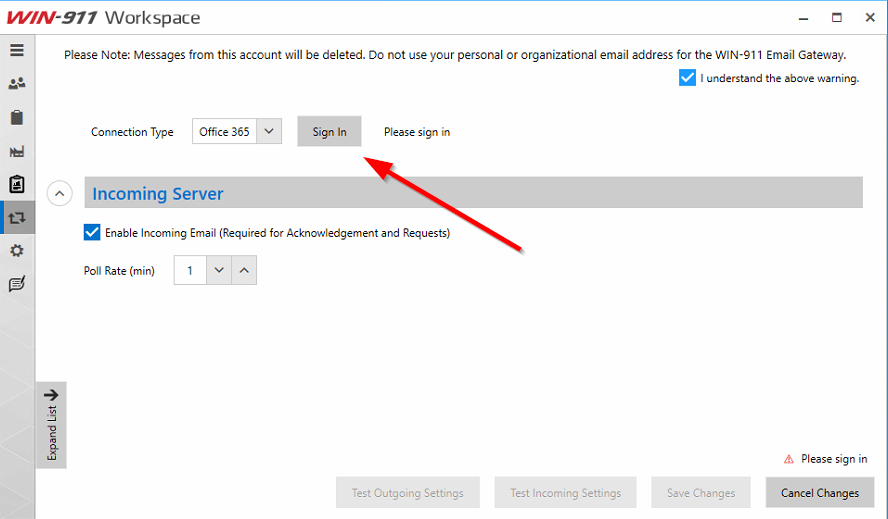
Starting with WIN-911 2021 R5, there is now an Office 365 Email Gateway option for use with Outlook/Office 365 Exchange accounts. This option was introduced in response to Microsoft deprecating exchange basic authentication. If not on R5/R6, skip to the Other section.
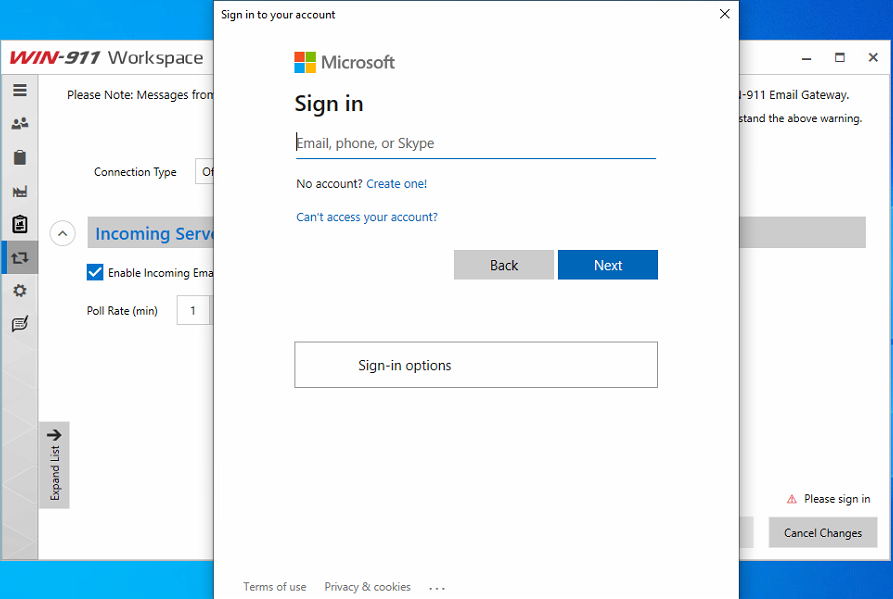
To set up the WIN-911 Email Gateway with Office 365/Outlook, click on the Sign In button.
A Microsoft Sign In window will pop up. Enter in the Office 365/Outlook Email account and sign in as you would at the Microsoft Website login page.
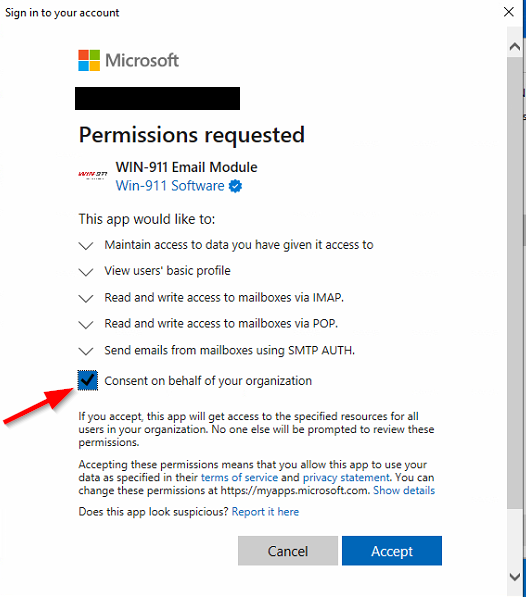
After signing in to the email account you will be presented with a consent window to allow WIN-911 to utilize this account to send and receive email alarm notifications. Check the consent box and accept.
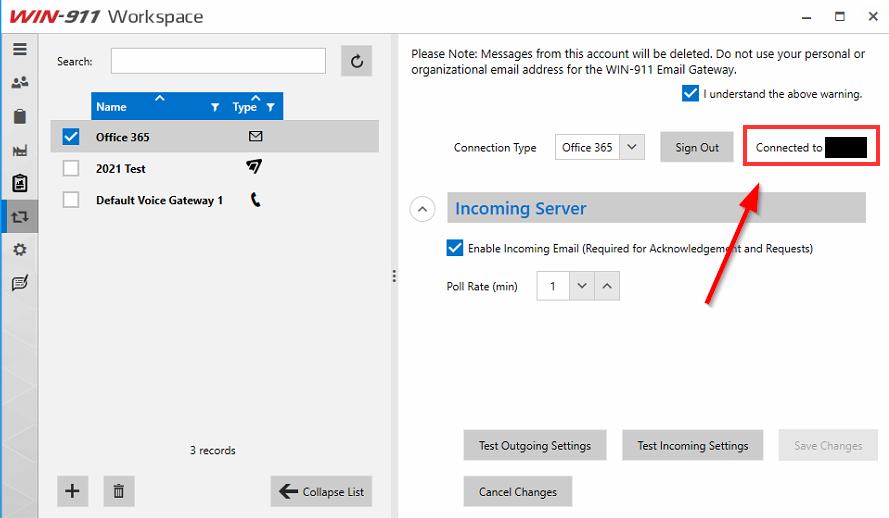
You will now see on the WIN-911 Email Gateway page there is a Sign Out button and text showing what Office 365/Outlook account you are connected to.
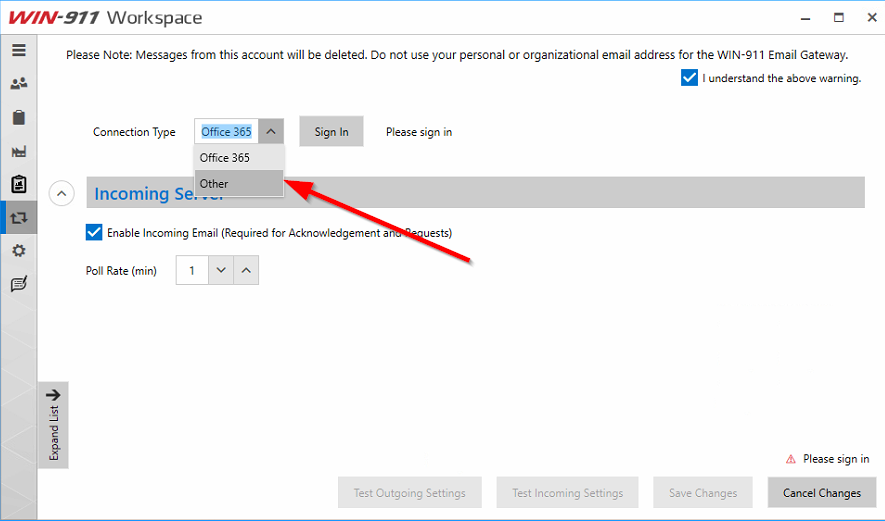
To set up a WIN-911 Email Gateway other than Office 365/Outlook, select the drop down on Connection Type and choose Other.
You can now enter in the Email gateway information. Below is an example using Gmail as the mail server.
Note: See Setup Email using Gmail for more information.
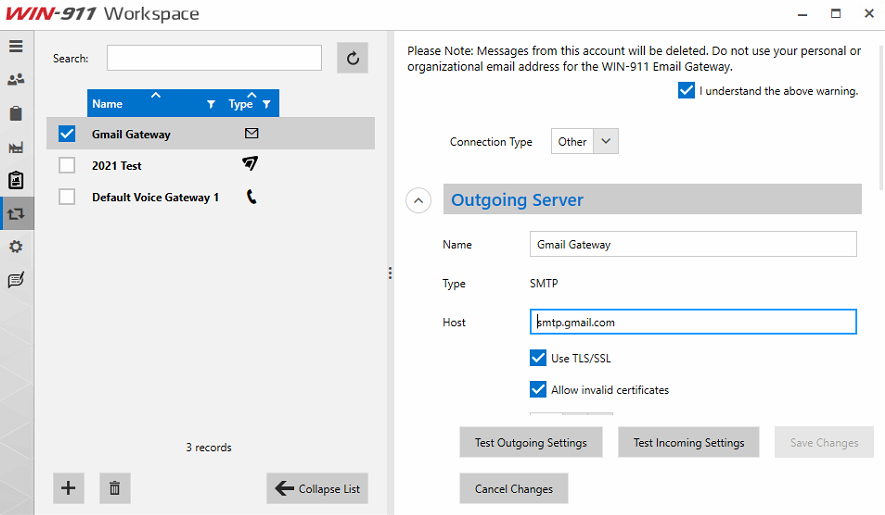
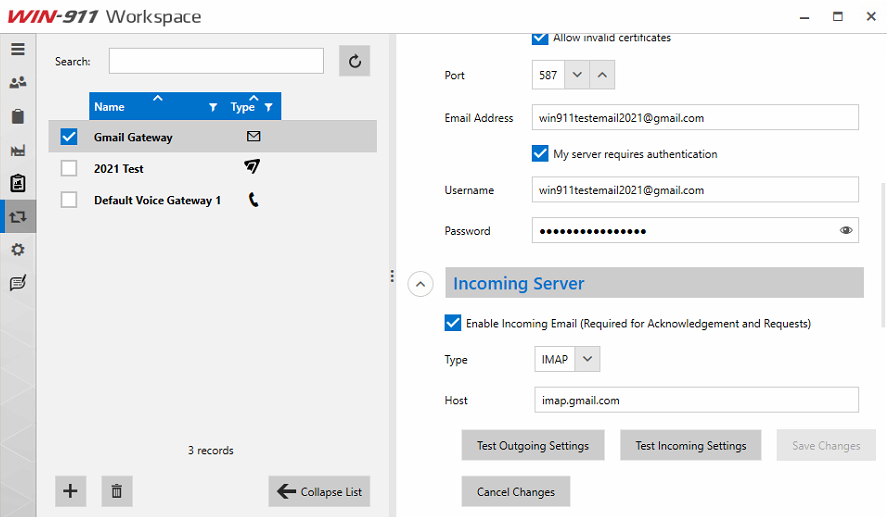
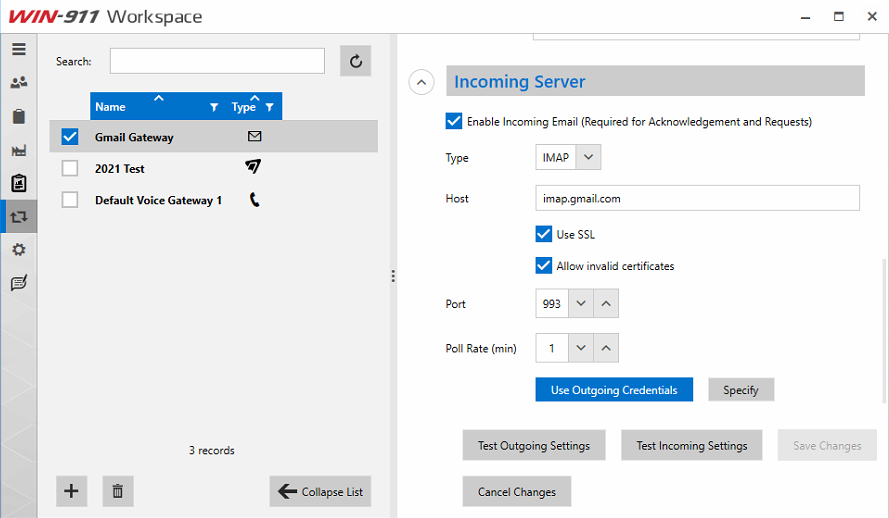
Note: If using an internal mail server then all host, port, server authentication and email addresses will come from your network admin or server admin who is in charge of allowing mail clients to send through the SMTP server.
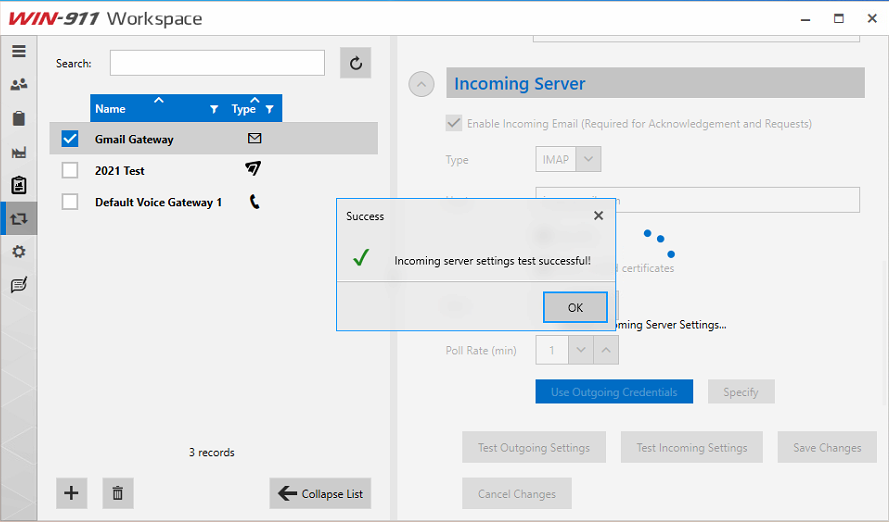
You will now be able to Test Outgoing and Incoming settings. Click on the Outgoing or Incoming Test button to test.
Outgoing:
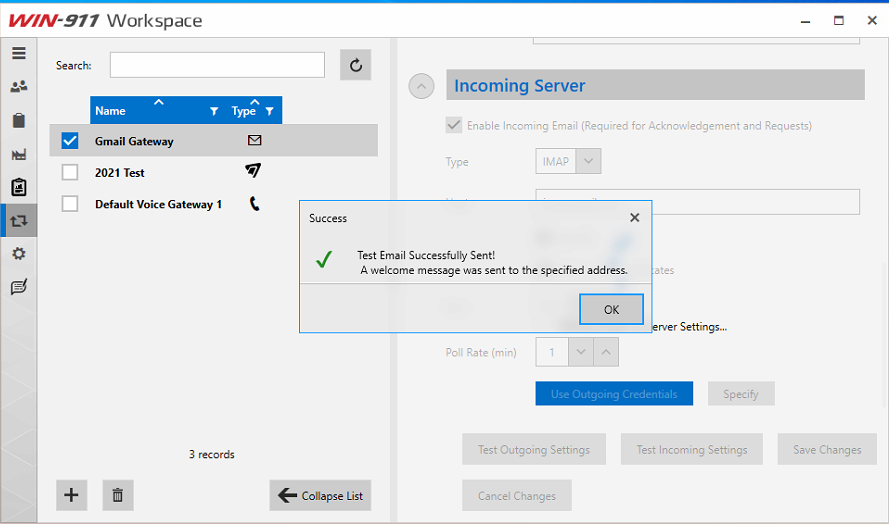
Incoming:
Don't forget to click Save Changes!