Advanced Notification Policies
Feb 11, 2023 Knowledge
Important
This article is a beginner's guide for setting up Advanced Notification Polices, which requires the purchase of an Advanced license. If you do not have an Advanced license, use the normal Notification Policies KB article
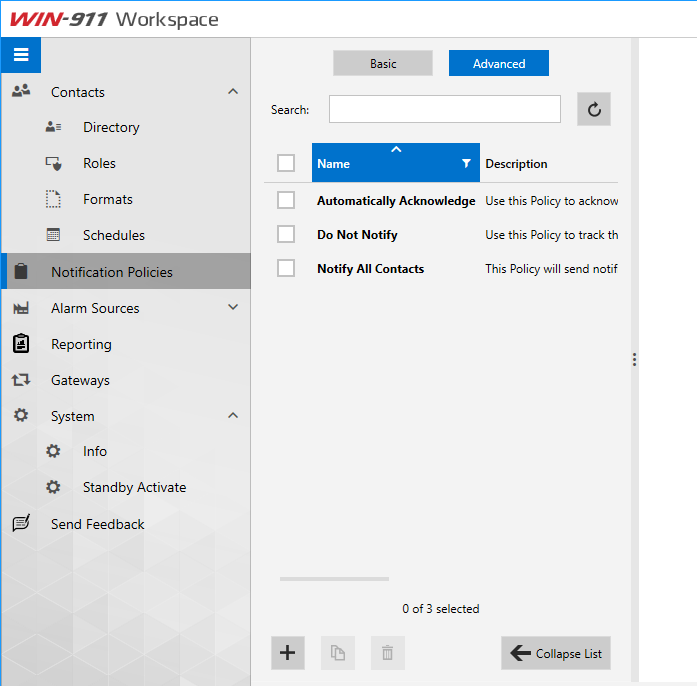
In the WIN-911 2021 Workspace, click Notification Policies > Advanced > the + sign to make a new policy.
The policy consists of a list of rules and actions to take, and always starts with the first action of "When the alarm is first received..." - use the pencil icon to specify which Workflow\Callout to start.
The available options to customize notification behavior and flow can be seen in the screenshots below.
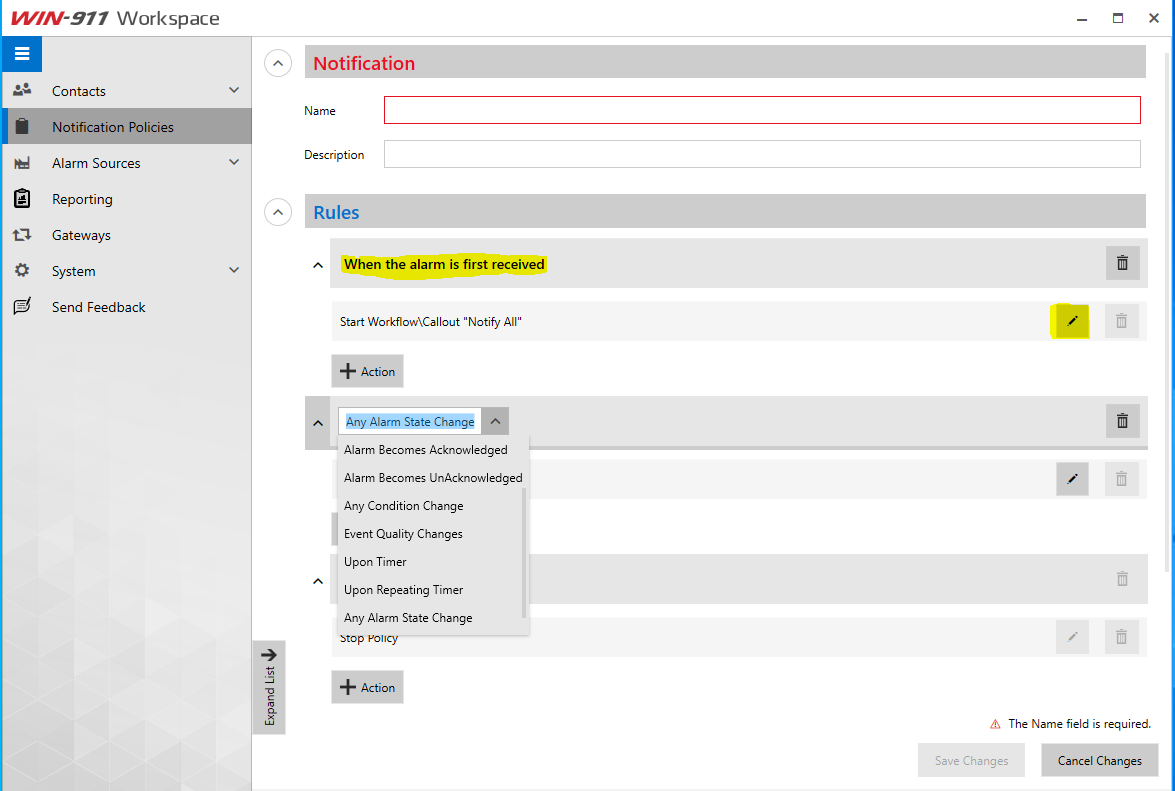
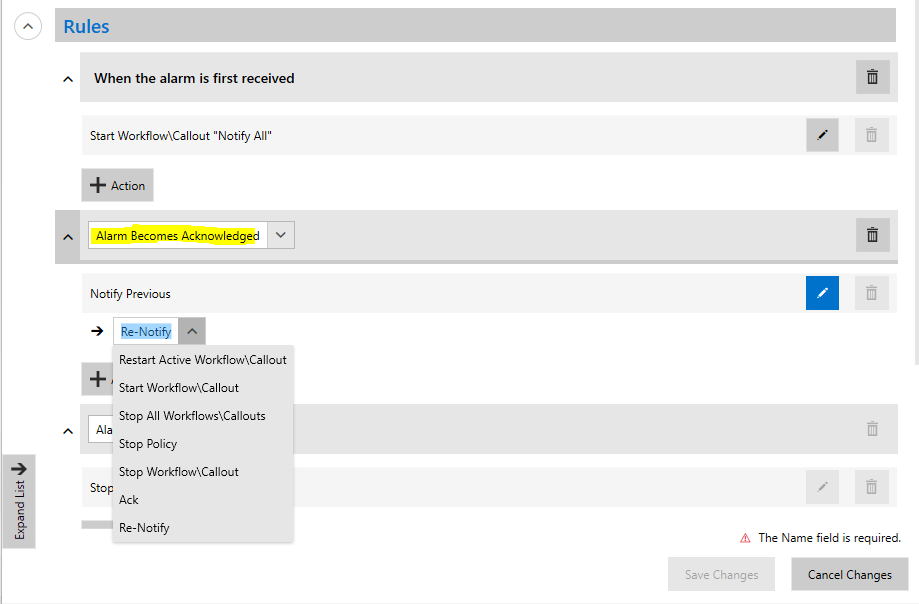
Use the Rule + Action structure to make the policy as simple or complex as needed.
Here is an example of a simple policy that starts a Workflow\Callout and when the alarm is acknowledged, it is set to re-notify previously notified contacts and then stop the policy.
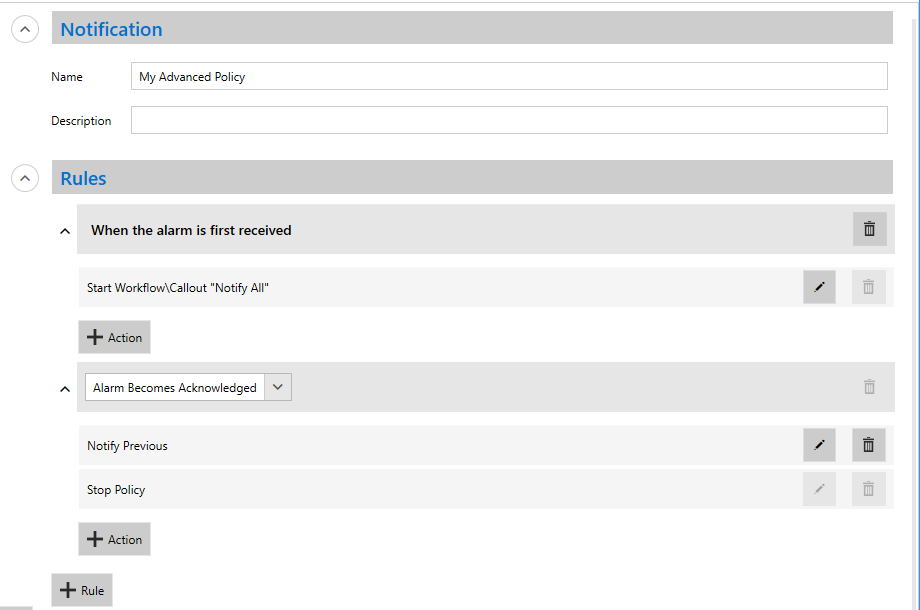
Here is an example of a more complex policy.
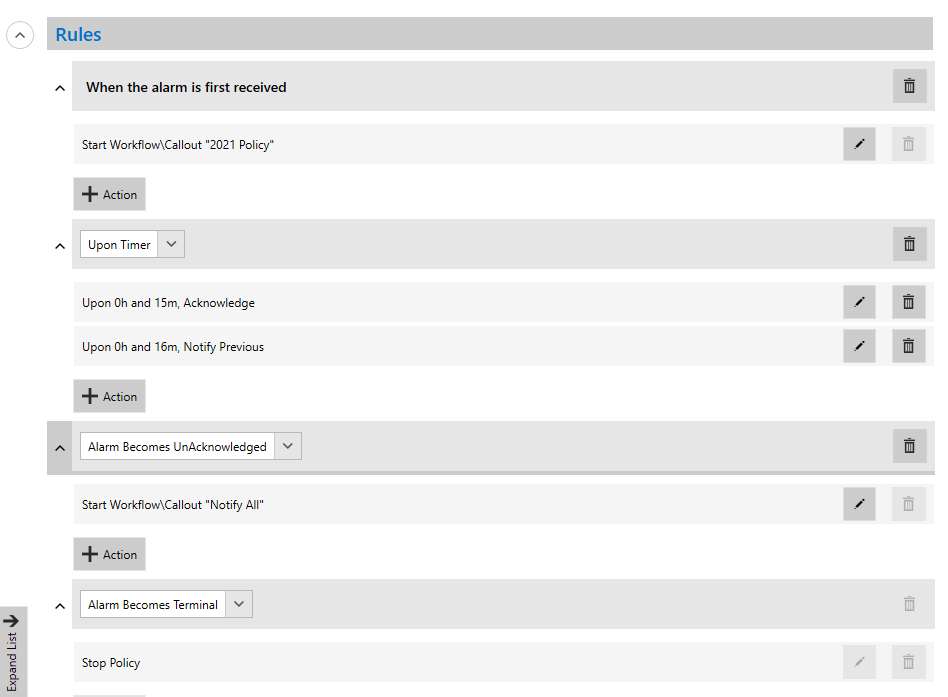
This policy build shows the versatility and ease of customization for more complex notification escalation.
This final example is a commonly used advanced policy flow, showing other Rule + Action options available.
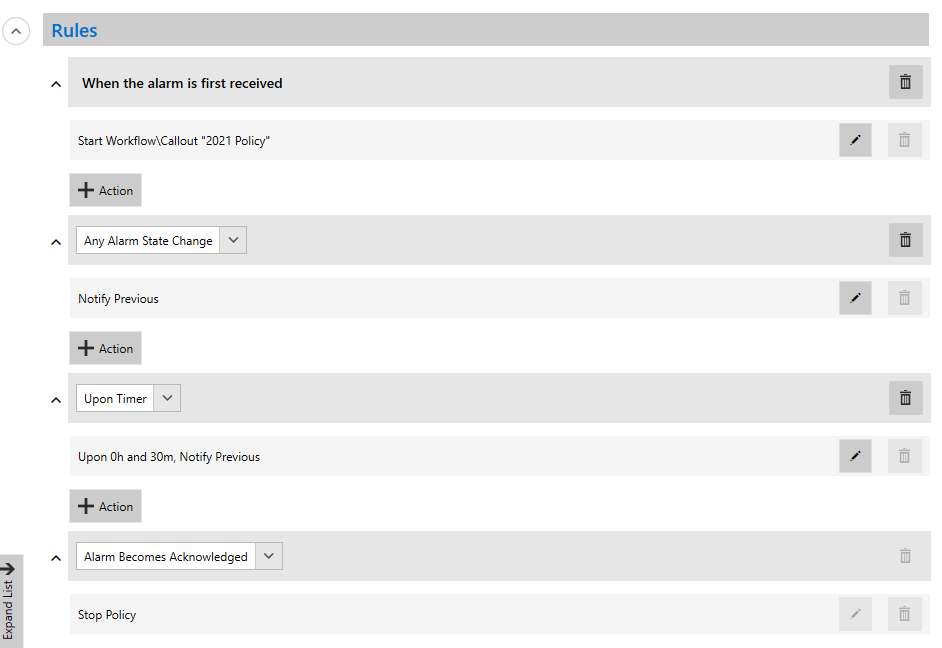
This policy starts a Workflow\Callout, will renotify if any alarm state change occurs, and after 30 minutes, if the alarm is still UnAcknowledged, will renotify everyone about it. Once the alarm is Acknowledged, the policy stops.
Note
Each Notification Policy MUST have a "Stop Policy" step, which is why it is greyed out and not able to be deleted. If you see the "Stop Policy" in your current Action + Rule and want to add more steps in your policy, simply click "+ Rule" and set that last line item to the "Stop Policy" action item and continue customizing the policy