Backing up the WIN-911 Configuration Databases
SQL Server Management Studio will be used to back up the WIN-911 configuration databases. You must log in to the SQL Server host machine as the WIN-911 installer or a user with privileges to the WIN-911 SQL Instance. If WIN-911 installed SQL Server Express, the WIN-911 host system will have the tools required for this process.
Open SQL Server 2014 Management Studio.
After connecting to the appropriate instance of the Microsoft SQL Server Database Engine (‘[COMPUTER NAME]\WIN911’ by default), in Object Explorer, click the server name to expand the server tree.
Expand Databases, and select one of the WIN-911 Module databases. The naming convention for each module’s database is [Computer Name]-V8.Default.[Module Name].
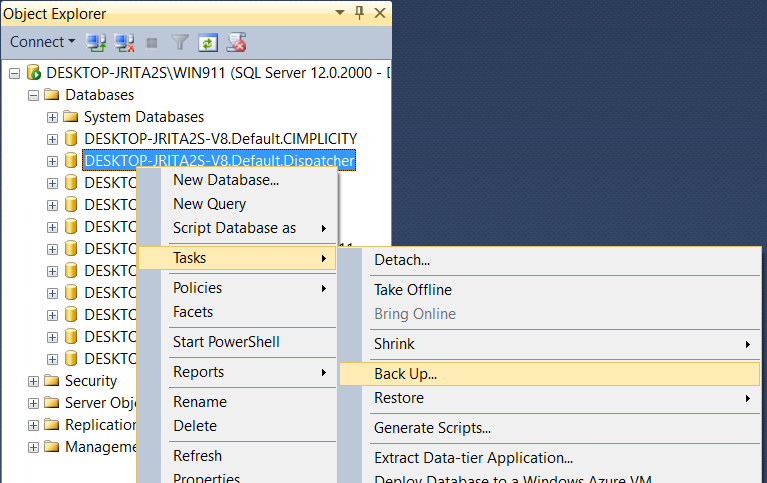
Right-click the database, then Tasks, and then click Back Up. The Back-Up Database dialog box appears.
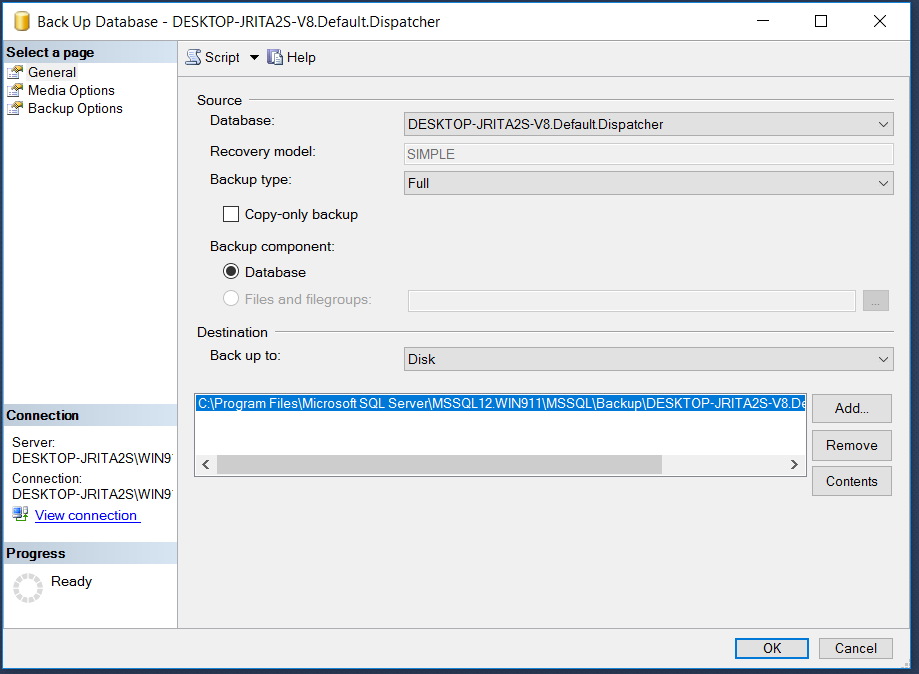
Make a note of the backup file location under the Destination section.
Next, click Media Options in the Select a page pane.
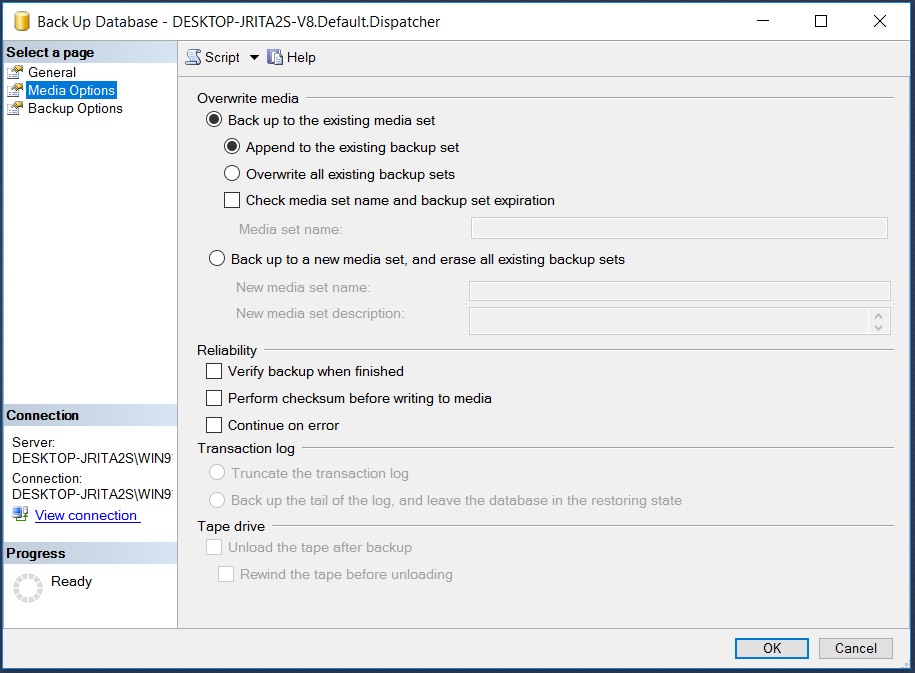
There are two options to choose from under the Back up to existing media set selection:
Append to the existing backup set
This option will preserve any prior backups. This option is useful if you want to keep a series of backups. Using this option will allow you to select a specific backup at a given point of time to restore. Restoring from a particular point in time will be discussed more in the Restoring the WIN-911 Configuration Databases section. Please note that your backup files will continue to grow every time a backup is performed with this option selected.
Overwrite all existing backup set
This option will overwrite any previous backups stored in the destination location. The backup file will only contain the most recent backup. This option is recommended when moving the configuration from one computer to another.
Click OK to run the Backup.
Repeat the steps in the previous section for the rest of the WIN-911 Modules. All modules of the WIN-911 system must be backed up at the same time to ensure system-wide data integrity.
After backing up all of the databases, you can now restart the WIN-911 Runtime Services and Application Pools.
To restart the WIN-911 Runtime Services, open the Windows Services and start each of the WIN-911 Runtime Services. See section – Preparing the Databases for Backup, for a complete list of the WIN-911 Runtime Services.