OPC EXPERT
Installation
Download OPC Expert.zip file from here ->OPC Expert Download
Extract the zip and then run OPC Expert Updater

Keep defaults and click Start Update

Click on Finish

Connecting to Remote OPC Server
Launch OPC Expert
Expand Entire Network. If it is able to browse OPCENUM then it will show the servers here for selection. Otherwise double click to add a computer by IP Address

Once you enter in the IP Address of the Remote OPC Server you can expand it to scan for any available OPC Servers. Make sure to connect to the correct one here. Continue expanding the OPC Server to find and add a tag by double-clicking on it. Below you can see the Status is a yellow exclamation point meaning there is an issue.

In the bottom half of OPC Expert you will find a WARNING message pertaining to this status. Double-click on it to see what is causing it.

Once all issues are resolved, the status should show a green checkmark as shown below.

General DCOM Settings
Open DCOM Configuration by clicking Start -> type Run -> enter in DCOMCNFG

Expand Component Services -> Computers -> Right-Click on My Computer and select Properties

General tab Authentication Level should be DEFAULT.
COM Security tab click on Edit Default... under Access Permissions. Add WIN-911 Account and any other account requiring access here.
Note
Local accounts must exist on both machines and have the exact same password.

Do the same steps to Edit Limits... under Access Permissions.
Give the Allow permission to the accounts added in step 4.

COM Security tab click on Edit Default... under Launch and Activation Permissions. Add WIN-911 Account and any other account requiring access here.
Note
Local accounts must exist on both machines and have the exact same password.

Do the same steps to Edit Limits... under Launch and Activation Permissions.
Give the Allow permission to the accounts added in step 6.

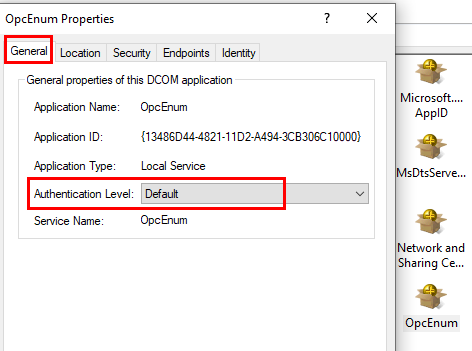
Find the OPCENUM DCOM item by expanding My Computer and selecting DCOM Config. Right-click on OPCENUM and select Properties. Ensure the General tab has Default for Authentication Level, and the Security tab settings are set to Use Default.

Find the OPC DA Server DCOM item. In this example, Kepware is being used and KEPServerEX 6.9 is the OPC DA DCOM item. Right-click and select Properties. Ensure the General tab has Default for Authentication Level, and the Security settings are set to Use Default.

If you made any changes in step 8 or 9, restart the computer.